 NEWS
NEWS
Second iOS 27 and iPadOS 27 Public Betas Now Available
 07/23/2026
 1079
1079
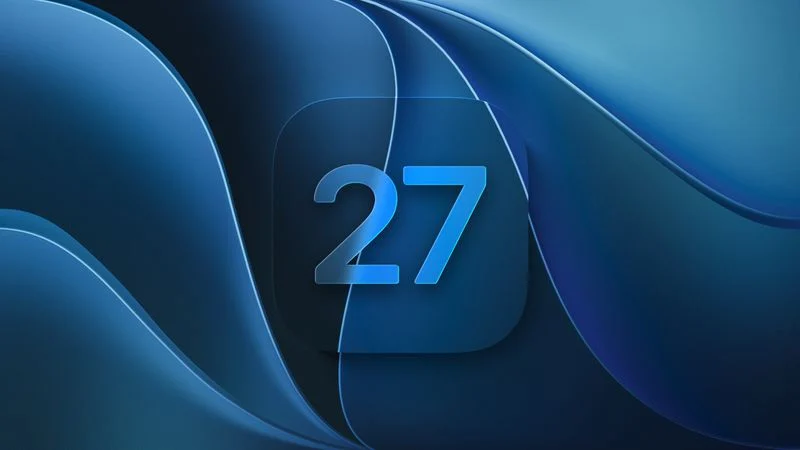
Apple today released the second public betas of iOS 27 and iPadOS 27, allowing anyone with a compatible device to download and test the new software. The second betas come a week after Apple seeded the first betas.
You can get started by signing up on Apple's beta website and then opting in to the public beta by going to Settings > General > Software Update and choosing the iOS 27 or iPadOS 27 Public Beta option.
iOS 27 introduces Siri AI, a more capable version of Siri that can search the web, access your personal information, see what's on your screen, and take actions in and across apps. Siri in iOS 27 is more similar to Claude or ChatGPT than the prior version of Siri, with a dedicated Siri app for back-and-forth conversations. You can use Siri AI if you have a device that supports Apple Intelligence.
Apple updated the Liquid Glass design that debuted last year, adding a slider to adjust the transparency level and refining its look. There are new AI features in many of Apple's apps. Visual Intelligence moved to the Camera app and supports new features like getting the nutritional information for a meal or splitting a bill, and Siri is able to generate text for you or help you refine your writing with Write with Siri.
There are new AI photo editing tools in the Photos app, Safari can organize your tabs automatically, and you can create Shortcuts and Safari extensions using natural language commands. AirPods have custom EQ, the Home app supports 4K video cameras, and there are new child safety controls for parents.
Apple made dozens of improvements to device performance, and everything feels faster, even on older iPhones. Apps launch quicker, AirDrop transfers are faster, the keyboard loads quicker, and more.
Additional information on the new features in iOS 27 can be found in our dedicated iOS 27 roundup, with info on iPadOS 27 available in our separate iPadOS 27 roundup.
Source: Macrumors