NEWS

iOS 27 Lets You Dismiss the 'Now Playing' Lock Screen Widget

06/10/2026

77

iOS 27 Lets You Dismiss the 'Now Playing' Lock Screen Widget


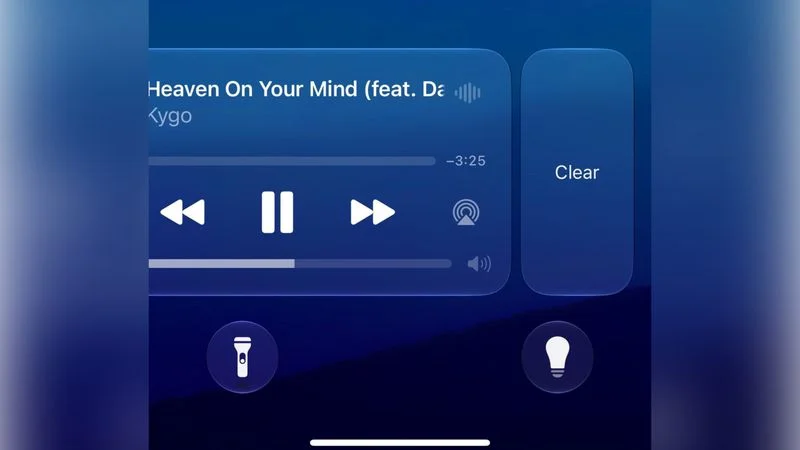
Apple in iOS 27 has made a small but significant change to how the Now Playing widget works on your iPhone's Lock Screen – you can now swipe it away to get rid of it.


Previously, there was no way to dismiss the Now Playing interface on the Lock Screen. But in the first iOS 27 developer build released yesterday, a leftward swipe on the playback controls slides in a Clear button from the right.


Clearing the controls from the screen also removes the smaller Now Playing widget from the Dynamic Island.


It's not quite clear yet how to bring the widgets back immediately – as 9to5Mac notes, the only workaround appears to be pausing whatever's playing, waiting a few minutes, and then resuming it. It also seems to depend on which app you're using for playback. For example, switching from a podcast to video playback re-invokes the Lock Screen widget.


  ●New in iOS 27: You can now swipe away the now playing controls on the lock screen. Unclear how to get it back at the moment pic.twitter.com/NuEbyiHgok — Aaron (@aaronp613) June 8, 2026


Being able to make the Now Playing widget go away is admittedly a small tweak, but it will be welcomed by anyone who likes to dismiss whatever is taking up space on their Lock Screen, playback controls included. Apple will make iOS 27 available in public beta next month, with a general release expected in the fall.


Source: Macrumors

Windows
Mac OS
iOS
Linux
3uTools
Win 64-bit For this device
V9.06 2026-04-09
Download
Win 32-bit For this device
V9.06 2026-04-09
Download
3uTools
Intel Chip How to Identify Chip Type
V9.03 2026-03-27
Download
Apple Silicon
V9.03 2026-03-27
Download
How to Identify Chip Type
1.  Click the Apple icon in the top-left corner of the screen and select About This Mac.
2.  Check the Processor or Chip field to determine if it is "Intel" or "Apple".
Please use the 3uTools PC client to install the iOS client:
1、 Install either the Windows or Mac version of 3uTools on your computer
2、 Open the PC client and connect your device to the computer via USB cable
3、 After the connection is successful, wait for the computer to automatically install the mobile app for the device, or locate “Install Mobile App” on the computer and manually click to install.
3uTools
deb file
V9.01 2026-05-28
Download
rpm file
V9.01 2026-05-28
Download
Windows
Windows
iOS
iOS
Android
Android
TV
TV
3uAirPlayer
Win 64-bit For this device
V6.0.5 2026-04-23
Download
Win 32-bit For this device
V6.0.5 2026-04-23
Download
iOS Device Mirroring (No App Required)
1、 Install 3uAirPlayer on the Windows PC
2、 Open Control Center and select Screen Mirroring
3、 From the list, choose your PC to start mirroring
4、 Or connect your iOS device to the PC via USB to begin mirroring
Scan to get "3uAirPlayer" App
3uAirPlayer TV V1.0.18
2025-11-28
TV System Requirements: Android 7.0 or later
Download the TV installation package, copy it to a USB drive, insert it into your TV or set-top box, then select the file from the home screen to install.