 NEWS
NEWS
How to Find a Lost iPhone, iPad or Mac – Even If It’s Offline
 09/02/2019
 4345
4345
9to5Mac is brought to you by JustAnswer: Connect 1-on-1 with an Apple support Expert to get step-by-step assistance via phone or online chat, 24/7. Try it now.
Apple has long provided a way to track a lost device with Find My iPhone. With iOS 13 and macOS Catalina, however, Apple’s Find My iPhone platform is being rebranded to “Find My.” Here’s everything you need to know.
The new Find My application is available in iOS 13 and macOS Catalina and integrates the “Find My Friends” app. This means you can not only track all of your devices, but also any friends with whom who share location.
One of the marquee features of the Find My app is support for locating devices even when they are offline. This means if you lose your Apple device, you’ll still be able to locate it even if it’s offline.
Here’s how Apple describes offline location support in the new Find My app:
Locate a missing device even if it’s not connected to Wi‑Fi or cellular using crowd‑sourced location. When you mark your device as missing and another Apple user’s device is nearby, it can detect your device’s Bluetooth signal and report its location to you. It’s completely anonymous and encrypted end‑to‑end, so everyone’s privacy is protected.
As part of the privacy framework of Find My, however, there is one contingency. In order to unlock the location of a lost device, you must own another Apple device. This is because the second Apple product is the one that holds the key to decrypt the location of an offline device.
Each of your Apple devices emits a constantly changing key that nearby Apple devices pick up. Essentially, each device is turned into a beacon, and the devices all bounce off each other. Nearby Apple devices upload your device’s location – fully encrypted –allowing you to track it, even when it’s offline.
A report from Wired earlier this year broke down how Find My will work in the real-world, while still preserving privacy:
When you want to find your stolen laptop, you turn to your second Apple device—let’s say an iPad—which contains both the same private key as the laptop and has generated the same series of rotating public keys. When you tap a button to find your laptop, the iPad uploads the same hash of the public key to Apple as an identifier, so that Apple can search through its millions upon millions of stored encrypted locations, and find the matching hash.
How to locate a device with Find My in iOS 13 and macOS Catalina
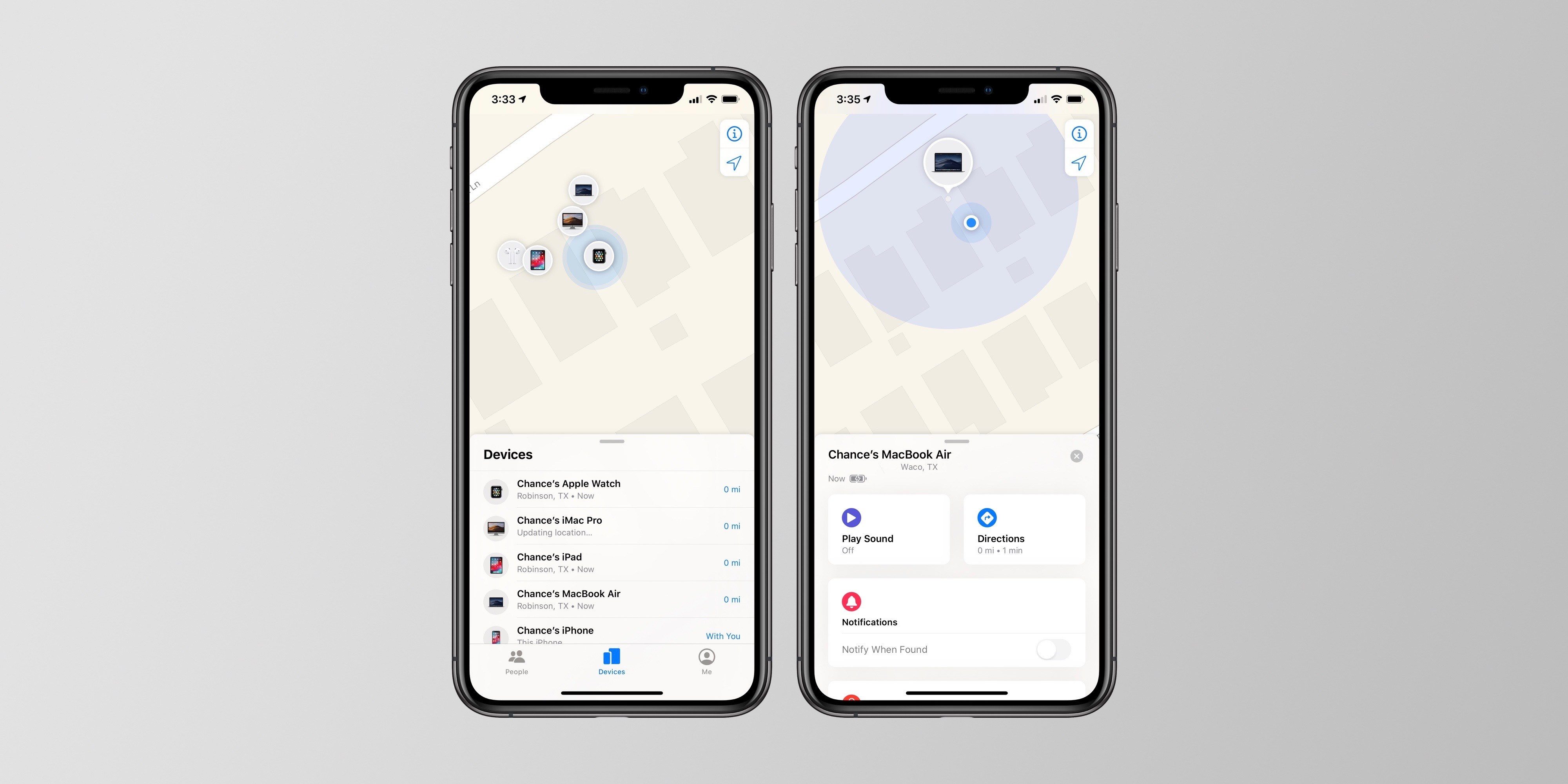
1. Open the “Find My” app on an Apple device
2. Tap the “Devices” tab at the bottom
3. Look for your device on the list and map
4. Tap it and you can play a sound, mark it as lost, and erase
In the screenshot above, the MacBook Air being located is offline, but still appears as normal due to the new capabilities in iOS 13 and macOS Catalina. As such, most people probably won’t even notice what’s going behind the scenes in the Find My app – but they’ll surely be grateful for it.
What Apple has done with this new Find My app – specifically the ability to track offline devices – is nothing short of remarkable. It’s even more notable that Apple was able to do it in a way that completely protects the user’s privacy.
Ideally, offline support for Find My will further increase the situations in which you’re able to locate a lost device.
Source: 9to5mac










