NEWS

A Lost Apple Watch Survives Six Months at Sea

04/25/2019

3265

A Lost Apple Watch Survives Six Months at Sea


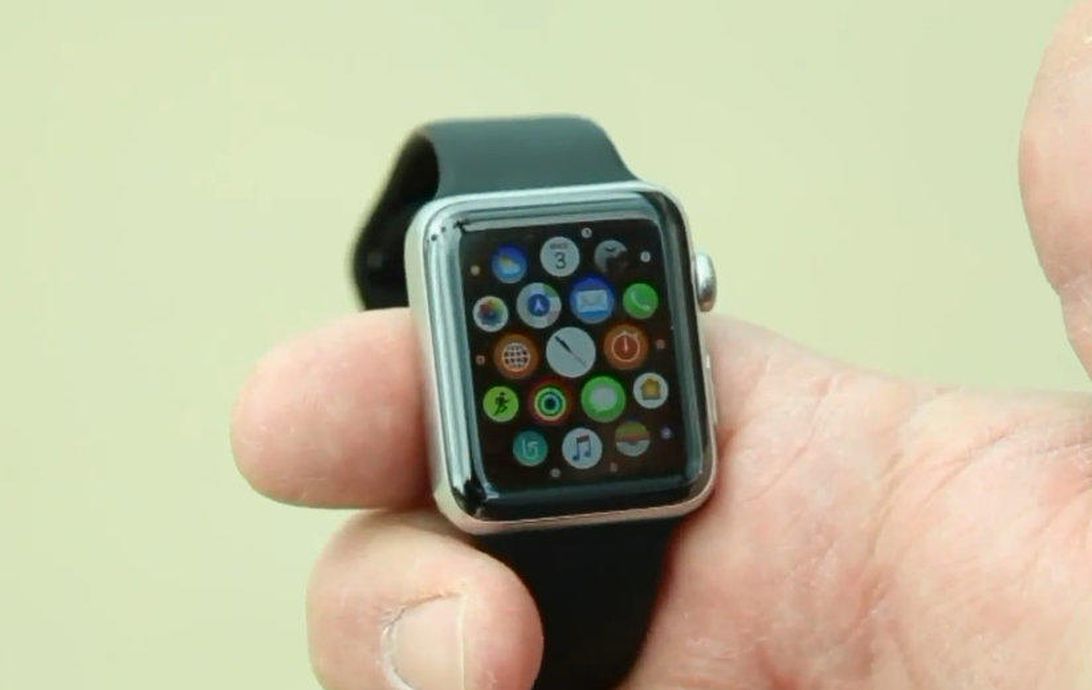
Tech journalists love to purposefully torture-test gadgets to see what they can handle. But Robert Bainter, an avid body surfer in Huntington Beach, California, accidentally performed an epic torture test on his Apple Watch.


Bainter talked to tech reporter Rich DeMuro with KTLA 5 in Hollywood and shared the serendipitous story of how his Apple Watch survived a months-long ocean adventure.


Bainter used his smartwatch to monitor the surf and to track his body-surfing activities. Six months ago, he caught a gnarly wave, went to check his wrist and discovered his Apple Watch had slipped away into the water.


Bainter turned on Lost Mode for his watch but eventually gave up on ever finding it again and bought a new one to replace it.


A beachcomber discovered the old watch three miles from where it was originally lost and called up Bainter to reunite him with the intrepid gadget. The screen has a bit of haze on it, but the watch works just fine.


While Apple's original versions of the watch had only very basic water resistance, more recent incarnations are designed to hold up to swimming and water exposure at up to 50 meters (164 feet) of depth. Apple says it watches aren't waterproof.


It's unknown how much time the watch spent in the water versus on the beach, but Bainter's experience is a dramatic tale of technology toughness. Now we're just wondering if he can hold the watch up to his ear and hear the ocean.


Source: CNet

Windows
Mac OS
iOS
Linux
3uTools
Win 64-bit For this device
V9.01 2025-12-27
Download
Win 32-bit For this device
V9.01 2025-12-27
Download
3uTools
Intel Chip How to Identify Chip Type
V9.01 2025-12-31
Download
Apple Silicon
V9.01 2025-12-31
Download
How to Identify Chip Type
1.  Click the Apple icon in the top-left corner of the screen and select About This Mac.
2.  Check the Processor or Chip field to determine if it is "Intel" or "Apple".
Please use the 3uTools PC client to install the iOS client:
1、 Install either the Windows or Mac version of 3uTools on your computer
2、 Open the PC client and connect your device to the computer via USB cable
3、 After the connection is successful, wait for the computer to automatically install the mobile app for the device, or locate “Install Mobile App” on the computer and manually click to install.
3uTools
deb file
V3.01 2025-11-20
Download
rpm file
V3.01 2025-11-20
Download
Windows
Windows
iOS
iOS
Android
Android
TV
TV
3uAirPlayer
Win 64-bit For this device
V6.0.2 2025-11-19
Download
Win 32-bit For this device
V6.0.2 2025-11-19
Download
iOS Device Mirroring (No App Required)
1、 Install 3uAirPlayer on the Windows PC
2、 Open Control Center and select Screen Mirroring
3、 From the list, choose your PC to start mirroring
4、 Or connect your iOS device to the PC via USB to begin mirroring
Scan to get "3uAirPlayer" App
3uAirPlayer TV V1.0.18
2025-11-28
TV System Requirements: Android 7.0 or later
Download the TV installation package, copy it to a USB drive, insert it into your TV or set-top box, then select the file from the home screen to install.