 NEWS
NEWS
Apple’s Campus 2 Starts Looking Less Like A Construction Site as it Prepares for Grand Opening
 01/12/2017
 4148
4148
The latest drone flyover of Apple’s under construction Campus 2 headquarters in Cupertino arrives today showing recent progress at the site expected to officially open its doors early this year. The footage comes courtesy of drone pilot and YouTuber Matthew Roberts.
In the video, we can see that Apple has done a lot of cleaning up in recent weeks as it continues with landscaping and earthwork on the surrounding site. Apple expects to wrap up the landscaping work sometime in Q2 this year, according to its latest general project schedule, but it could begin moving in as early as later this month.
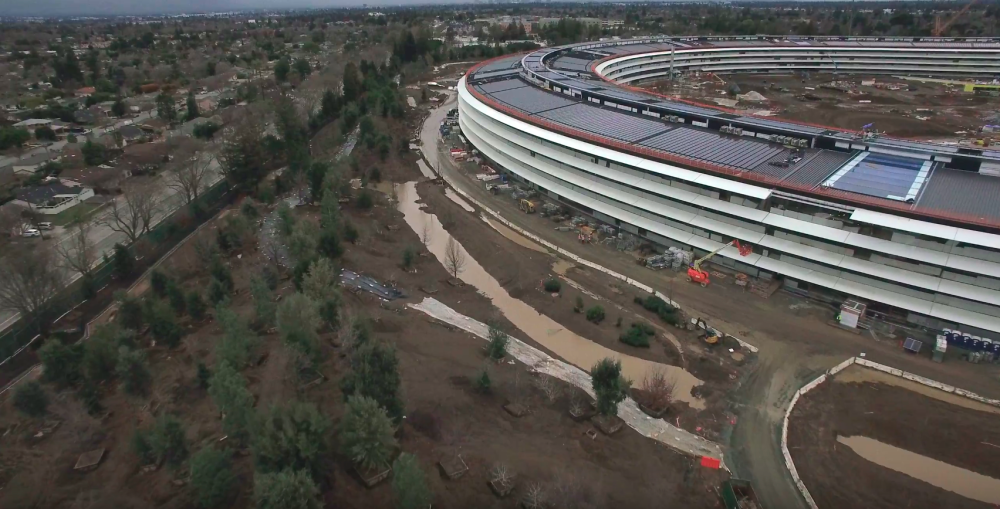
Lots of construction equipment and cranes have been moved off-site or away from the main building, roads and paths are being cleared, and more greenery is going in, all signs that Apple is aggressively working towards its planned early 2017 move in date that could some as soon as later this month.
We can also see a lot of progress made on the installation of solar panels on the roof of the main structure as Apple also puts finishing touches on surrounding buildings on and across from the main campus.
Here’s a look at the main entrance of the circular ‘spaceship’ building:
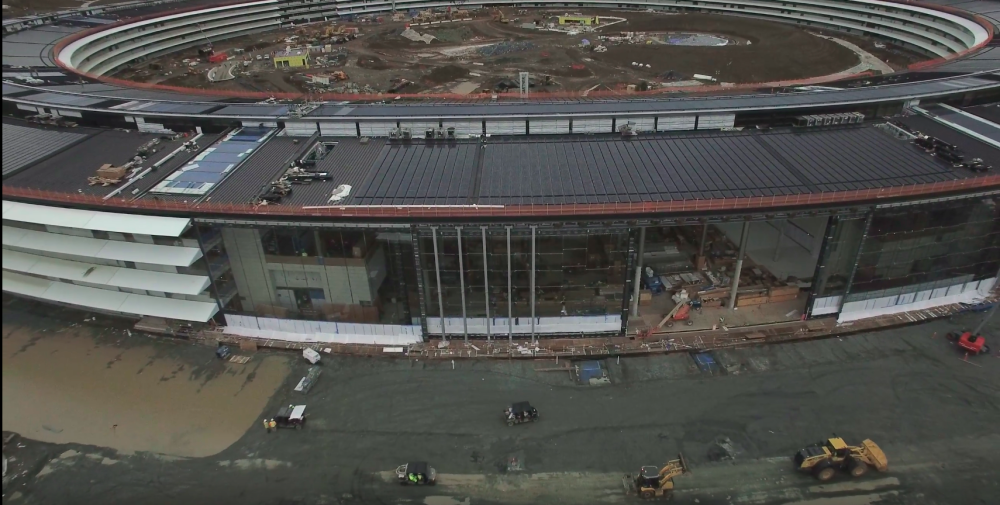
Today’s drone flyover (full video below) follows videos from over the holidays when construction shut down briefly allowing for some particularly close-up shots of the site. Back in December, Apple shared some of its first images of the building’s interior with employees, highlighting the enormous engineering feat of the rapidly progressing project. Apple also recently began hiring permanent staff for Campus 2 that will be necessary to facilitate a move in.
While Apple has yet to officially confirm a move in date for the over 13,000 employees it plans to house at the new campus, Tim Cook told employees last year the company was targeting the end of January 2017. You can catch up with all of the latest drone flyovers, news, and history of the project with our ongoing construction progress timeline.
As noted in our look at what’s next for Apple in 2017, Campus 2, with a new 1000-seat underground auditorium located on the site, is expected to play host to future Apple product unveilings and press events. The first could be as soon as March or April according to the latest intel on upcoming iPad refreshes being planned.
Source: 9TO5Mac










