 NEWS
NEWS
Charging the Apple Pencil Using the iPad Pro Will Lead to Your Car not Unlocking
 04/18/2019
 2976
2976
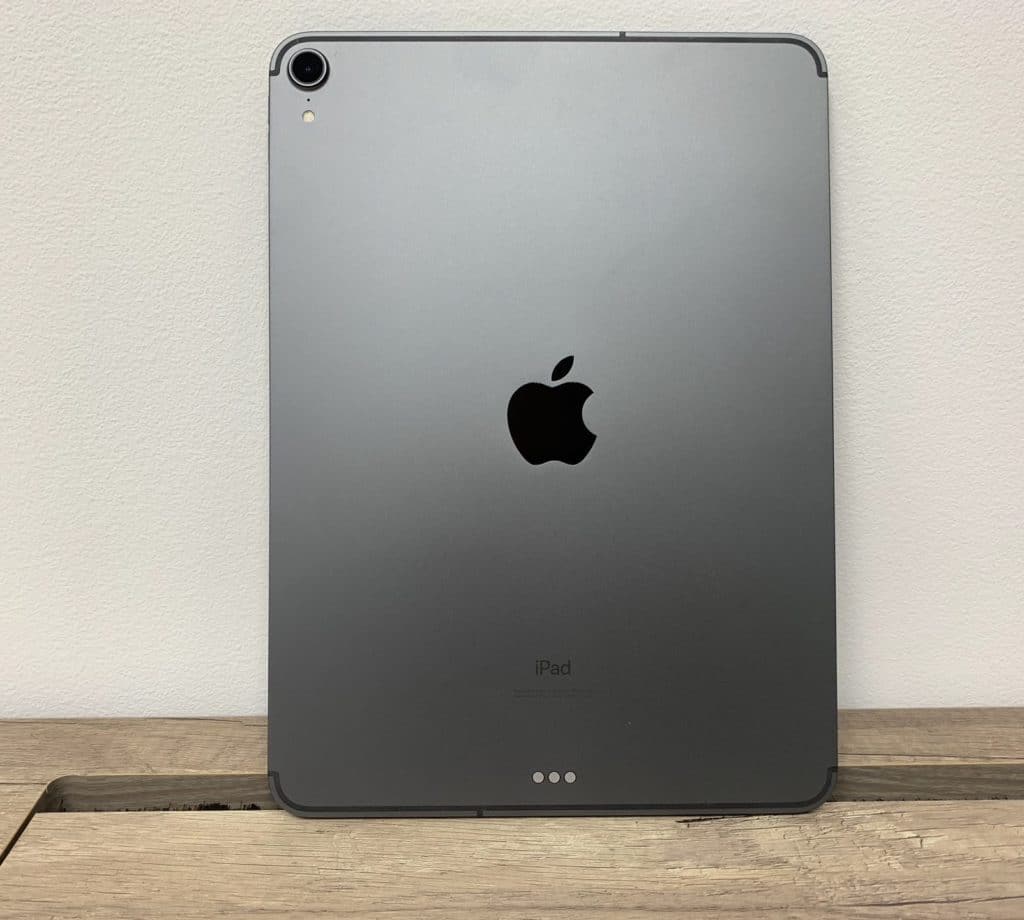
Apple recently updated its Apple Pencil support document to include a note for a bizarre interference that can be caused by a key fob to your new iPad Pro and 2nd gen Apple Pencil.
The updated support document says that a key fob can cause interference when one is charging their 2nd gen Apple Pencil using their iPad Pro. Due to this interference, one might be unable to use the key fob to unlock their car. The issue will only occur if the Apple Pencil is being actively charged by the iPad Pro. If the pencil is just magnetically attached to iPad Pro and not charging, there won’t be any interference issues.
"If you’re charging your Apple Pencil (2nd generation) with your iPad Pro and your car’s keyless entry device (key fob) is nearby, signal interference might prevent you from unlocking your car with your key fob. If this happens, you can simply move your iPad Pro away from the key fob or remove your Apple Pencil from your iPad Pro and store it separately. When Apple Pencil is finished charging, any resulting signal interference will cease."
While this might seem an odd scenario, it is actually going to be more common than you think. Many iPad Pro owners might just carry the tablet in their hand with the Apple Pencil being charged while on their way to college/office and they might fail to unlock their car using the key fob due to the interference caused.
Apple’s recommendation is to simply move the Apple Pencil away from the iPad Pro and keep it separately. This will stop any interference issues being caused.
Source: iphonehacks










