 NEWS
NEWS
Apple Sent iPhone Owners Unwanted Push Notifications to Promote Carpool Karaoke
 12/19/2018
 2933
2933
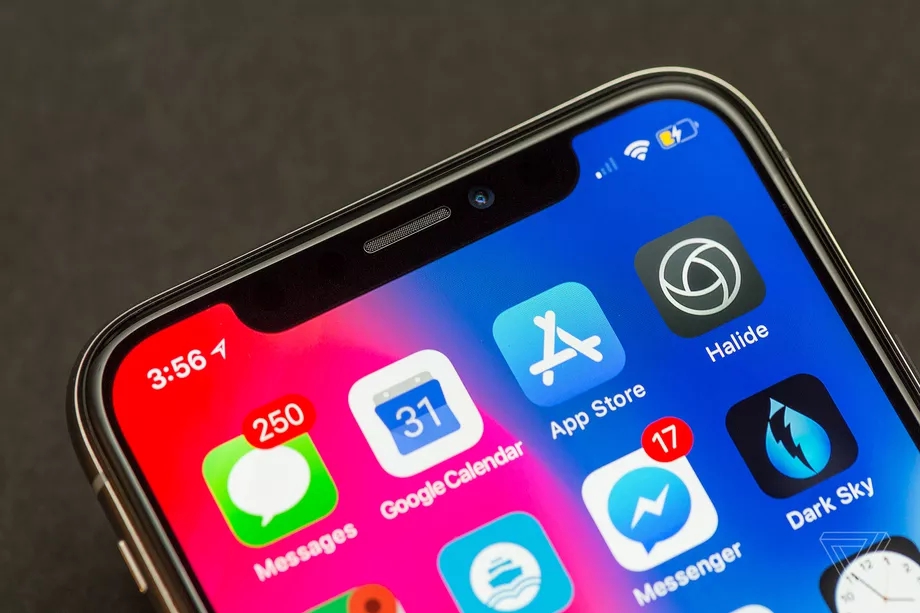
Apple is starting to send unwanted push notifications to iPhone users, including ones designed to promote its own Carpool Karaoke show — even though Apple’s TV app never expressly asks for permission to send promotional notifications, and even though Apple’s App Store guidelines forbid developers from sending unsolicited promos.
We’re not sure how many iPhone users received the notifications, but it looks like Apple has tried plugging its show at least twice in recent weeks: once on December 7th for an episode where Kendall Jenner and Hailey Baldwin grill each other using a lie detector test, and once on December 14 for an episode featuring joint singalongs with comedian Jason Sudeikis and the Muppets.
Some people aren’t happy:
Hey @Apple if I ever get a notification like this again I’m switching to Samsung pic.twitter.com/mpGKYXiSka
— Lex (@Just_John10) December 8, 2018
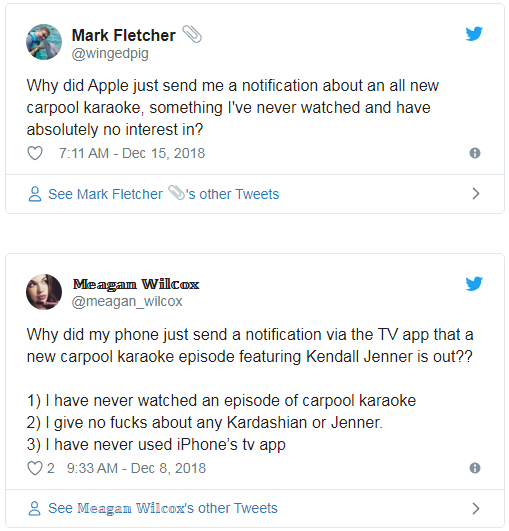
With regard to the developer rules, Apple would appear to be violating the section of its App Store Guidelines — Section 4.5.3 —that expressly informs developers not to “spam, phish, or send unsolicited messages to customers.” Apple did not respond to multiple requests for comment.
Of course, this is just a notification setting issue that can be resolved rather quickly. You can either turn off all TV app notifications by swiping on the notification itself and tapping “manage,” or you can dig into your notification settings through the general settings app and tailor them further from there.
Source: the verge










