 NEWS
NEWS
Apple is Working on an iPhone that Works Better in the Rain
 10/26/2018
 3199
3199
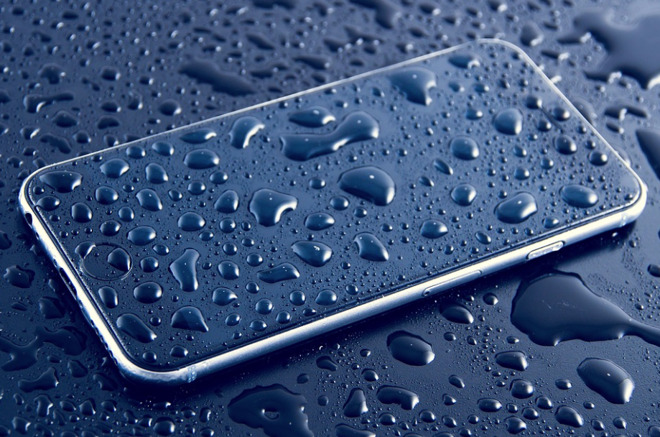
Most smartphone users will have experienced issues when using their devices with wet hands or in the rain, with residual water on fingers sometimes causing the display to incorrectly detect or fail to sense touches or swipes. In the rain, the water droplets landing on the display could interfere with the device, interpreted as a finger press and potentially making unwanted selections for the user.
Capacitive touch displays, as used in smartphones and tablets, work by detecting changes to a flow of electricity in the display. A touch of a finger, a stylus, or another conductive element can change the flow of electrical fields, with the device interpreting these alterations to determine where the screen was touched.
Since water or sweat is capable of altering the electrical fields, this can sometimes be classified by a device as a touch in its own right.
According to two patent applications published by the U.S. Patent and Trademark Office on Thursday, both titled "Finger tracking in wet environment," Apple suggests the use of filtering to determine whether a detected touch is intended by the user or not. This occurs before the device performs "computationally-intensive touch processing," with the aim of reducing processing time and power usage, as well as the byproduct of improved usage in wet weather.
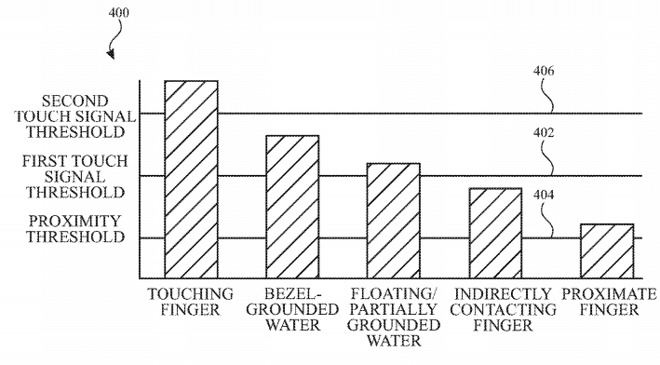
In Apple's example, a number of touch nodes can be designated across the display, potentially as a grid across the entire display or on the edges. The nodes can be used to measure a number of data points about a touch event either on or near it at the same time as other local nodes.
The data, including the passing of touch signal thresholds by different types of detected touches, can also include the overall size of the area being touched, the number of touch nodes covered in the event, determined shapes, and in the case of gestures, potential movements of multiple points in concert.
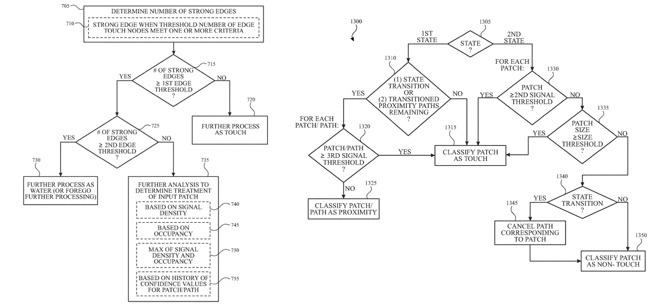
Algorithms will look at the characteristics of the touch and determine whether a touched area is performed by a human or a user-controlled implement, or is in fact another element that is beyond the user's control, like raindrops. The system could also determine whether a touch is intended by the user, ruling out accidental grazing or touches where the user isn't directly pressing the display, such as if they are wearing gloves or if a bandaged wrist touches the screen.
Once a touch has been determined to be intentional and by the user, the data associated with the touch is passed on to other systems for processing.
While Apple is known to be looking at alternative display technologies, such as folding screens, there have been instances where ideas Apple has to improve the touchscreen experience have surfaced.
For example, a patent granted in February 2016 explained how Apple could detect gestures that are made by hovering above an iPhone's display, rather than touching it. Another granted in August 2018 detailed a similar concept, using depth maps and three-dimensional sensor data to detect hand gestures from elsewhere in a room.
While Apple does file numerous patent applications every week, their publication does indicate areas Apple is working within, but isn't a guarantee that the described concepts will make their way into consumer products in the future.
Source: appleinsider










