 NEWS
NEWS
Google Forced to Remove New iPhone Feature Following Outrage
 10/18/2017
 3350
3350
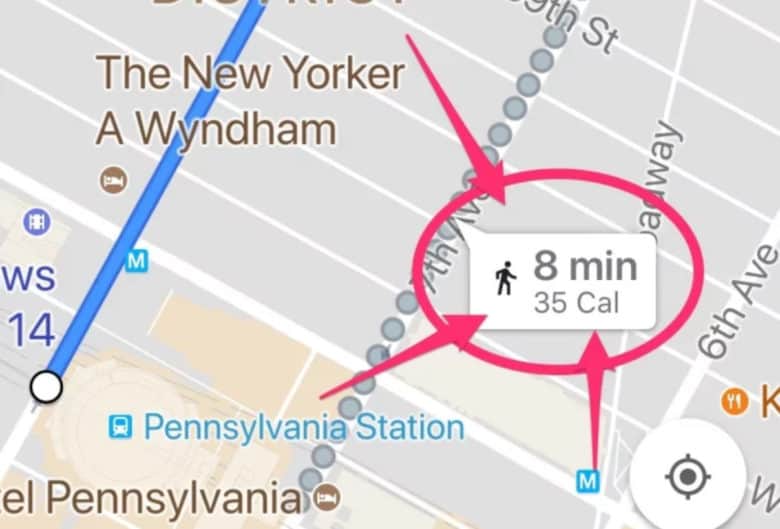
Google added a neat new feature to Maps on iPhone this week — then pulled it in under 24 hours following user outrage.
It was seemingly designed to encourage users to walk more frequently by showing how many calories they could burn on their route. But many feel the feature was shameful and judgmental, and a negative trigger for those who suffer from an eating disorder.
Google Maps has some wonderful features you won’t find in rival apps. The company is constantly working to make its service even greater. Occasionally that leads to new functionality that makes getting from A to B a little easier.
Not every function is a great idea, however. On Monday, Google updated Maps for iPhone to add a new feature that shows users how many calories they could burn by walking to their destination, as opposed to driving or jumping in a cab.
It then made those calorie counts easier to understand by telling you how they translate into desserts. For instance, a 4.5-mile walk that burns around 406 calories would be the equivalent of burning off almost four mini cupcakes.
But the feature is already dead
The feature, which only reached a small number of iPhone users, was supposed to be a test ahead of a wider rollout. But it lasted less than 24 hours. It caused so much outrage that Google was forced to issue a second update that removed it.
Anyone else feel like the google maps mini cupcake feature reinforces the idea that all exercise must be atonement for the sin of eating?
— Megan Westgate (@sosaysm) October 16, 2017
Users felt that Google was forcing the feature upon them, and even shaming them for eating junk food. It “reinforces the idea that all exercise must be atonement for the sin of eating,” said one on Twitter, while others suggested that the feature could trigger eating disorders.
It didn’t help that Google made the feature active for everyone who received the update, and didn’t provide the option to disable. Had it been optional, and only enabled for those who specifically asked for it to be enabled, it might have been a different story.
I truly can’t wrap my head around how thoughtless and reckless this is as an automatic feature!! Especially with no intuitive way to opt out
— Anne Richard (@anneoclock) October 14, 2017
Perhaps Google will alter its approach and try the feature again. But we wouldn’t be too surprised if this one is scrapped altogether.
Source: cult of mac










