
NEWS

Google Maps App Supports iPhone X With Edge-to-Edge OLED Display

12/01/2017

7581

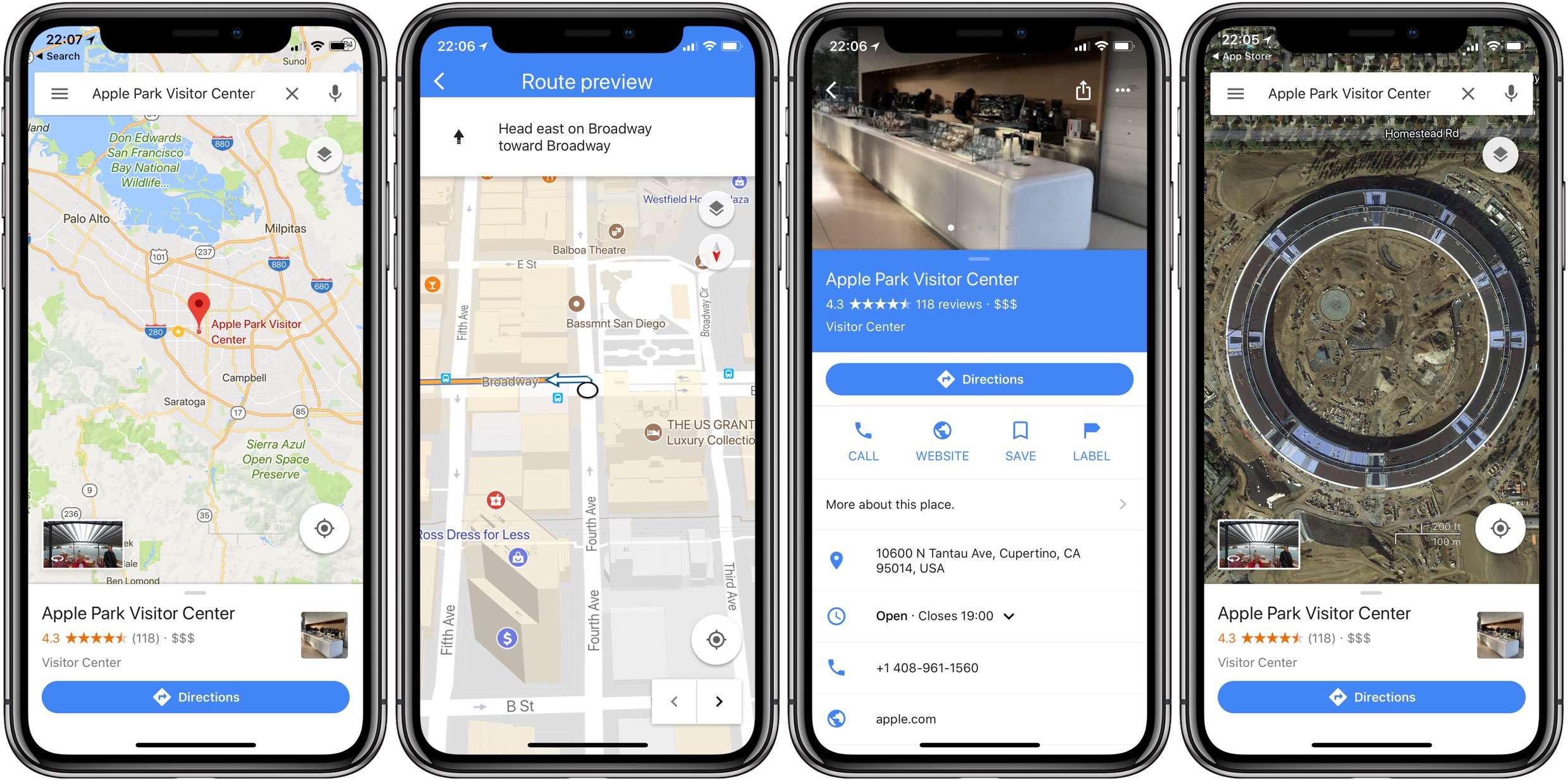
Google has finally begun updating its most important apps with support for the new iPhone X display resolution, starting with Google Maps, arguably its most widely-used mobile software.


The mapping and navigation app now fills that beautiful edge-to-edge OLED display.

Google Maps App Supports iPhone X With Edge-to-Edge OLED Display


It’s fully embraced the notch with maps rendered behind the current time, connectivity and battery information in both “ears” to the left and right of the TrueDepth camera.


This is different than Apple Maps which blurs out content as it bleeds into each ear.


The app also accounts for the notch in landscape, cleverly positioning buttons and other actionable user interface elements inward rather than at the outermost edges of the display.


Aside from iPhone X support, Google Maps version 4.41 includes unspecified bug fixes.


Source: idownloadblog

Windows
Mac OS
iOS
Linux
3uTools
Win 64-bit For this device
V9.0 2025-11-11
Download
Win 32-bit For this device
V9.0 2025-11-11
Download
3uTools
Intel Chip How to Identify Chip Type
V9.0 2025-12-02
Download
Apple Chip
V9.0 2025-12-02
Download
How to Identify Chip Type
1.  Click the Apple icon in the top-left corner of the screen and select About This Mac.
2.  Check the Processor or Chip field to determine if it is "Intel" or "Apple".
Please use the 3uTools PC client to install the iOS client:
1、 Install either the Windows or Mac version of 3uTools on your computer
2、 Open the PC client and connect your device to the computer via USB cable
3、 After the connection is successful, wait for the computer to automatically install the mobile app for the device, or locate “Install Mobile App” on the computer and manually click to install.
3uTools
deb file
V3.01 2025-11-20
Download
rpm file
V3.01 2025-11-20
Download
Windows
Windows
iOS
iOS
Android
Android
TV
TV
3uAirPlayer
Win 64-bit For this device
V6.0.2 2025-11-19
Download
Win 32-bit For this device
V6.0.2 2025-11-19
Download
iOS Device Mirroring (No App Required)
1、 Install 3uAirPlayer on the Windows PC
2、 Open Control Center and select Screen Mirroring
3、 From the list, choose your PC to start mirroring
4、 Or connect your iOS device to the PC via USB to begin mirroring
Scan to get "3uAirPlayer" App
3uAirPlayer TV V1.0.18
2025-11-28
TV System Requirements: Android 7.0 or later
Download the TV installation package, copy it to a USB drive, insert it into your TV or set-top box, then select the file from the home screen to install.




