 NEWS
NEWS
Apple Promises A Fix for iOS 11 Mail Issues Affecting Office, Outlook & Exchange Accounts
 09/21/2017
 3255
3255
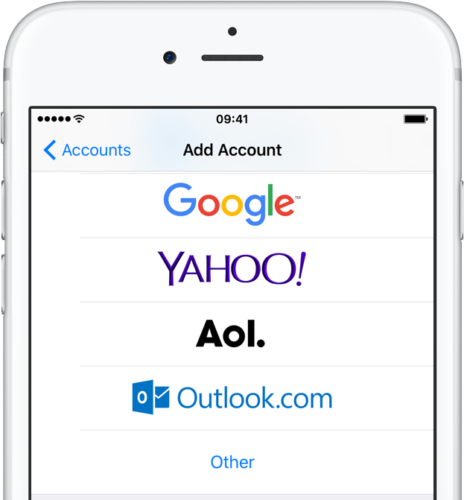
Apple on Tuesday published a new support document on its website which has acknowledged an issue with the Mail app in iOS 11 where Outlook.com, Office 365 and Exchange customers are seeing their messages rejected by the server.
If your email account is hosted by Microsoft on Outlook.com, Office 365 or an Exchange Server 2016 running on Windows Server 2016, you might be greeted with an error message when trying to send an email with iOS 11.
“Apple is working closely with Microsoft to resolve the issue and will release a fix soon in an upcoming software update,” according to the support document.
Microsoft issued a support document of its own acknowledging that iOS 11’s Mail app is incompatible with Outlook.com, Office 365 or Exchange Server 2016 running on Windows Server 2016.
The Windows maker offered the following workaround until Apple releases a fix:
To work around this issue, download the free Outlook for iOS client from the App Store. The Outlook for iOS client fully supports various email services, including Outlook.com, Office 365, and Exchange Server 2016.
If you use the Mail app to sync data from Exchange Server 2016 that is running on Windows Server 2016, you can ask the system administrator to disable HTTP/2 in Windows Server 2016 as a workaround. The instructions on disabling HTTP/2 can be found in the Workaround section of KB 4032720: How to deploy custom cipher suite ordering in Windows Server 2016.
That’s not the only software issue that has affected Apple’s recent or upcoming launches.
As we reported earlier this morning, there is a bug in the new watchOS 4 software that may cause LTE models of Apple Watch Series 3 to join unknown Wi-Fi networks with no connectivity, which in some cases may prevent the device from using LTE networks.
Source: iDB










