 NEWS
NEWS
Your Older 32-Bit Apps Won't Launch After Installing iOS 11 Tomorrow
 09/19/2017
 4546
4546
When millions of iPads and iPhones are updated to iOS 11 tomorrow, older 32-bit apps that have not been updated with iOS 11 support will no longer launch.
If you attempt to open one of these 32-bit apps, iOS 11 will refuse to open it and will offer up a message that says the app needs to be updated to work with the new operating system.
You're also not going to find 32-bit apps available when searching in the new App Store, nor can previously downloaded 32-bit apps be installed through the Purchased tab. 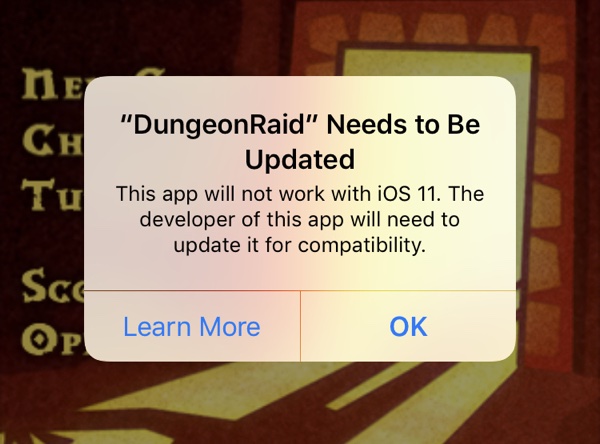
Apple has not widely publicized the imminent lack of support for 32-bit apps, so when older apps stop working tomorrow, it could come as a shock to the users who are still have them installed and use them regularly.
Apple has, however, attempted to warn customers. Starting with the launch of iOS 10.1in October of 2016, when launching a 32-bit app, Apple informed customers that older apps "may slow down your iPhone." As of iOS 10.3, a more explicit message has been provided: "This app will not work with future versions of iOS."
Customers who have paid attention to these warnings may not be as surprised, but not everyone may have seen or read the warnings.
Apple began transitioning to 64-bit apps when the iPhone 5s launched in September of 2013. All apps and app updates have been required to use 64-bit architecture since June of 2015, so all apps that are 32-bit have not been updated for at least two years.
Many app developers have gone back and added 64-bit support to older apps, but there are still bound to be many apps that lack support.
Current iOS 10 users can check to see if there are any 32-bit apps on their iOS devices in the Settings app. Go to General --> About --> Applications to see the "App Compatibility" section that lists any outdated apps.
iOS 11 is only compatible with devices that feature a 64-bit chip, meaning it works with everything that has an A7 or newer chip. Specifically, iOS 11 is compatible with iPhone 5s, SE, 6 Plus, 6, 6s Plus, 6s, 7 Plus, and 7, along with the new fifth-generation iPad, the iPad Air, the iPad Air 2, all iPad Pro models, the iPad mini 2 and later, and the 6th generation iPod touch.
Customers on older devices like the iPhone 5 and 5c that can't install iOS 11 will not be affected.
Source: macrumors










