
NEWS

Apple Considers Using The iPhone’s Backlight to Improve Runner Safety

09/08/2017

2481

Apple has applied for a patent that shows how the backlight on its devices could be used as a safety light for runners or a party accessory that could be synchronized to music. The patent application, filed in May and published today, is titled “Handheld devices as visual indicators.” According to the filing, the light transmitted can be configured with playlists on a device, and the music “varies the light level transmitted by the display in accordance with the song being played.” While that’s fun (and detrimental to your battery), another function appears a bit more practical.


The application also notes that the backlight could be configured to act like a light beacon for night runners. This can be used to alert other pedestrians or cars of the runner’s presence. The light in its beacon mode could blink, fade in and out, pulsate, or strobe. Apple envisions this use case with an illustration of a runner with the device strapped to their arm.
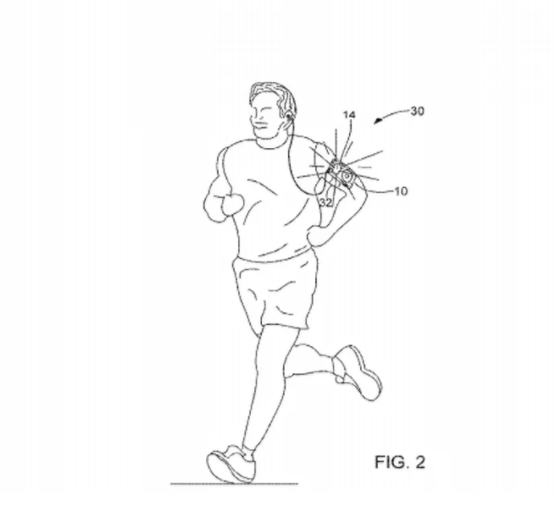

Apple Considers Using The iPhone’s Backlight to Improve Runner Safety


While these are pretty nifty features, as with most patents Apple applies for, the idea may never turn out to be an actual Apple feature (nor will the patent actually get approved.) If you want a similar effect now, there are already a host of third-party apps on the App Store that let you turn your phone into a music strobe and those that produce a beacon light for pedestrians and runners.


Sourtce: theverge

Windows
Mac OS
iOS
Linux
3uTools
Win 64-bit For this device
V9.0 2025-11-11
Download
Win 32-bit For this device
V9.0 2025-11-11
Download
3uTools
Intel Chip How to Identify Chip Type
V9.0 2025-12-02
Download
Apple Silicon
V9.0 2025-12-02
Download
How to Identify Chip Type
1.  Click the Apple icon in the top-left corner of the screen and select About This Mac.
2.  Check the Processor or Chip field to determine if it is "Intel" or "Apple".
Please use the 3uTools PC client to install the iOS client:
1、 Install either the Windows or Mac version of 3uTools on your computer
2、 Open the PC client and connect your device to the computer via USB cable
3、 After the connection is successful, wait for the computer to automatically install the mobile app for the device, or locate “Install Mobile App” on the computer and manually click to install.
3uTools
deb file
V3.01 2025-11-20
Download
rpm file
V3.01 2025-11-20
Download
Windows
Windows
iOS
iOS
Android
Android
TV
TV
3uAirPlayer
Win 64-bit For this device
V6.0.2 2025-11-19
Download
Win 32-bit For this device
V6.0.2 2025-11-19
Download
iOS Device Mirroring (No App Required)
1、 Install 3uAirPlayer on the Windows PC
2、 Open Control Center and select Screen Mirroring
3、 From the list, choose your PC to start mirroring
4、 Or connect your iOS device to the PC via USB to begin mirroring
Scan to get "3uAirPlayer" App
3uAirPlayer TV V1.0.18
2025-11-28
TV System Requirements: Android 7.0 or later
Download the TV installation package, copy it to a USB drive, insert it into your TV or set-top box, then select the file from the home screen to install.




