 NEWS
NEWS
The iPhone 8 Could Automatically Silence Notifications when You’re Looking at it
 08/10/2017
 3103
3103
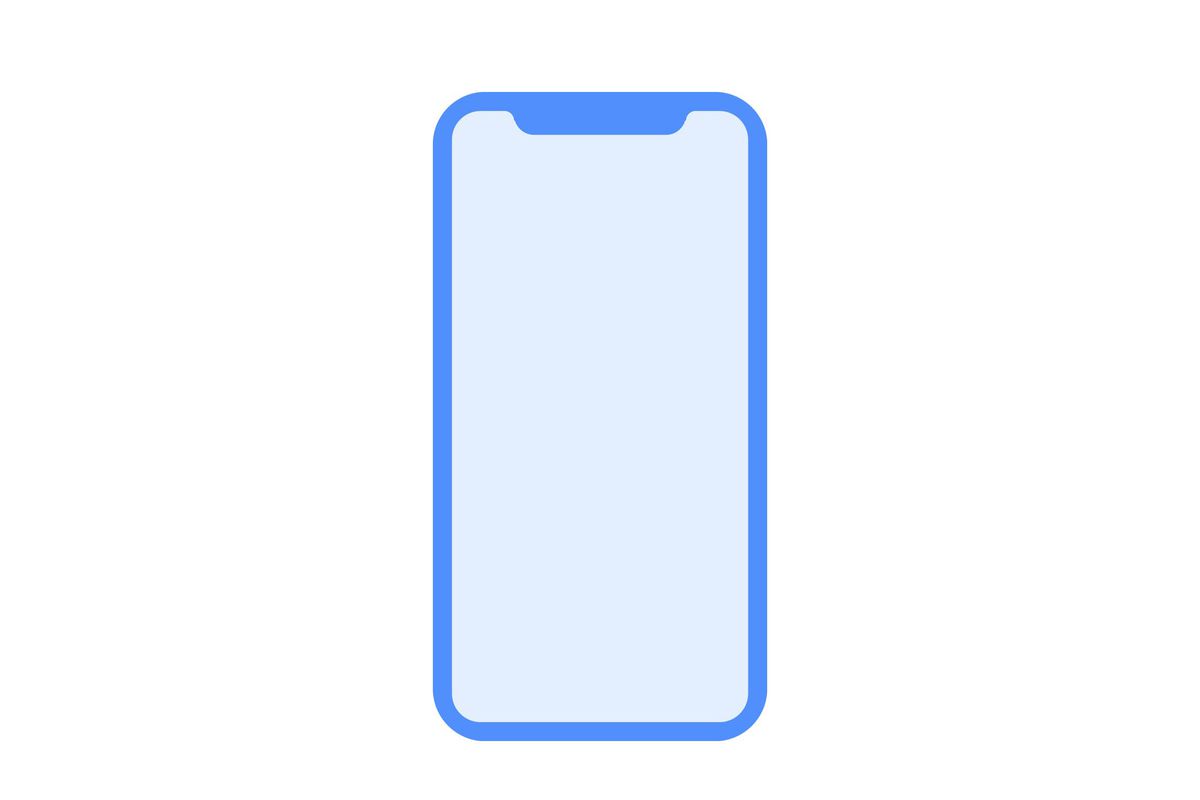
The iPhone 8 is widely reported to feature a front-facing 3D sensor which will enable face recognition for automatic unlock (supposedly replacing the need for Touch ID entirely). Moreover, code references suggest that the new OLED iPhone will be able to use that same sensor to enable even more sophisticated features, like automatically silencing notifications if the user is looking at the screen.
Try Amazon Prime 30-Day Free Trial
Guilherme Rambo found references to the ‘TLAttentionAwarenessObserver’ class in the HomePod compiled source last night. The existence of as-yet-unused code references in the HomePod firmware does not mean that the iPhone 8 will definitely have a feature — Apple often pulls smaller features late in the testing cycle — but it is a big indicator that it could.
In this case, it seems that Apple is considering using the face detection depth sensors on the iPhone 8 to contextually mute the sounds of notification banners when they come in. If the phone detects it has the user’s attention, i.e. the user is looking at the screen, it silences the sound of an incoming notification as it can assume the user will see it on the screen.
If this feature does ship, it will almost certainly be user-configurable so you can choose to always hear notification sounds if you prefer. It’s a cool thing to think about and highlights how the new infrared sensors may be used for more than just biometric authentication.
What @jsnell talked about on the last @_upgradefm is true: the iPhone will suppress notification sounds if you're looking at it pic.twitter.com/eFzKUfZYDx
— Guilherme Rambo (@_inside) August 8, 2017
Source: 9to5mac










