 NEWS
NEWS
This Fake iPhone Looks so Good it Almost Fooled the Experts
 08/31/2017
 11176
11176
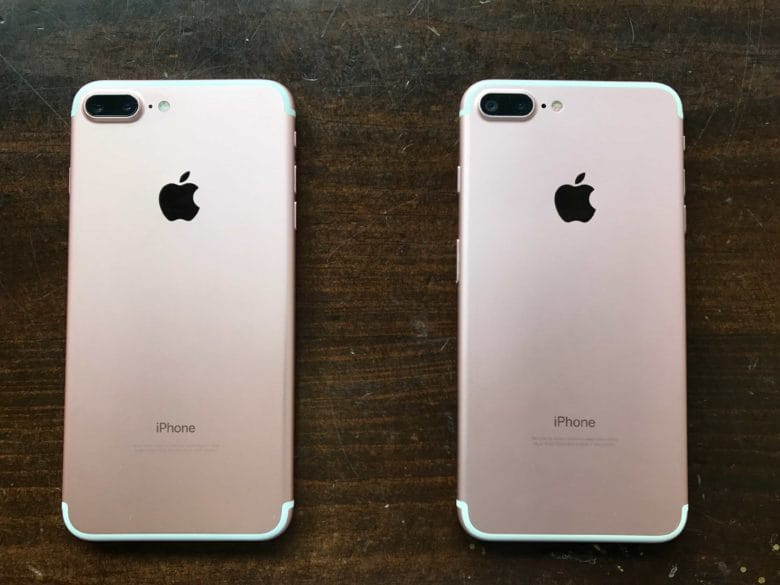
This fake iPhone looks so impressive that it fooled us for a hot minute. A rose gold iPhone 7 Plus clone, it shines just like the real thing. At first glance, it seems to deliver everything you would expect from a real iPhone: Lightning port, dual rear cameras, even a touch-ready Home button.
In short, this is the highest-quality iPhone clone we’ve ever seen. It’s a surprising indicator of just how good Chinese manufacturers are getting at reproducing Apple products. And it’s also a cautionary tale for anybody looking to buy a used iPhone.
The most impressive fake iPhone we’ve seen
Can you tell which Home screen is legit? (The fake iPhone is on the right.)
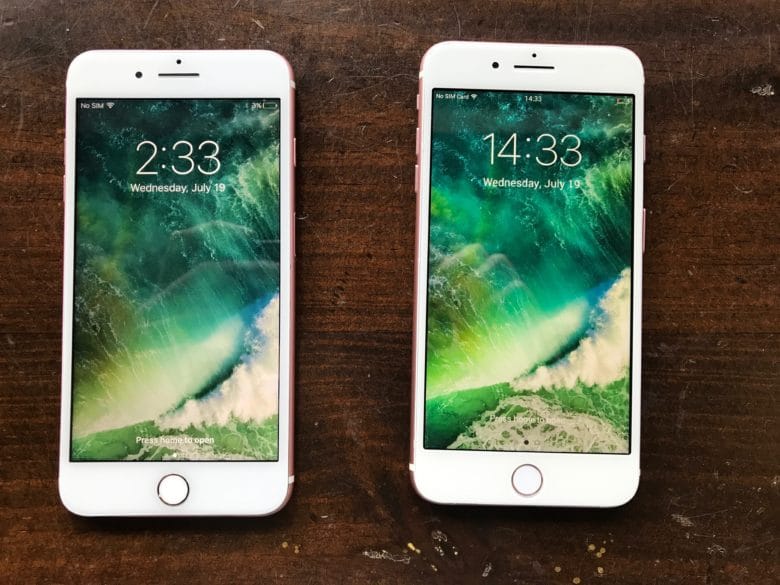
As the official buyback partner for Cult of Mac and other tech blogs, we at MyPhones Unlimited go through hundreds of used phones a day. But this is the first time we’ve come across this type of device.
We give all incoming phones a basic function test — and this device passed without a problem.
It’s so convincing, it passed through a few hands without notice. If it had been only a little better, the owner might have walked away with a $340 check from us.
The fake iPhone tech that almost fooled us
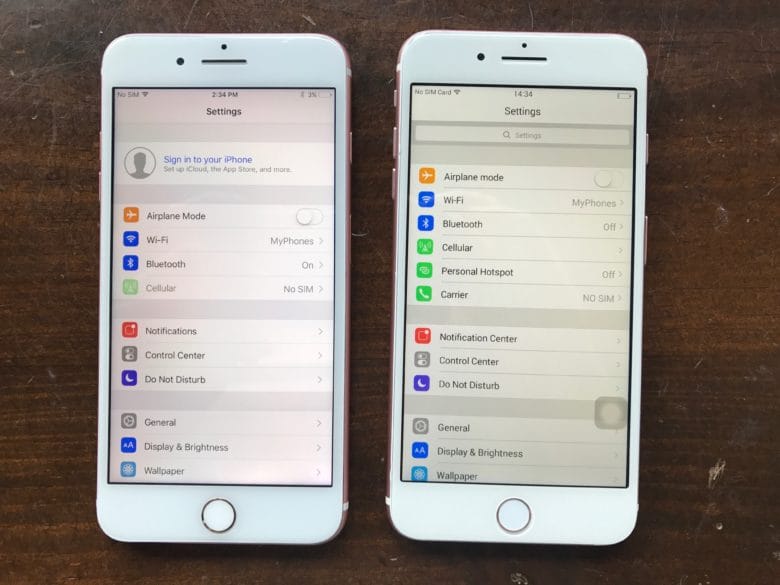
While this iPhone clone might impress with its good lucks, the tech inside is far from remarkable. In fact, it’s terrible.
Nonetheless, HDCplayer Technology‘s ability to develop its own parts and pack them into a near-perfect iPhone replica proves fascinating.
The operating system, which is this iPhone clone’s biggest flaw, is a version of Android roughly hacked into a copy of iOS. It possesses all the fluidity of a baby learning to walk. This is surely due to the bootlegged Android operating system disguised as iOS.
The fake iPhone goes through the motions, but fails on most functions. For example, it offers the option to set up Touch ID, and even seems to scan for fingerprints to set up a fingerprint lock. But, alas, a fingerprint won’t unlock the phone.
This iPhone clone is just a little off
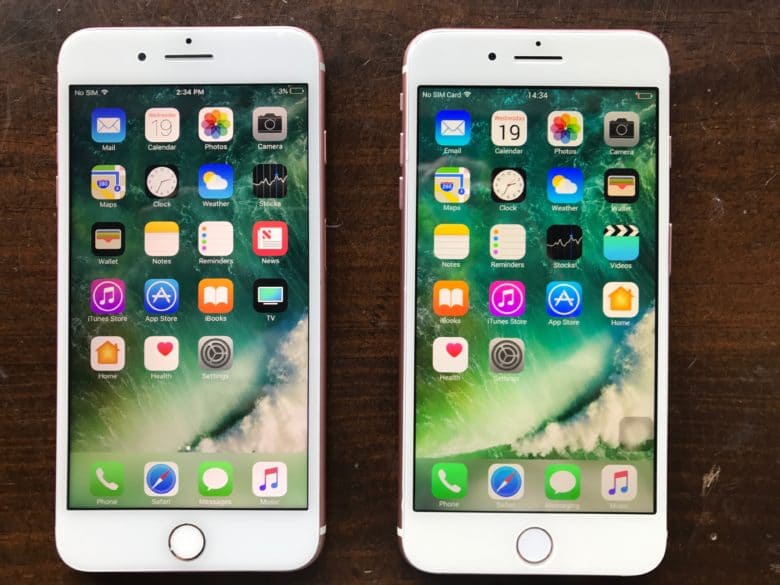
The devil really is in the details here. From the just-off typeface of the “iPhone” label on the back of the phone to the shoddy operating system, the subtle differences quickly add up.
Some apps, like Maps, connect directly to the Android equivalent rather than the proper iOS app. Others, like iBooks, look like poorly built Android apps.
Still, somebody seems to have put a lot of effort into a few of the look-alike apps, including Apple Watch and Find My iPhone. They benefit from higher-quality graphics and clear attention to detail — but they don’t work at all.
We also checked the phone’s IMEI number, a unique 15-digit identifier that reveals information about a device. Interestingly, instead of making up a random number, this IMEI number showed up as a 16GB gold iPhone 5s.
Since no one in the MyPhones Unlimited office was willing to give up their own Apple ID for research, we aren’t positive what happens if you enter your information into the apps. The best-case scenario is they simply won’t work; the worst-case scenario is that some Chinese corporation can peek at all your secrets.
Source: cult of mac










