
NEWS

Apple MacOS 7 Emulator Uses Your browser to Time Travel to Pre-internet Computing

04/17/2017

3782

About 25 years ago, Apple released what was considered by some to be the most elegant personal computing interface available at the time, MacOS 7.0.1. Apple's System 7 interface hasn't aged as well as other relics from 1991. Now, thanks to the Internet Archive, you can experience some of that old school computing magic using your existing computer and a web browser. 


The black-and-white graphical user interface was a simple but powerful tool that allowed anyone to use applications like Microsoft Word, BBEdit Lite, HyperCard, Microsoft Excel and design tools like Pagemaker, MacDraw, MacPaint. 


Part of the affection for System 7 was not only due to its simplicity and ease of use, but its place in history. For many, the system served as the nine-inch window into the early versions of the mainstream Internet.
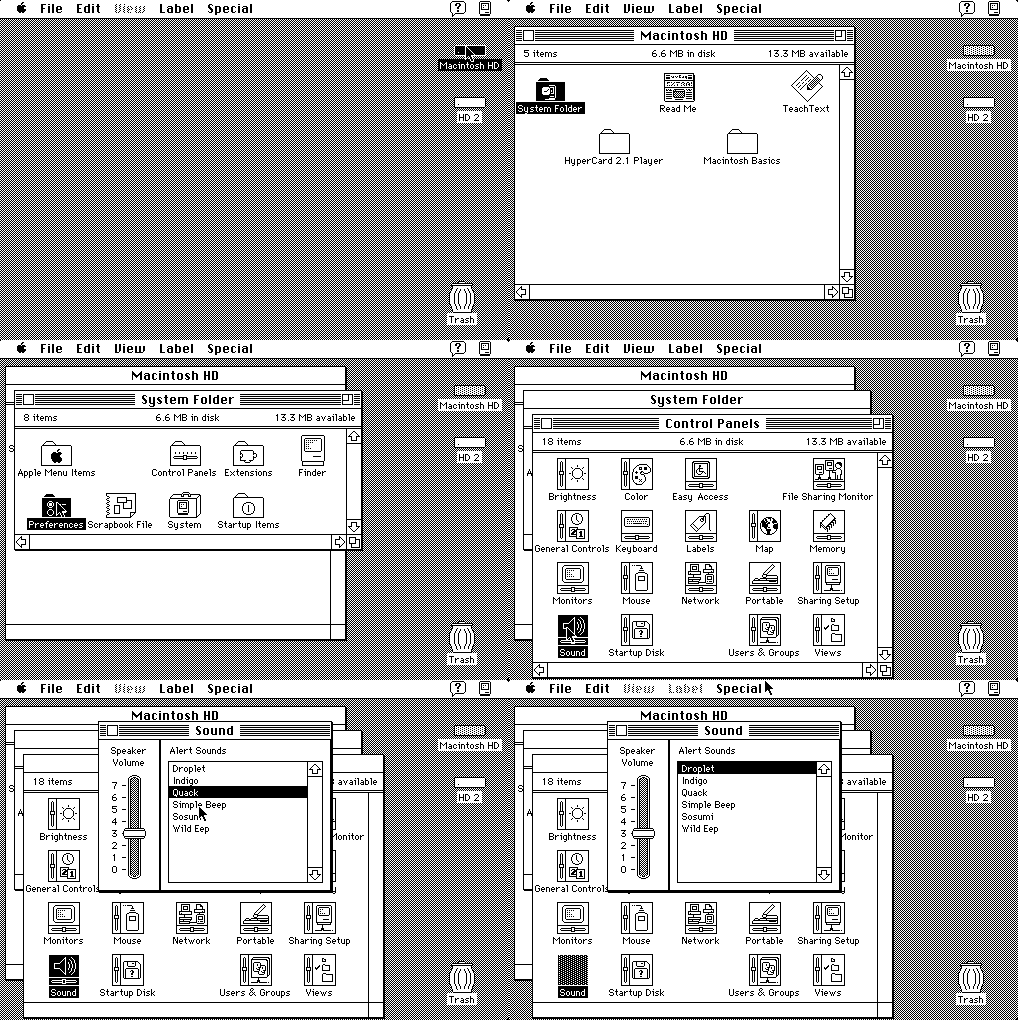

Apple MacOS 7 Emulator Uses Your browser to Time Travel to Pre-internet Computing


The Internet Archive's emulator lets you launch the operating system and use many of the applications that were popular at the time, including games like Risk, Cannon Fodder, and Shufflepuck. 


And if you really want the full cave computing experience, there's an option to go full screen, which will make your current PC truly look like it's running MacOS 7.0.1. 


What's the point? Well, beyond pure geek love of our computing roots, it's a great reminder to appreciate just how amazing that current touchscreen interface you'r using to run 10 apps at the same time really is.


Source: mashable

Windows
Mac OS
iOS
Linux
3uTools
Win 64-bit For this device
V9.0 2025-11-11
Download
Win 32-bit For this device
V9.0 2025-11-11
Download
3uTools
Intel Chip How to Identify Chip Type
V9.0 2025-12-02
Download
Apple Silicon
V9.0 2025-12-02
Download
How to Identify Chip Type
1.  Click the Apple icon in the top-left corner of the screen and select About This Mac.
2.  Check the Processor or Chip field to determine if it is "Intel" or "Apple".
Please use the 3uTools PC client to install the iOS client:
1、 Install either the Windows or Mac version of 3uTools on your computer
2、 Open the PC client and connect your device to the computer via USB cable
3、 After the connection is successful, wait for the computer to automatically install the mobile app for the device, or locate “Install Mobile App” on the computer and manually click to install.
3uTools
deb file
V3.01 2025-11-20
Download
rpm file
V3.01 2025-11-20
Download
Windows
Windows
iOS
iOS
Android
Android
TV
TV
3uAirPlayer
Win 64-bit For this device
V6.0.2 2025-11-19
Download
Win 32-bit For this device
V6.0.2 2025-11-19
Download
iOS Device Mirroring (No App Required)
1、 Install 3uAirPlayer on the Windows PC
2、 Open Control Center and select Screen Mirroring
3、 From the list, choose your PC to start mirroring
4、 Or connect your iOS device to the PC via USB to begin mirroring
Scan to get "3uAirPlayer" App
3uAirPlayer TV V1.0.18
2025-11-28
TV System Requirements: Android 7.0 or later
Download the TV installation package, copy it to a USB drive, insert it into your TV or set-top box, then select the file from the home screen to install.




