 NEWS
NEWS
Apple Upgrade vs iPhone Upgrade Program: Here are the key differences
 07/31/2026
 962
962
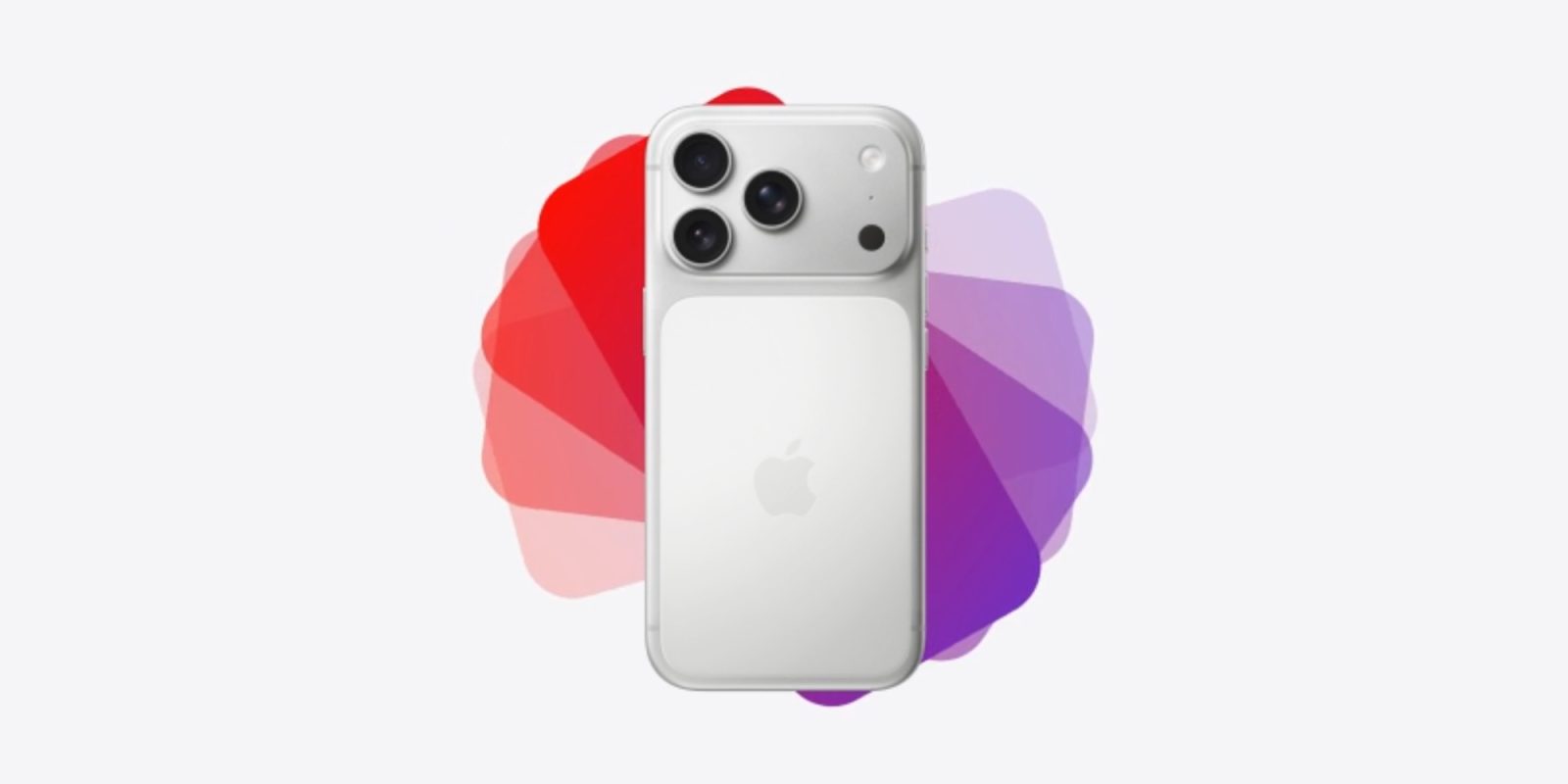
Apple Upgrade launched this week, and the iPhone Upgrade Program is being discontinued as a result. But despite some similarities, the two offerings are not the same. Here are the key differences.
#1: Leasing vs financing
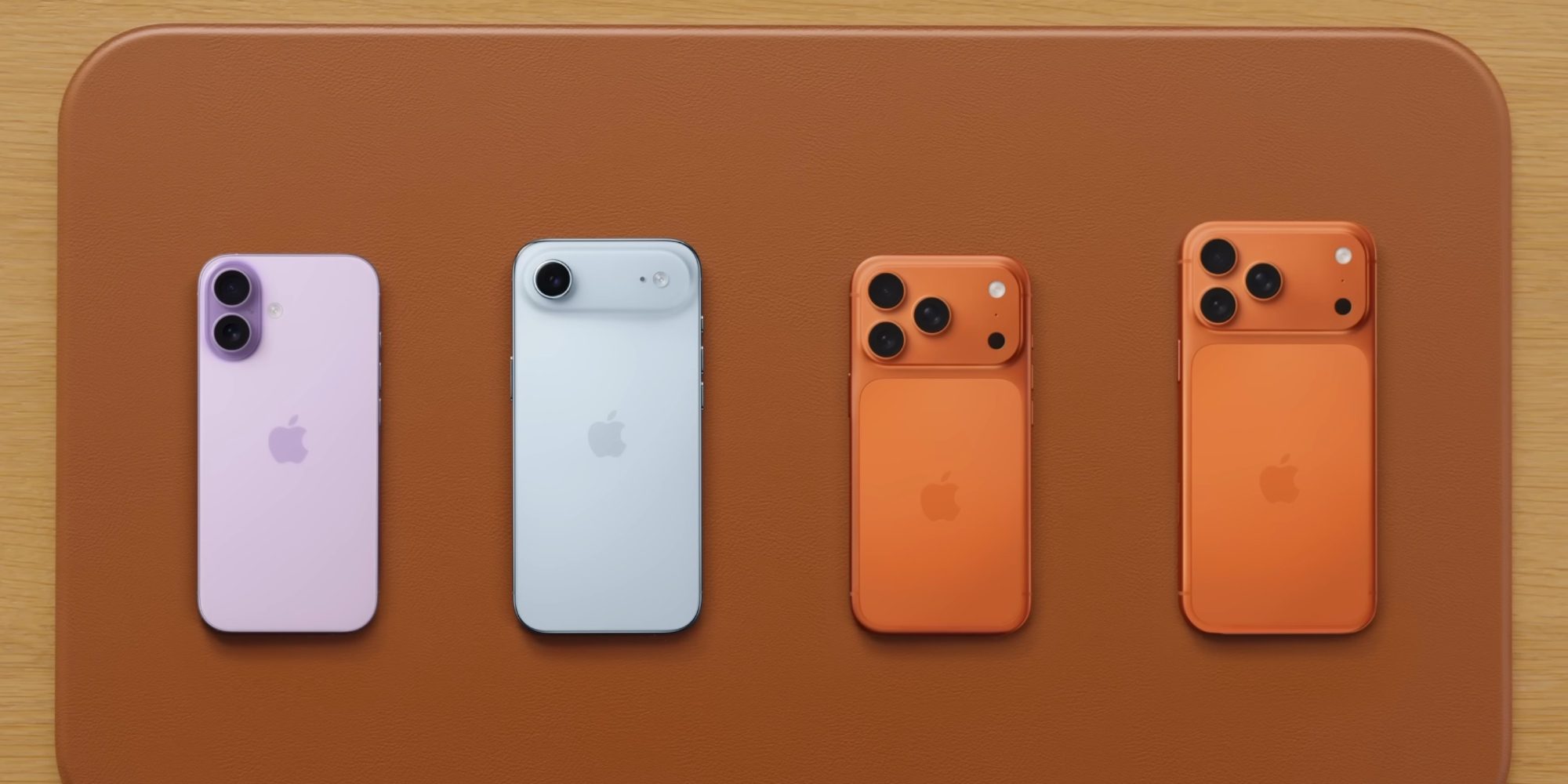
Apple Upgrade is a leasing program, whereas the iPhone Upgrade Program used financing.
That means if you get a new iPhone through Apple Upgrade, you won’t actually own it. You’ll make monthly payments for a 12-month or 24-month term, then have the option to either return the iPhone outright, exchange it for a new model, or pay the buyout fee to own it.
The iPhone Upgrade Program also involved monthly payments. But with that program you actually owned the device, albeit with financial strings attached.
Because of the way Apple Upgrade lets you buy your iPhone at the end of the term, and has no fees, the difference between leasing and financing is functionally pretty small. But they are technically different models.
#2: Apple Upgrade has lower monthly payments, with a catch
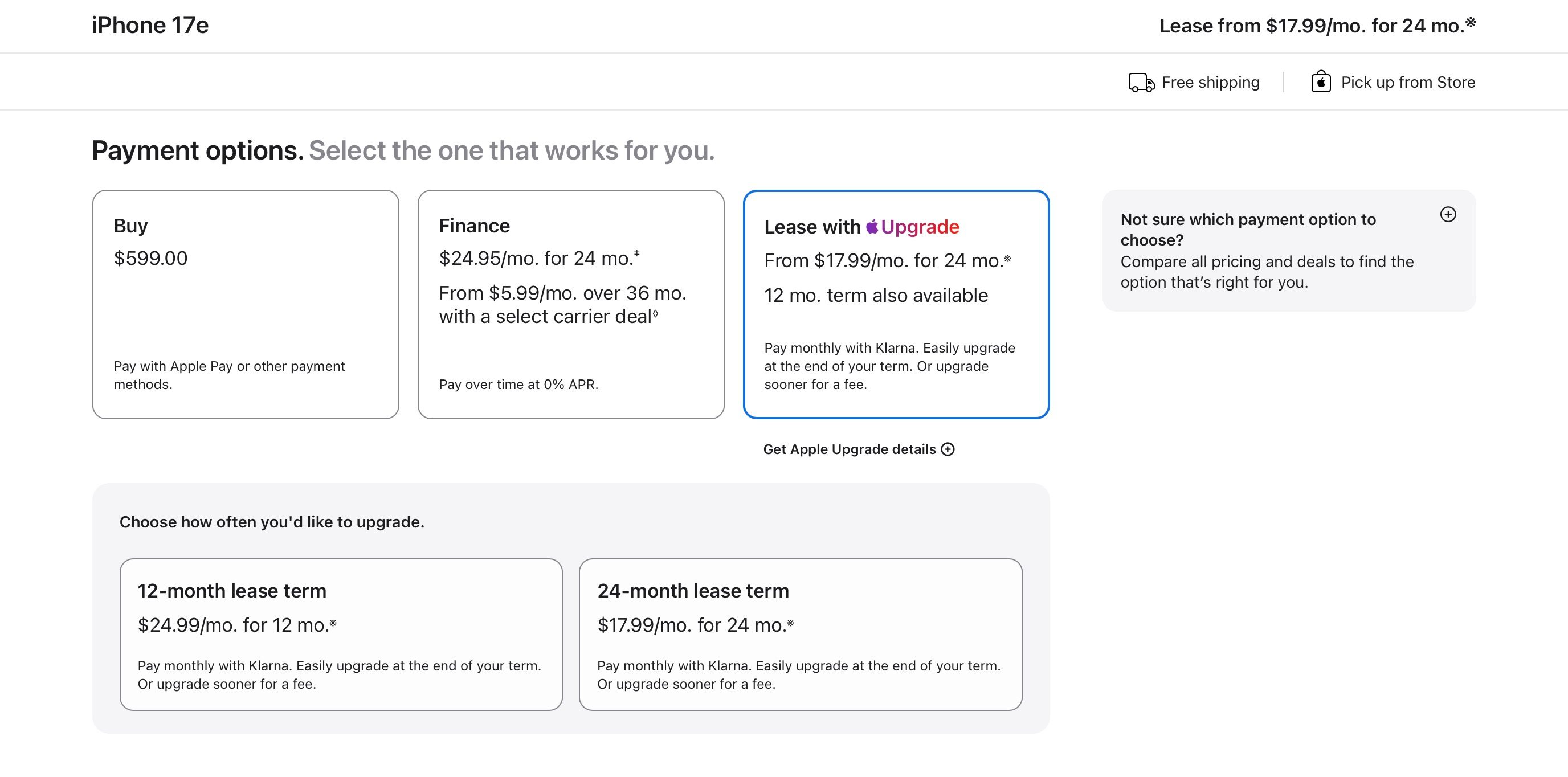
Similar to car leases vs financing, Apple Upgrade lets you get a new iPhone at a lower monthly cost than the iPhone Upgrade Program.
It’s partly more affordable because AppleCare isn’t included. But it’s also a lower cost because you won’t pay off the full value of the iPhone by the end of the lease term.
Instead, with Apple Upgrade you’ll pay only the majority of the iPhone’s cost during the lease. At the end of the lease, if you want to buy the iPhone, you’ll have to pay the remaining buyout cost. In the iPhone Upgrade Program, the cost of the full product is split into monthly payments from the start, so there’s no extra charge at the end.
#3: AppleCare: Optional vs mandatory
Apple Upgrade does not include AppleCare by default. Though you always have the option of adding it to your transaction. And it might be a good idea if you’re worried about damaging a leased device.
The iPhone Upgrade Program always included AppleCare. There was no way to buy an iPhone without that added protection.
But the inclusion came with a higher monthly cost, so it wasn’t technically an advantage—just a difference.
#4: Apple Upgrade isn’t limited to the iPhone
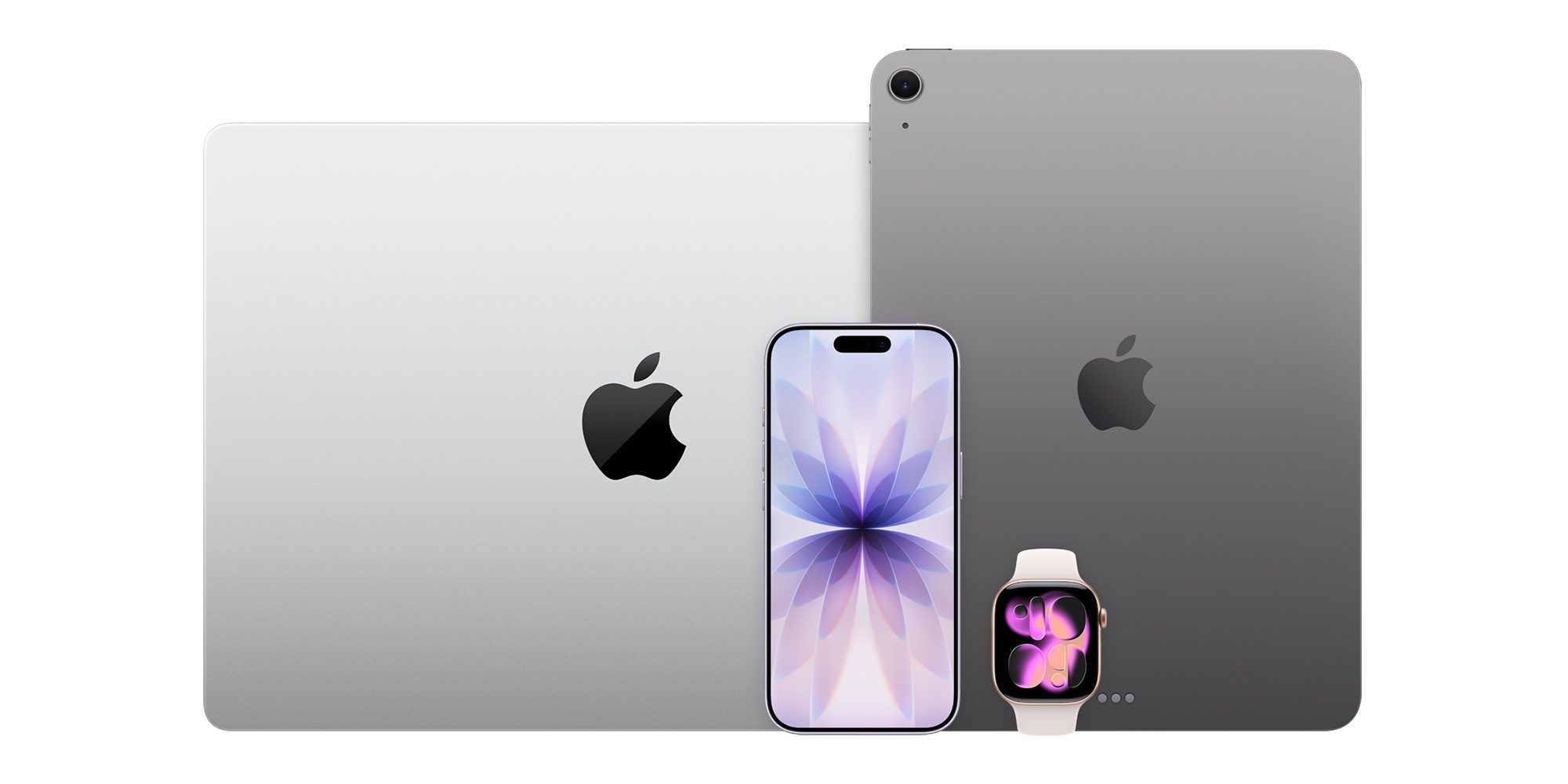
The iPhone Upgrade Program, as the name suggests, is an iPhone-exclusive plan. But Apple Upgrade is much broader.
With Apple Upgrade, you can lease not only an iPhone, but also a Mac, iPad, and/or Apple Watch.
In theory, you could lease all four products and pay for them monthly. Lease terms are generally longer for Macs and iPads and shorter for iPhone and Apple Watch. You’ll need to apply separately for each new product you want to lease through Apple Upgrade.
Source: 9to5mac