 NEWS
NEWS
Apple To Investigate iPhone 7 Plus That "Blew Up"
 02/27/2017
 5053
5053
Making the rounds on Twitter recently has been a video of a smoking iPhone 7 Plus. The video, shared by Brianna Olivas, shows the device burning to the point that the case is melting away and smoke is erupting from the side of the device.
Now, Apple has responded to the viral video...
An Apple spokesperson said that the company has been in touch with Olivas and is investigating. “We are in touch with the customer and looking into it,” an Apple spokesperson said.
For her part, Olivas explained that she started experiencing problems with her iPhone 7 Plus the day before the device “blew up.” She says that the device wouldn’t turn on so she took it to her local Apple Store, where employees concluded that everything was fine after running a series of tests. The device then started functioning again.
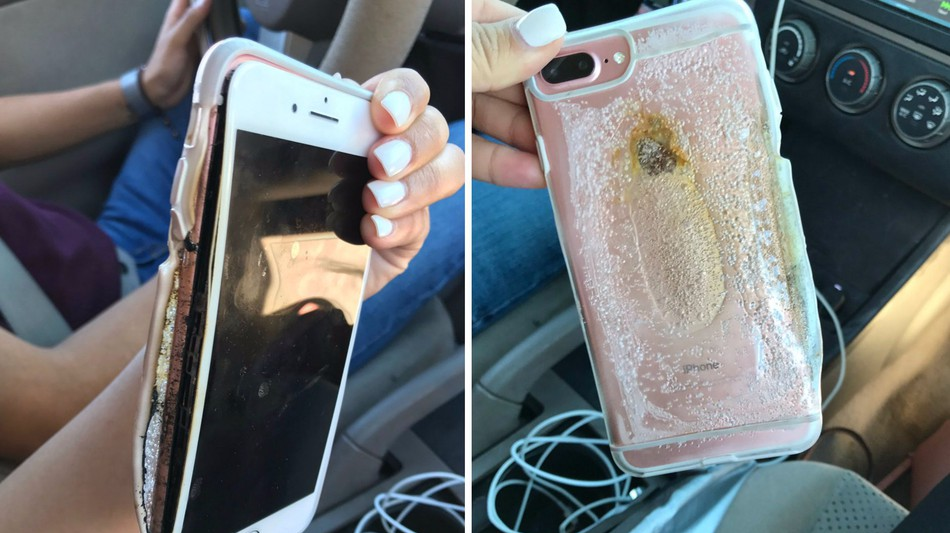
The next morning, however, is when things went wrong. Olivas told Mashable that she was asleep with her phone charging when her boyfriend picked it up and noticed the smoking a few seconds later.“The next morning I was asleep with my phone charging next to my head, my boyfriend grabbed the phone and put it on the dresser. He went the the restroom and from the corner of his eye he saw my phone steaming and heard a squealing noise.By the time he got over to the phone it had already caught fire, he quickly grabbed the phone and threw it in the restroom. As soon as he threw it in the restroom is blew up and more smoke started coming out of the phone.”
This isn’t the first time we’ve heard of an iPhone catching fire, but cases in the past have generally been due to something like the phone overheating because it was under a pillow or in a pocket. While it’s possible that this was the case with Olivas’s, the inclusion of a video gives her claim a bit more weight than others. Some users on Twitter have pinned the problem on the “liquid case” Olivas was using, but she claims that she was using on such case.
Source: 9to5mac










