
NEWS

Apple's Siri Promotes The LEGO Batman Movie When You Say 'Hey Computer'

02/15/2017

3418

The LEGO Batman Movie, released last Friday, features the voice of Apple's personal assistant Siri as Batman's personal computer. Batman's computer works in much the same way as Siri, responding to his voice requests whenever he says "Hey 'puter." 

As it turns out, there's a 
secret tie-in hidden in the iPhone, too. Whenever you say "Hey 'puter" (or "Hey Computer") to Siri, she responds to you as if you're LEGO Batman. 


"I am at your service, Lego Batman sir," and "Welcome home, sir. I have your rom coms queued up, sorted by decade," are just two of the multiple humorous phrases Siri shares whenever the personal assistant hears "Hey 'puter." 
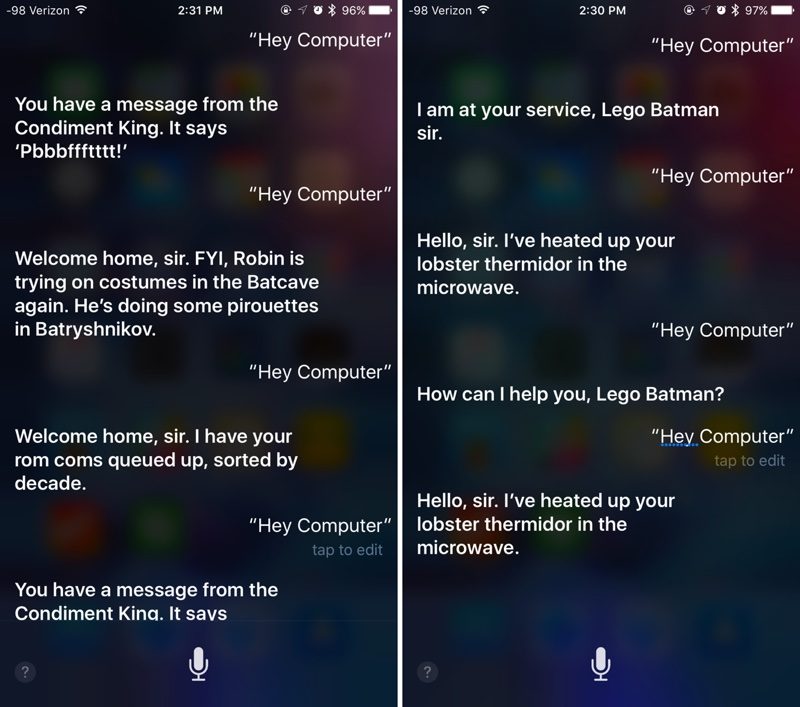

Apple's Siri Promotes The LEGO Batman Movie When You Say 'Hey Computer'


Apple updates Siri on a regular basis, and this isn't the first time the personal assistant has gained humorous responses ahead of an upcoming event, but it may be the first serious movie tie-in. 

Siri was previously updated in August 2016 to offer funny responses to questions 
about Pokémon Go, and again in September to respond to questions ahead of the iPhone 7's debut. 

In addition to the Siri easter egg, there's also 
a free iOS app that accompanies The LEGO Batman Movie, which was released back in January.


Source: appleinsider

Windows
Mac OS
iOS
Linux
3uTools
Win 64-bit For this device
V9.0 2025-11-11
Download
Win 32-bit For this device
V9.0 2025-11-11
Download
3uTools
Intel Chip How to Identify Chip Type
V9.0 2025-12-02
Download
Apple Silicon
V9.0 2025-12-02
Download
How to Identify Chip Type
1.  Click the Apple icon in the top-left corner of the screen and select About This Mac.
2.  Check the Processor or Chip field to determine if it is "Intel" or "Apple".
Please use the 3uTools PC client to install the iOS client:
1、 Install either the Windows or Mac version of 3uTools on your computer
2、 Open the PC client and connect your device to the computer via USB cable
3、 After the connection is successful, wait for the computer to automatically install the mobile app for the device, or locate “Install Mobile App” on the computer and manually click to install.
3uTools
deb file
V3.01 2025-11-20
Download
rpm file
V3.01 2025-11-20
Download
Windows
Windows
iOS
iOS
Android
Android
TV
TV
3uAirPlayer
Win 64-bit For this device
V6.0.2 2025-11-19
Download
Win 32-bit For this device
V6.0.2 2025-11-19
Download
iOS Device Mirroring (No App Required)
1、 Install 3uAirPlayer on the Windows PC
2、 Open Control Center and select Screen Mirroring
3、 From the list, choose your PC to start mirroring
4、 Or connect your iOS device to the PC via USB to begin mirroring
Scan to get "3uAirPlayer" App
3uAirPlayer TV V1.0.18
2025-11-28
TV System Requirements: Android 7.0 or later
Download the TV installation package, copy it to a USB drive, insert it into your TV or set-top box, then select the file from the home screen to install.




