
NEWS

Apple Switches From Bing to Google as Default Search Engine

09/26/2017

3344

Apple is switching from Microsoft's Bing to Google as the default Web search provider for Siri, iOS Search, and Spotlight on the Mac, the company announced on Monday.


"Switching to Google as the web search provider for Siri, Search within iOS and Spotlight on Mac will allow these services to have a consistent web search experience with the default in Safari," the company said in a statement to TechCrunch. The company insisted that it has "strong relationships" with both Microsoft and Google.
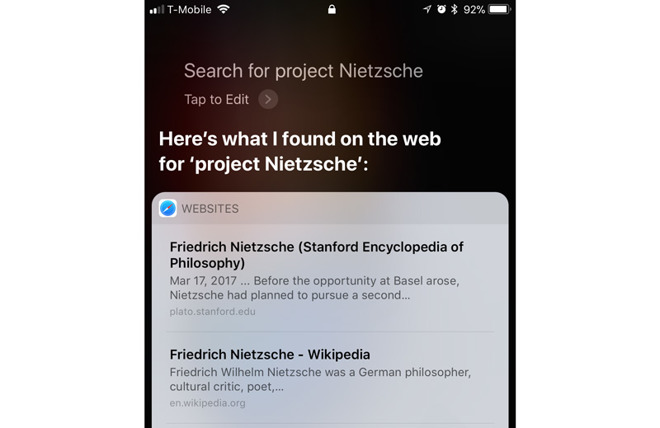

Apple Switches From Bing to Google as Default Search Engine


While video results will point to Google's YouTube, searches for Web images will still pull from Bing. Apple has sometimes been criticized for defaulting to Bing outside of Safari, since Google is significantly more popular, but image search is a particular speciality of Microsoft's search engine.


The news comes in tandem with the launch of macOS High Sierra. The free update will make a number of enhancements to apps and underlying frameworks, including support for the Apple File System, H.265 video, and Metal 2 rendering.


The company is also clamping down on cookie-based user tracking, to the consternation of many parties in the advertising industry.


Source: appleinsider


Windows
Mac OS
iOS
Linux
3uTools
Win 64-bit For this device
V9.0 2025-11-11
Download
Win 32-bit For this device
V9.0 2025-11-11
Download
3uTools
Intel Chip How to Identify Chip Type
V9.0 2025-12-02
Download
Apple Silicon
V9.0 2025-12-02
Download
How to Identify Chip Type
1.  Click the Apple icon in the top-left corner of the screen and select About This Mac.
2.  Check the Processor or Chip field to determine if it is "Intel" or "Apple".
Please use the 3uTools PC client to install the iOS client:
1、 Install either the Windows or Mac version of 3uTools on your computer
2、 Open the PC client and connect your device to the computer via USB cable
3、 After the connection is successful, wait for the computer to automatically install the mobile app for the device, or locate “Install Mobile App” on the computer and manually click to install.
3uTools
deb file
V3.01 2025-11-20
Download
rpm file
V3.01 2025-11-20
Download
Windows
Windows
iOS
iOS
Android
Android
TV
TV
3uAirPlayer
Win 64-bit For this device
V6.0.2 2025-11-19
Download
Win 32-bit For this device
V6.0.2 2025-11-19
Download
iOS Device Mirroring (No App Required)
1、 Install 3uAirPlayer on the Windows PC
2、 Open Control Center and select Screen Mirroring
3、 From the list, choose your PC to start mirroring
4、 Or connect your iOS device to the PC via USB to begin mirroring
Scan to get "3uAirPlayer" App
3uAirPlayer TV V1.0.18
2025-11-28
TV System Requirements: Android 7.0 or later
Download the TV installation package, copy it to a USB drive, insert it into your TV or set-top box, then select the file from the home screen to install.




