
TUTORIALS

How to Change the DNS Server on Your iPhone And iPad?

11/07/2017

8009

DNS, or Domain Name System, is a network system used to translate names into IP addresses. Your ISP has its own DNS server that is used by default on all your iOS devices, but you can also point it to a different DNS server.


If you’ve ever experienced a situation where a site opens up on other connections, but not on your connections, changing the DNS could fix the issue. This tutorial is mainly showing how to change the DNS server on your iPhone or iPad.


* Open the Settings app on your device, and click the Wi-Fi menu.

* Find out your Wi-Fi connection from the list of available networks, and click the i button on the right.

* Scroll down until you see the DNS section, and tap on the numbers to the right.

* A keyboard should appear, and you can now enter the new DNS server address. Tap on Wi-Fi to go back, once you’re done.
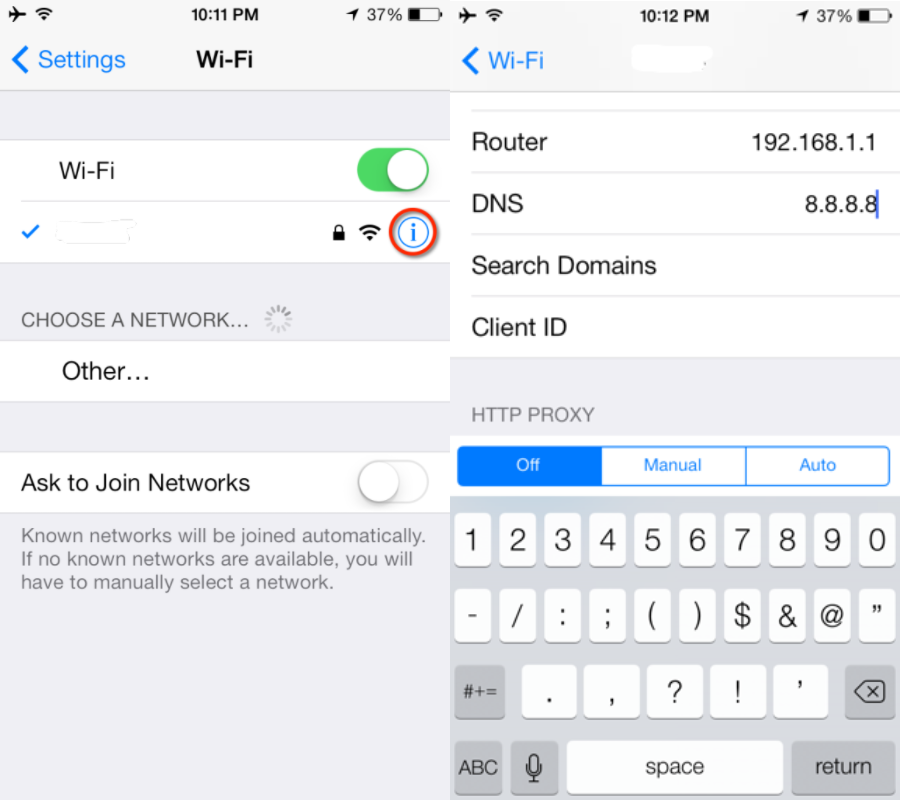


How to Change the DNS Server on Your iPhone And iPad?

What DNS server to use ?


* Google DNS: Google operates a free DNS service that promises speed, performance and security. To use Google’s DNS, use any of these addresses in the DNS field:

8.8.8.8

8.8.4.4


* OpenDNS: Open DNS is another free DNS service that promises speed, reliability, and security. You can enter either of these addresses to use OpenDNS:

208.67.222.222

208.67.222.220


Windows
Mac OS
iOS
Linux
3uTools
Win 64-bit For this device
V9.0 2025-11-11
Download
Win 32-bit For this device
V9.0 2025-11-11
Download
3uTools
Intel Chip How to Identify Chip Type
V9.0 2025-12-02
Download
Apple Chip
V9.0 2025-12-02
Download
How to Identify Chip Type
1.  Click the Apple icon in the top-left corner of the screen and select About This Mac.
2.  Check the Processor or Chip field to determine if it is "Intel" or "Apple".
Please use the 3uTools PC client to install the iOS client:
1、 Install either the Windows or Mac version of 3uTools on your computer
2、 Open the PC client and connect your device to the computer via USB cable
3、 After the connection is successful, wait for the computer to automatically install the mobile app for the device, or locate “Install Mobile App” on the computer and manually click to install.
3uTools
deb file
V3.01 2025-11-20
Download
rpm file
V3.01 2025-11-20
Download
Windows
Windows
iOS
iOS
Android
Android
TV
TV
3uAirPlayer
Win 64-bit For this device
V6.0.2 2025-11-19
Download
Win 32-bit For this device
V6.0.2 2025-11-19
Download
iOS Device Mirroring (No App Required)
1、 Install 3uAirPlayer on the Windows PC
2、 Open Control Center and select Screen Mirroring
3、 From the list, choose your PC to start mirroring
4、 Or connect your iOS device to the PC via USB to begin mirroring
Scan to get "3uAirPlayer" App
3uAirPlayer TV V1.0.18
2025-11-28
TV System Requirements: Android 7.0 or later
Download the TV installation package, copy it to a USB drive, insert it into your TV or set-top box, then select the file from the home screen to install.




