 TUTORIALS
Can you Find your lost AirPods if you Misplaced them?
 09/06/2019
 8687
8687
It’s pretty simple to find your lost AirPods, so long as they still have power. Apple has a tool called “Find My iPhone” that, despite its name, can help you keep track of almost all your Apple gadgets.
The app is preinstalled right on your iPhone or iPad. If you don’t have an iPhone, you can also find it at iCloud.com, where you’ll just need to log into your Apple account first.
In iOS 10.3 or higher, AirPods can view the location of AirPods on the map by turning on Find My iPhone, and play the sound for positioning.
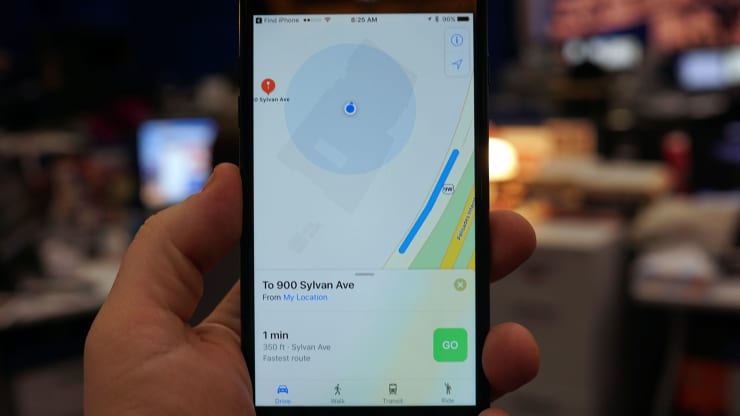
Here’s what you need to do:
Sign in to iCloud.com or Open Find my iPhone on your iPhone.
Find My iPhone shows the location of Apple devices that are logged in with the same Apple ID and the location of AirPods. Scroll through the list of Apple products you own and tap your AirPods. You’ll see where they were last located, which means they were in the range of your iPhone and still had power. If these devices are not connected, they show when and where they were last online. The specific operation method is as follows:
1. Open iCloud.com on your computer, log in to the Apple ID and log in to open "Find iPhone".
2. Click on "All Devices" and then click on AirPods;
Open the "Find My iPhone" app on your device, sign in to your Apple ID and password, click AirPods, and next to each device, you'll see a colored dot showing the status of your device:
The blue dot indicates that the device is being used to find the missing AirPods.
Green dots indicate that AirPods are online, meaning you can play sounds or view directions to find them.
Gray dots indicate that AirPods is off, the battery is exhausted, in the charging box, or beyond the search range, and you may see the last known position.
3. If they look like they’re nearby, tap Actions. Tap “Play a sound.”
Now be quiet and listen for your AirPods. They should be playing an alarm so you can hear them. This is great if they’re hiding under your bed or in a couch cushion.










