TUTORIALS

How to Dual-Boot 2 Versions of iOS on iPhone 4s?

08/09/2017

16670

The good news about iOS 9.3.5 jailbreak inspires the jailbreak community. Here to introduce how to dual-boot 2 iOS versions on one iPhone.

How to Dual-Boot 2 Versions of iOS on iPhone 4s?


Note

Run-time system: >= iOS 7.0 jailbroken

Compatible iDevice: all 32-bit devices

Advantage: It should be stable with simple operation and good compatibility.

Disadvantage: It takes time to switch system and the two system can not share the data, so it is not good for devices with small capacity.

Please backup your iDevice in advance.


Operations

Step 1 Jailbreak your iDevice.


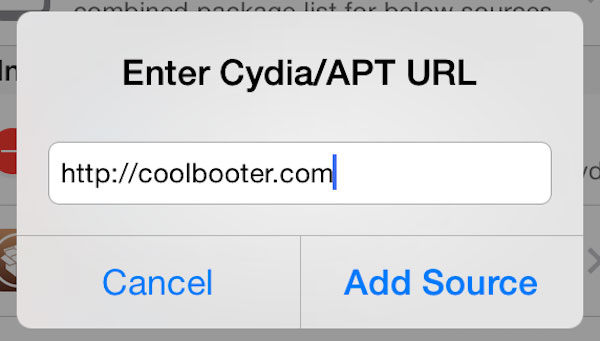
Step 2 Add http://coolbooter.com to Cydia.

How to Dual-Boot 2 Versions of iOS on iPhone 4s?


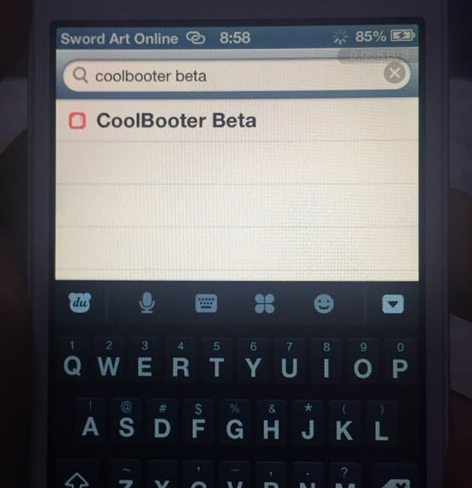
Step 3 Search “Coolbooter Beta” and install it.

How to Dual-Boot 2 Versions of iOS on iPhone 4s?


Step 4 Launch it after installation, and click “install”. Here, you can select the second iOS version you’d like to install. Click “Storage” on the right bottom to set the partition of the second iOS version.
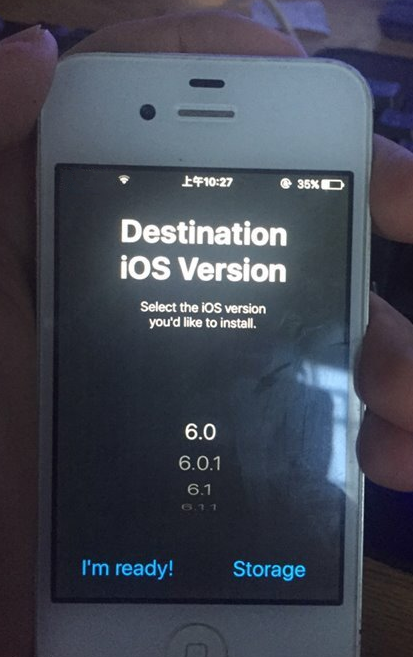

How to Dual-Boot 2 Versions of iOS on iPhone 4s?


Step 5 There will be a pop up, if you select “Yes”, it will install Verbose mode, and if “no”, there will be only an Apple logo.


Step 6 The second pop up is the same as the first pop up. “Yes” is Verbose mode.


Step 7 Wait till the process finishes, and keep a good network connection.
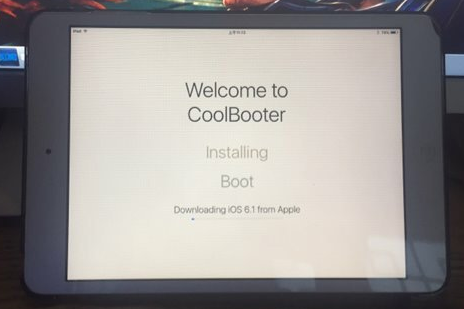

How to Dual-Boot 2 Versions of iOS on iPhone 4s?


Step 8 Click “Dissmiss” to reboot the iDevice.


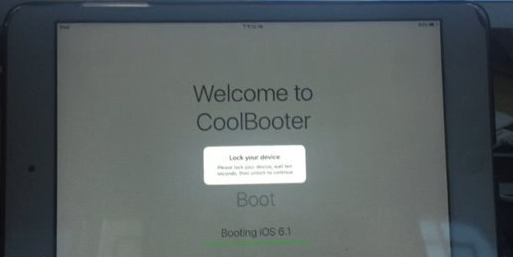
Step 9 Launch Coolbooter again. (Don’t forget to activate jailbreaking), click “boot”
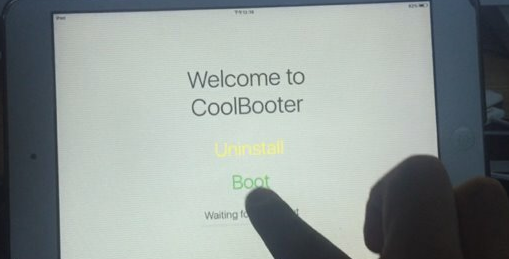

How to Dual-Boot 2 Versions of iOS on iPhone 4s?


How to Dual-Boot 2 Versions of iOS on iPhone 4s?


Step 10 After the picture above shows up, lock the home screen for 15 seconds and press power button. If you install Verbose, the interface will be like as the picture below.
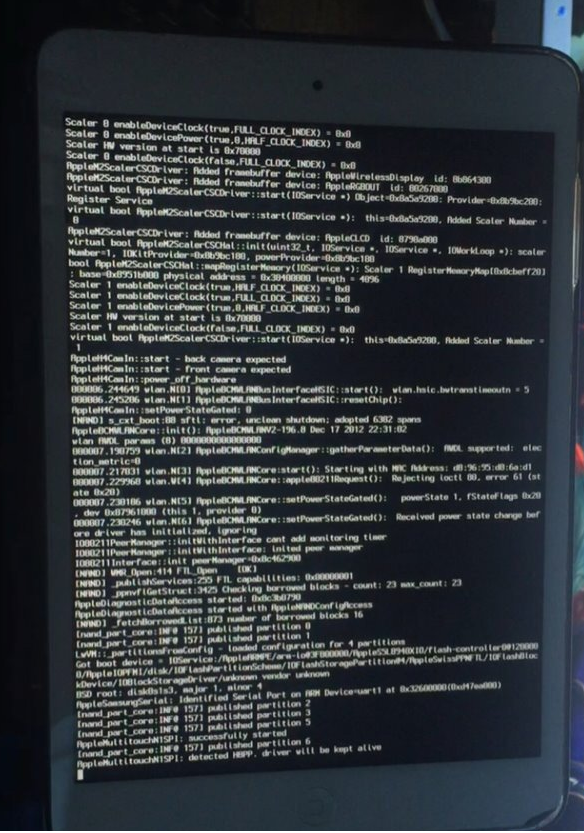

How to Dual-Boot 2 Versions of iOS on iPhone 4s?


Step 11 And then wait patiently, the familiar interface of iOS 6 will show up.
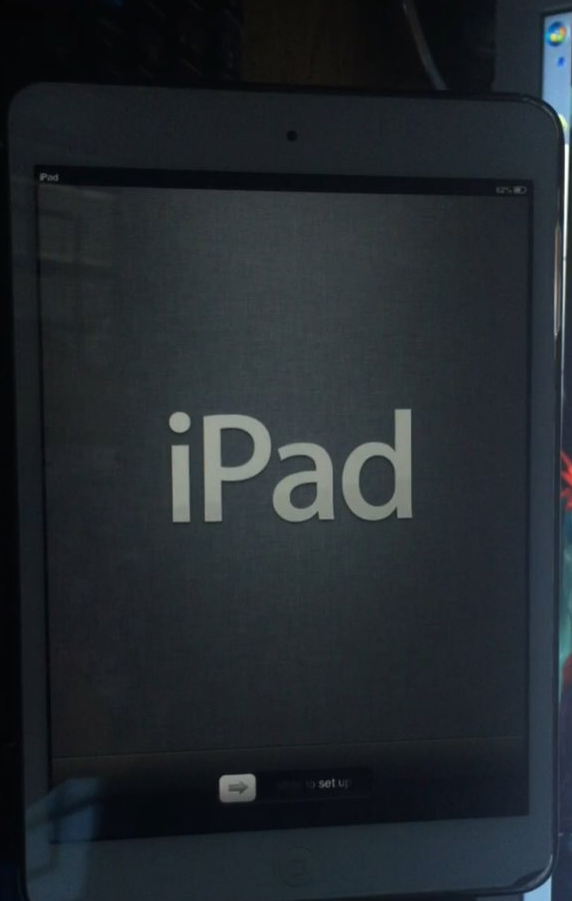
 

How to Dual-Boot 2 Versions of iOS on iPhone 4s?


Now you can enjoy 2 iOS versions on one iPhone. 

Windows
Mac OS
iOS
Linux
3uTools
Win 64-bit For this device
V9.0 2025-11-11
Download
Win 32-bit For this device
V9.0 2025-11-11
Download
3uTools
Intel Chip How to Identify Chip Type
V9.0 2025-12-02
Download
Apple Chip
V9.0 2025-12-02
Download
How to Identify Chip Type
1.  Click the Apple icon in the top-left corner of the screen and select About This Mac.
2.  Check the Processor or Chip field to determine if it is "Intel" or "Apple".
Please use the 3uTools PC client to install the iOS client:
1、 Install either the Windows or Mac version of 3uTools on your computer
2、 Open the PC client and connect your device to the computer via USB cable
3、 After the connection is successful, wait for the computer to automatically install the mobile app for the device, or locate “Install Mobile App” on the computer and manually click to install.
3uTools
deb file
V3.01 2025-11-20
Download
rpm file
V3.01 2025-11-20
Download
Windows
Windows
iOS
iOS
Android
Android
TV
TV
3uAirPlayer
Win 64-bit For this device
V6.0.2 2025-11-19
Download
Win 32-bit For this device
V6.0.2 2025-11-19
Download
iOS Device Mirroring (No App Required)
1、 Install 3uAirPlayer on the Windows PC
2、 Open Control Center and select Screen Mirroring
3、 From the list, choose your PC to start mirroring
4、 Or connect your iOS device to the PC via USB to begin mirroring
Scan to get "3uAirPlayer" App
3uAirPlayer TV V1.0.18
2025-11-28
TV System Requirements: Android 7.0 or later
Download the TV installation package, copy it to a USB drive, insert it into your TV or set-top box, then select the file from the home screen to install.