 TUTORIALS
Unrestr1ct0r – Apple File Conduit 2 Alternative for iOS 11
 03/23/2018
 26797
26797
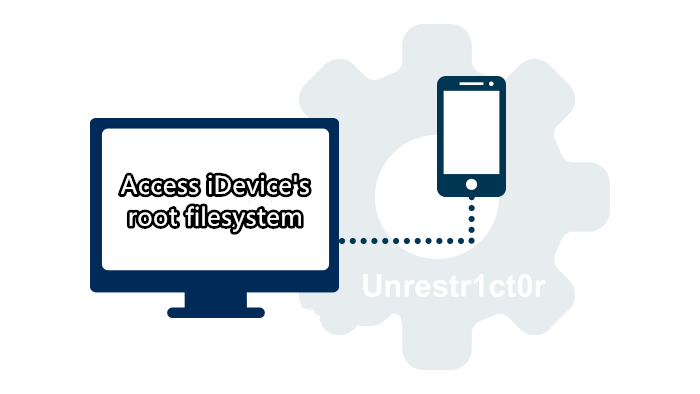
Today we are going to share an AFC2 alternative tool named Unrestrct0r with you. You are able to access your iDevice’s root filesystem with it.
What’s unrestr1ct0r?
Unrestr1ct0r is an Apple File Conduit 2 alternative for iOS 11. It is developed by hacker Jake James. For the uninitiated, Apple File Conduit or AFC allows your computer to access your device’s root filesystem.
Warning
You’re not recommend to install Unrestr1ct0r unless you really require this functionality. Wait for an update to drop and then install.
How to install unrestr1ct0r on iOS 11-11.1.2?
Step 1 Open Cydia.
Step 2 Downgrade Link Identity Editor (Idid) to version 2.0.0. This step is essential because Coolstar’s latest version of ldid is broken. Going back to a previous version will fix this issue.
Step 3 Reinstall jtool Installer if it’s present on your device. If not, simply skip this step.
Step 4 Your device is now ready to install the main package. Go to Sources and tap on Edit > Add.
Step 5 Add Jake’s repository to Cydia – jakeashacks.com/cydia and install the following package.
Step 6 Launch other utility to get unfettered access your root filesystem.
Remember, these tools will still detect your device is “jailed” state, not in “jailbreak” state.
The reason behind this is that these tools can only detect the original Apple File Conduit tweak by Saurik.
Since you are using Unrestr1ct0r (an alternative version), you will get that message but you will still be able to install anything on your device.
If you want to manage Jailbreak File System on iOS 10 or lower, you can refer: How to Install AFC2?










