TUTORIALS

How to Mirror Action Camera Screen to PC?

08/07/2026

71

How to Stream Action Camera Screen to PC


The following tutorial uses a DJI Action Camera as an example:


1. Power on your DJI Action Camera.


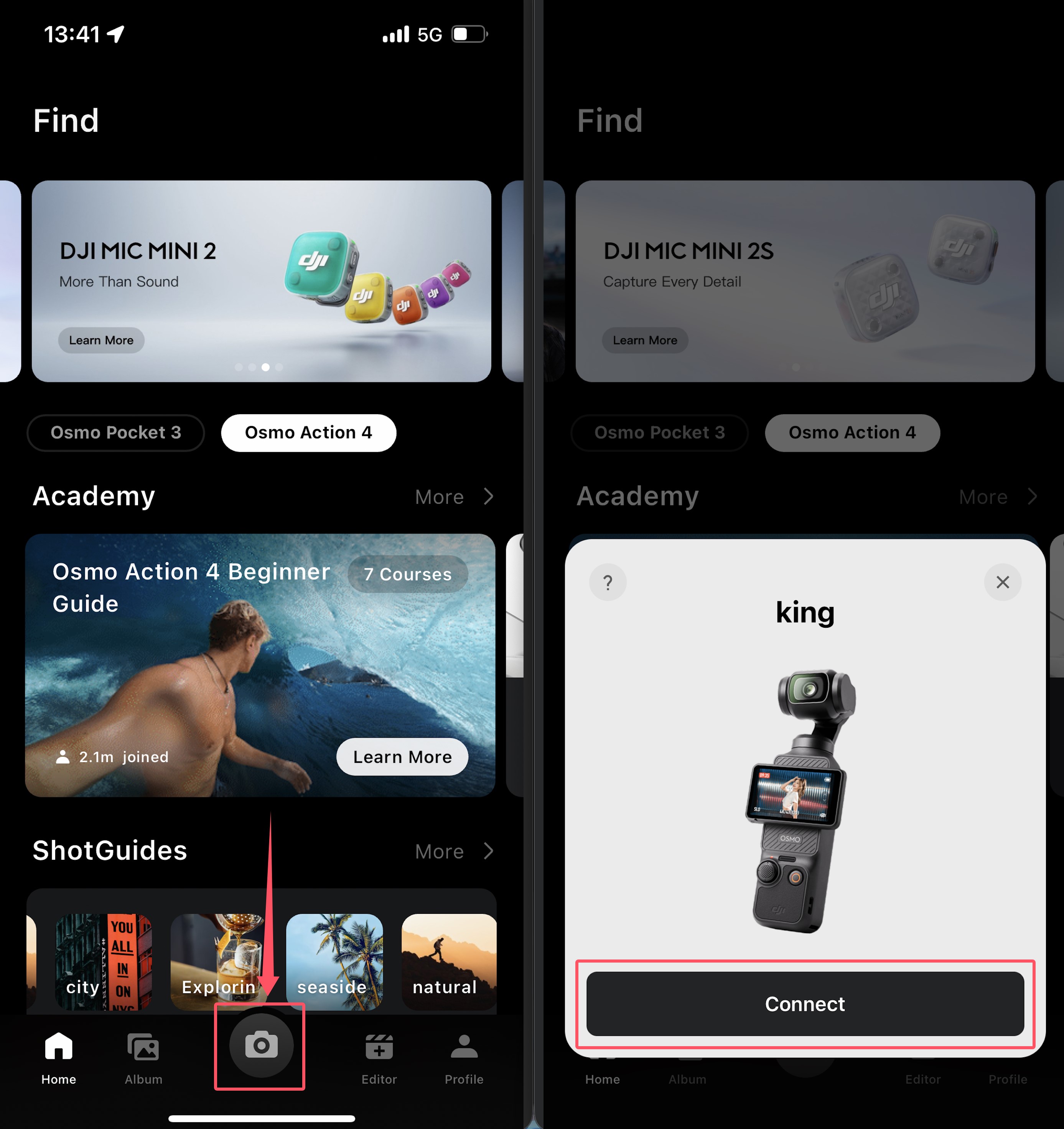
2. Open the DJI Mimo app, tap the camera icon in the center of the bottom menu, search for your action camera, and tap Connect.
 

How to Mirror Action Camera Screen to PC?


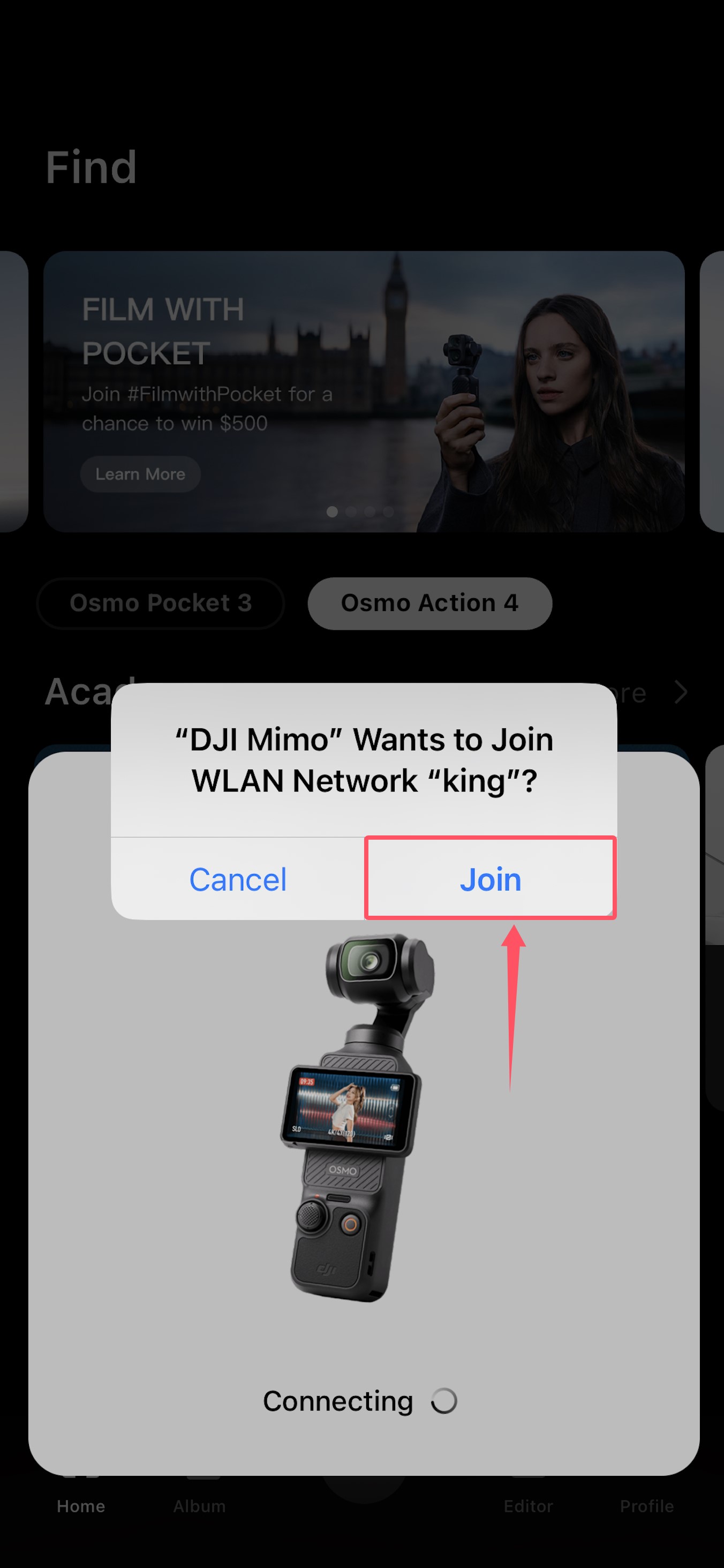
3. Verify the pairing code on your DJI device, then tap to join the device's WLAN network.
 

How to Mirror Action Camera Screen to PC?


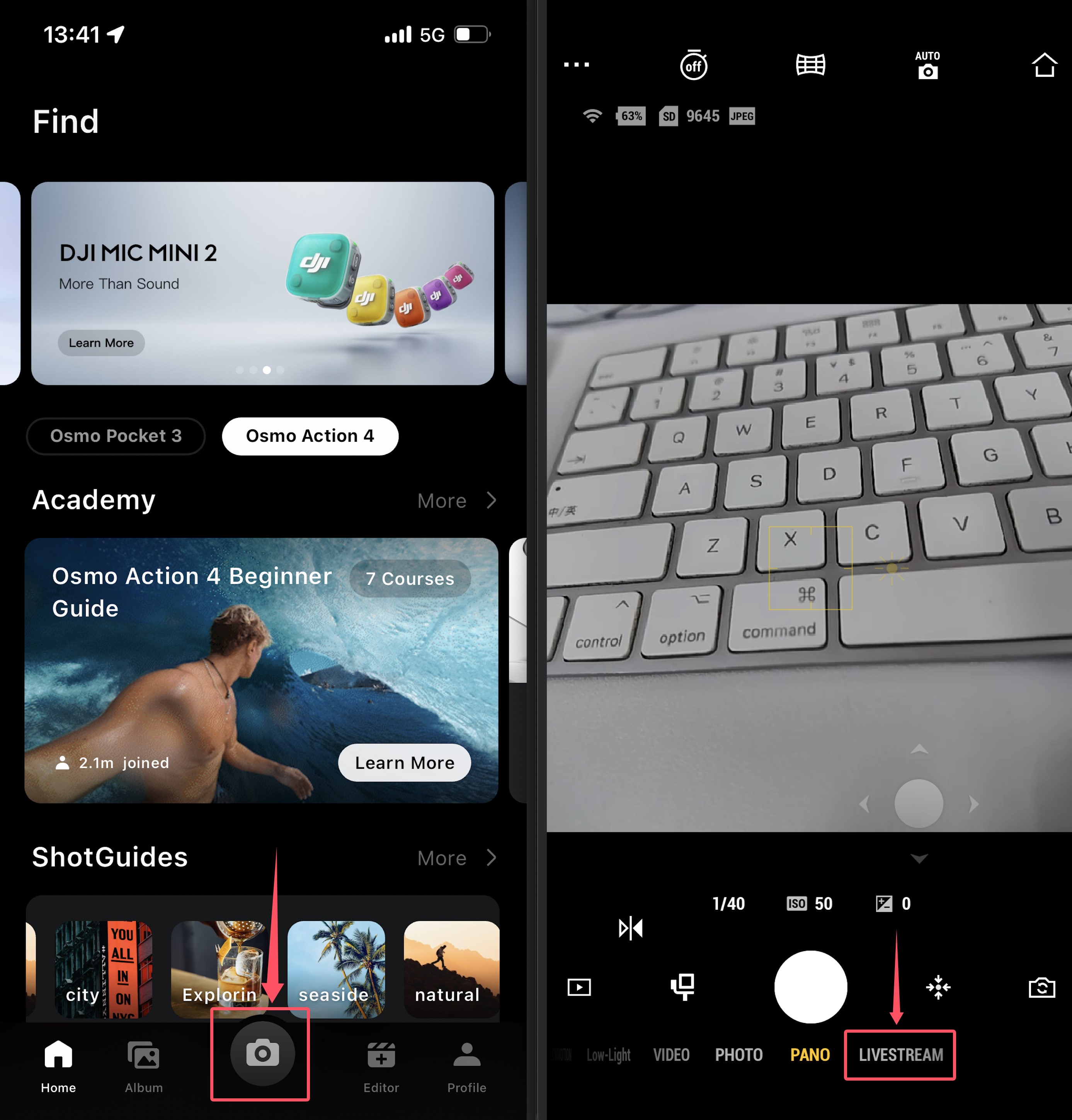
4. Tap the camera icon in the center of the bottom menu again. Once the camera live view appears, tap LiveStream at the bottom.
 

How to Mirror Action Camera Screen to PC?


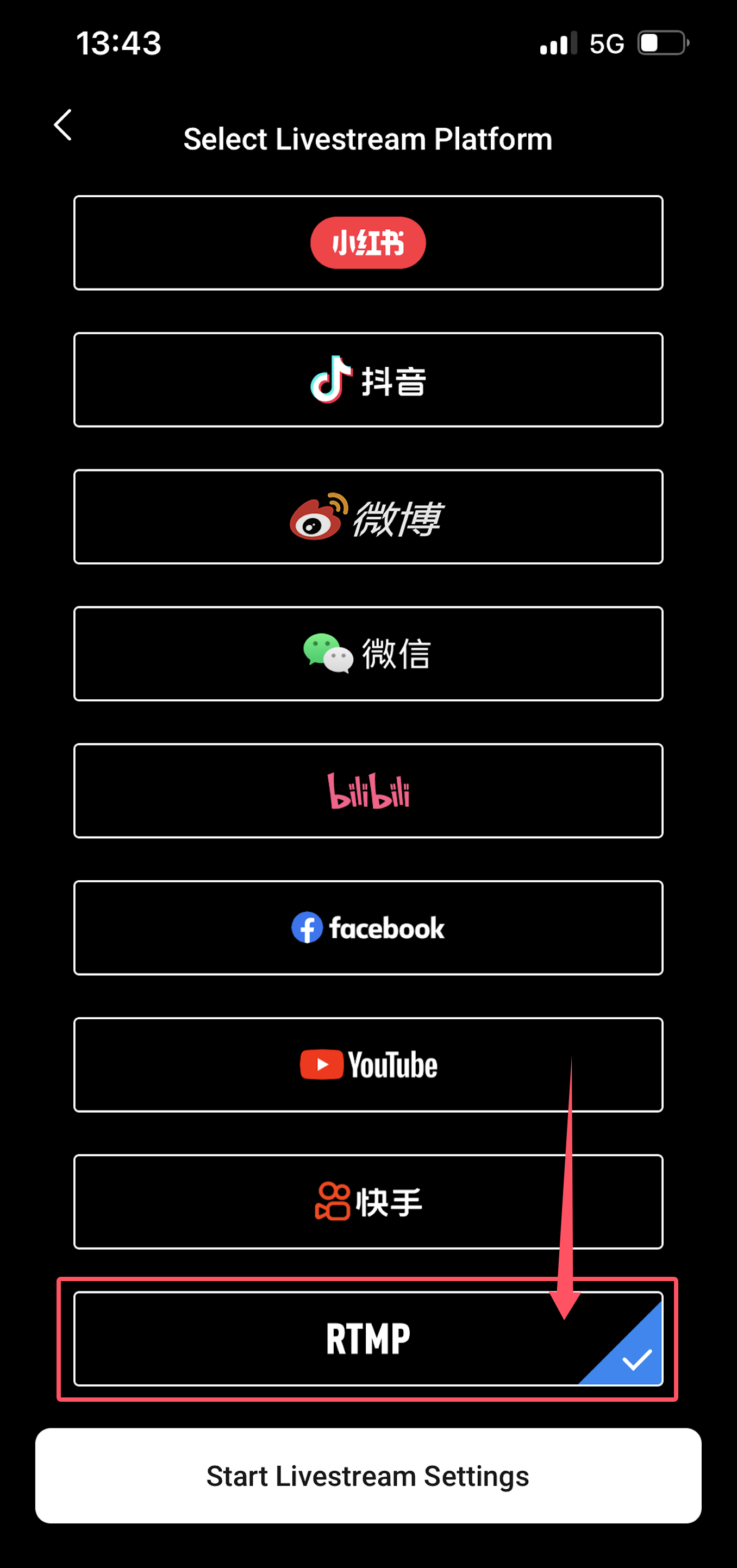
5. Select RTMP as the streaming platform, then tap Start Livestream Settings below.
 

How to Mirror Action Camera Screen to PC?


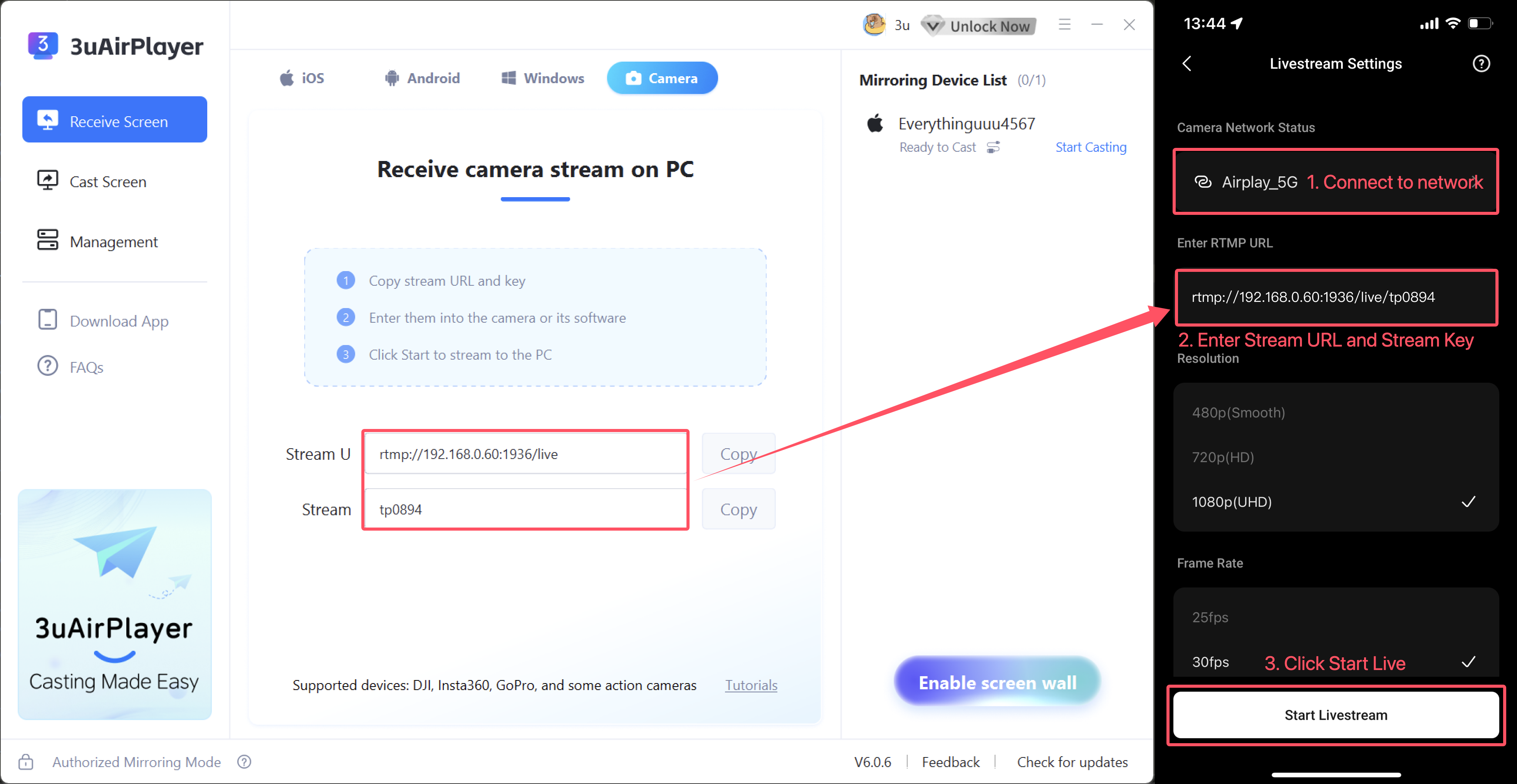
6. In the live stream settings, connect to your network first, then enter the Stream URL and Stream Key provided by 3uAirPlayer into the RTMP URL field. Adjust settings such as resolution and bitrate according to your needs, then tap Start Live at the bottom.


Note: Combine the Stream URL and Stream Key provided by 3uAirPlayer into a single text string, using a forward slash / as a separator between them. Ensure there are no spaces.

Example:

Stream URL: rtmp://192.xxx.00/live

Stream Key: txxxxx8

RTMP URL field format: rtmp://192.xxx.00/live/txxxxx8
 

How to Mirror Action Camera Screen to PC?


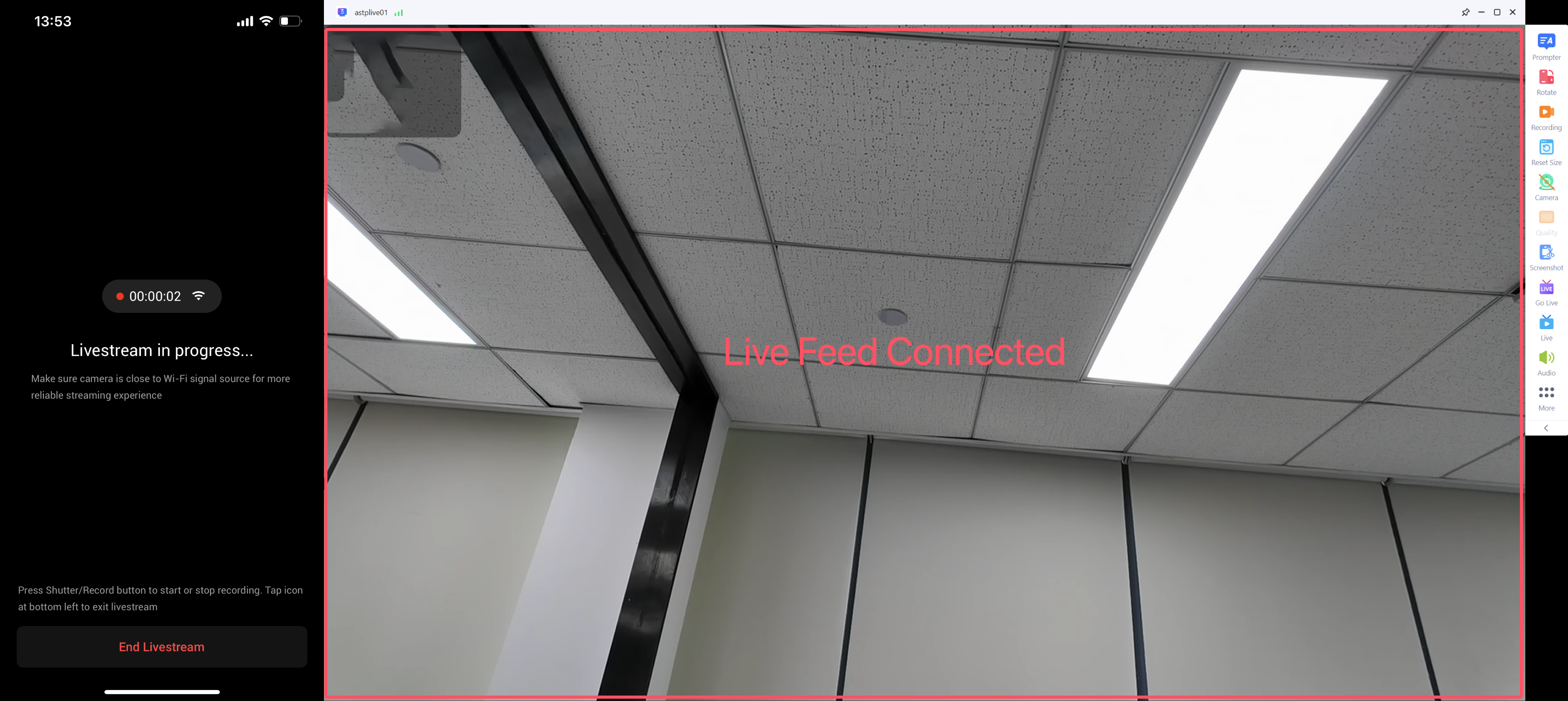
7. When the interface displays "Live Feed Connected", the screen stream has been successfully established, and you can view the live feed on your PC.
 

How to Mirror Action Camera Screen to PC?

Windows
Mac OS
iOS
Linux
3uTools
Win 64-bit For this device
V9.07 2026-07-17
Download
Win 32-bit For this device
V9.07 2026-07-17
Download
3uTools
Intel Chip How to Identify Chip Type
V9.05 2026-07-25
Download
Apple Silicon
V9.05 2026-07-25
Download
How to Identify Chip Type
1.  Click the Apple icon in the top-left corner of the screen and select About This Mac.
2.  Check the Processor or Chip field to determine if it is "Intel" or "Apple".
Please use the 3uTools PC client to install the iOS client:
1、 Install either the Windows or Mac version of 3uTools on your computer
2、 Open the PC client and connect your device to the computer via USB cable
3、 After the connection is successful, wait for the computer to automatically install the mobile app for the device, or locate “Install Mobile App” on the computer and manually click to install.
3uTools
deb file
V9.01 2026-05-28
Download
rpm file
V9.01 2026-05-28
Download
Windows
Windows
iOS
iOS
Android
Android
TV
TV
3uAirPlayer
Win 64-bit For this device
V6.0.6 2026-06-26
Download
Win 32-bit For this device
V6.0.6 2026-06-26
Download
iOS Device Mirroring (No App Required)
1、 Install 3uAirPlayer on the Windows PC
2、 Open Control Center and select Screen Mirroring
3、 From the list, choose your PC to start mirroring
4、 Or connect your iOS device to the PC via USB to begin mirroring
Scan to get "3uAirPlayer" App
3uAirPlayerTV
 
TV System Requirements: Android 7.0 or later
Download the TV installation package, copy it to a USB drive, insert it into your TV or set-top box, then select the file from the home screen to install.