
TUTORIALS

OBS Window Capture Shows No Video for Screen Mirroring

03/05/2026

121

When using the Window Capture feature in OBS to capture a screen mirroring window (3uAirPlayer), if the video does not display or appears abnormal, you can fix it by adjusting the capture method. The detailed steps are as follows:


OBS Window Capture Shows No Video for Screen Mirroring


Step 1: Open OBS Window Capture Settings


In the Sources area on the main OBS interface, locate the already added Window Capture source.


Right-click the source and select Properties (or double-click the source directly) to open the Window Capture Settings window.


Step 2: Adjust Capture Method


In the Window Capture Settings window, locate the Capture Method dropdown menu:


a. If the current option is not Windows 10 (1903 or newer), switch it to this option.

b. You can also check “Borderless Mode” to optimize the video display quality.
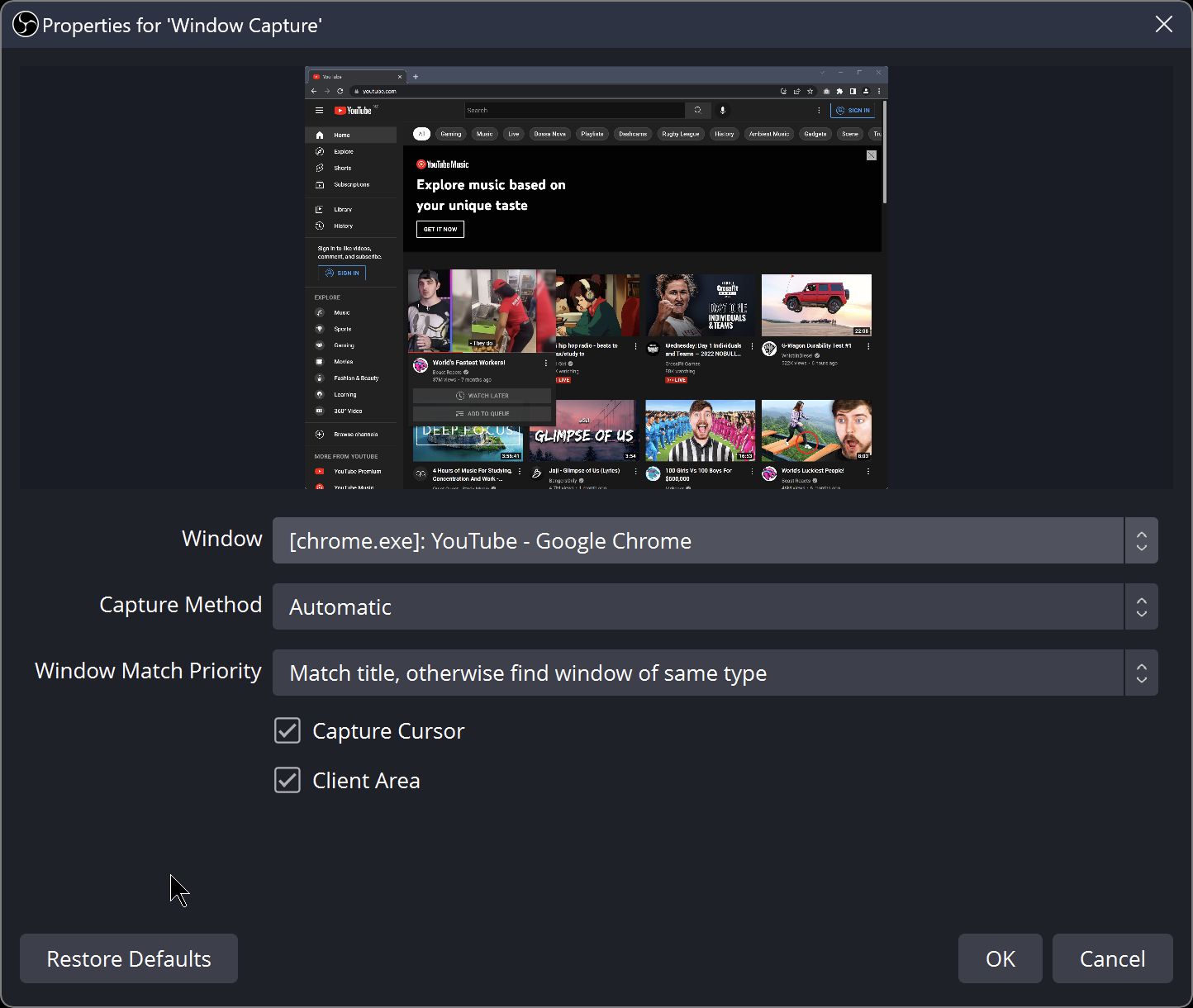
 

OBS Window Capture Shows No Video for Screen Mirroring


Step 3: Confirm and Apply Settings


After making the changes, click OK to apply the settings.


Return to the OBS preview interface, and the screen mirroring window should now display normally, resolving the issue of no video in Window Capture.


Explanation


The rendering mechanism of screen mirroring windows differs from ordinary windows, and older capture methods (such as BitBlt) have limited compatibility.


The Windows 10 (1903 or newer) capture method is optimized for higher version Windows systems and special windows, allowing OBS to correctly detect and capture the screen mirroring window’s video data, thereby resolving display abnormalities.


Windows
Mac OS
iOS
Linux
3uTools
Win 64-bit For this device
V9.03 2026-03-12
Download
Win 32-bit For this device
V9.03 2026-03-12
Download
3uTools
Intel Chip How to Identify Chip Type
V9.01 2025-12-31
Download
Apple Silicon
V9.01 2025-12-31
Download
How to Identify Chip Type
1.  Click the Apple icon in the top-left corner of the screen and select About This Mac.
2.  Check the Processor or Chip field to determine if it is "Intel" or "Apple".
Please use the 3uTools PC client to install the iOS client:
1、 Install either the Windows or Mac version of 3uTools on your computer
2、 Open the PC client and connect your device to the computer via USB cable
3、 After the connection is successful, wait for the computer to automatically install the mobile app for the device, or locate “Install Mobile App” on the computer and manually click to install.
3uTools
deb file
V3.01 2025-11-20
Download
rpm file
V3.01 2025-11-20
Download
Windows
Windows
iOS
iOS
Android
Android
TV
TV
3uAirPlayer
Win 64-bit For this device
V6.0.3 2026-03-11
Download
Win 32-bit For this device
V6.0.3 2026-03-11
Download
iOS Device Mirroring (No App Required)
1、 Install 3uAirPlayer on the Windows PC
2、 Open Control Center and select Screen Mirroring
3、 From the list, choose your PC to start mirroring
4、 Or connect your iOS device to the PC via USB to begin mirroring
Scan to get "3uAirPlayer" App
3uAirPlayer TV V1.0.18
2025-11-28
TV System Requirements: Android 7.0 or later
Download the TV installation package, copy it to a USB drive, insert it into your TV or set-top box, then select the file from the home screen to install.



