
TUTORIALS

How to Use Virtual Camera to Send Cast Screen to Live Stream

11/03/2025

585

How to Use the Virtual Camera to Stream Mirrored Content


In professional or complex production setups, built-in live streaming tools may not fully support multi-source input, advanced scene composition, workflow control, or custom output formats.


In such cases—such as gaming, product launches, sports events, multi-location sessions, education, or interviews—you can use 3uAirPlayer with a virtual camera to stream your mirrored content to live platforms.


Step 1: Mirror your iOS device


On your iPhone or iPad, open Control Center, tap Screen Mirroring, and select your computer from the device list.


Once your device screen appears on the receiving computer, mirroring is successful.
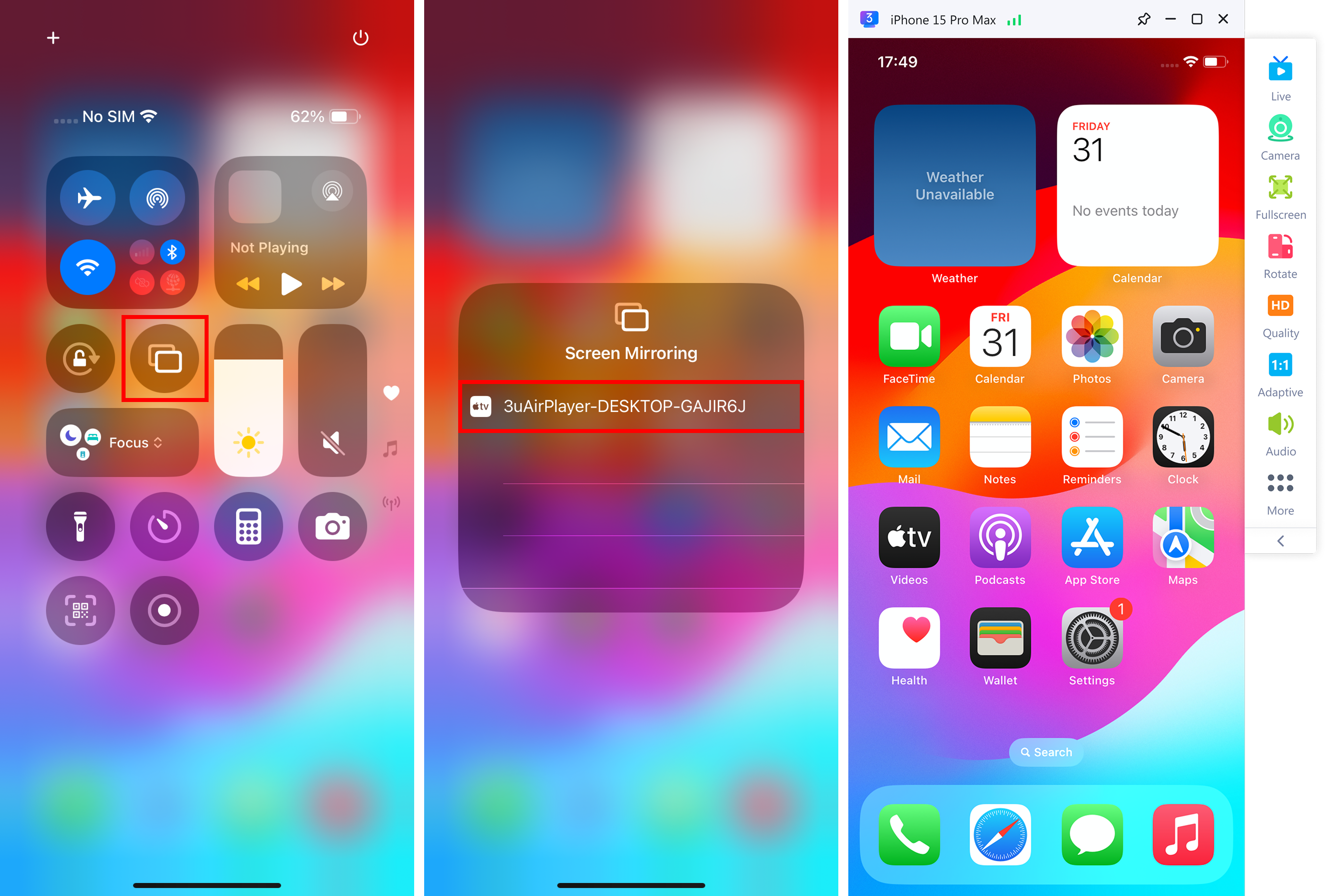
 

How to Use Virtual Camera to Send Cast Screen to Live Stream


Step 2: Enable the virtual camera


On your computer (the one receiving the mirrored content), open 3uAirPlayer and turn on the Virtual Camera option in the top menu.
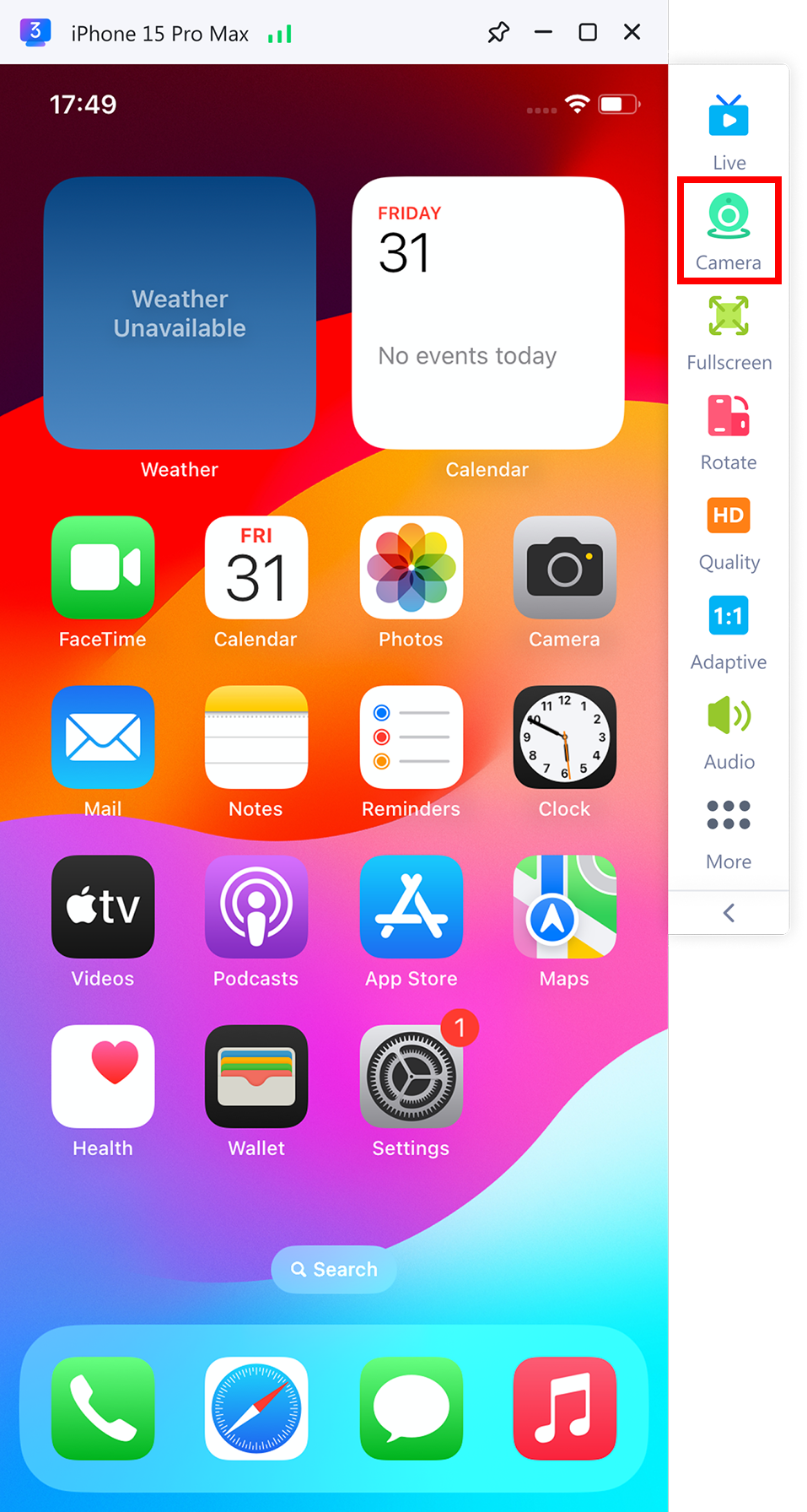
 

How to Use Virtual Camera to Send Cast Screen to Live Stream


Step 3: Add the virtual camera in your streaming software


Open your preferred streaming tool (such as OBS Studio) and add 3uAirPlayer Virtual Camera as a video source.


For optimal image quality, it is recommended to set the Color Range in OBS to Full, ensuring accurate color reproduction and higher fidelity.


Tip:


If the virtual camera doesn’t appear in OBS or other streaming software, restart both 3uAirPlayer and the streaming app to refresh device detection.


 

Windows
Mac OS
iOS
Linux
3uTools
Win 64-bit For this device
V9.0 2025-11-11
Download
Win 32-bit For this device
V9.0 2025-11-11
Download
3uTools
Intel Chip How to Identify Chip Type
V9.0 2025-12-02
Download
Apple Chip
V9.0 2025-12-02
Download
How to Identify Chip Type
1.  Click the Apple icon in the top-left corner of the screen and select About This Mac.
2.  Check the Processor or Chip field to determine if it is "Intel" or "Apple".
Please use the 3uTools PC client to install the iOS client:
1、 Install either the Windows or Mac version of 3uTools on your computer
2、 Open the PC client and connect your device to the computer via USB cable
3、 After the connection is successful, wait for the computer to automatically install the mobile app for the device, or locate “Install Mobile App” on the computer and manually click to install.
3uTools
deb file
V3.01 2025-11-20
Download
rpm file
V3.01 2025-11-20
Download
Windows
Windows
iOS
iOS
Android
Android
TV
TV
3uAirPlayer
Win 64-bit For this device
V6.0.2 2025-11-19
Download
Win 32-bit For this device
V6.0.2 2025-11-19
Download
iOS Device Mirroring (No App Required)
1、 Install 3uAirPlayer on the Windows PC
2、 Open Control Center and select Screen Mirroring
3、 From the list, choose your PC to start mirroring
4、 Or connect your iOS device to the PC via USB to begin mirroring
Scan to get "3uAirPlayer" App
3uAirPlayer TV V1.0.18
2025-11-28
TV System Requirements: Android 7.0 or later
Download the TV installation package, copy it to a USB drive, insert it into your TV or set-top box, then select the file from the home screen to install.



