NEWS

Apple Rolls out Redesigned iCloud Interface on the web in Beta with new Reminders app, more

08/23/2019

2839

Apple Rolls out Redesigned iCloud Interface on the web in Beta with new Reminders app, more


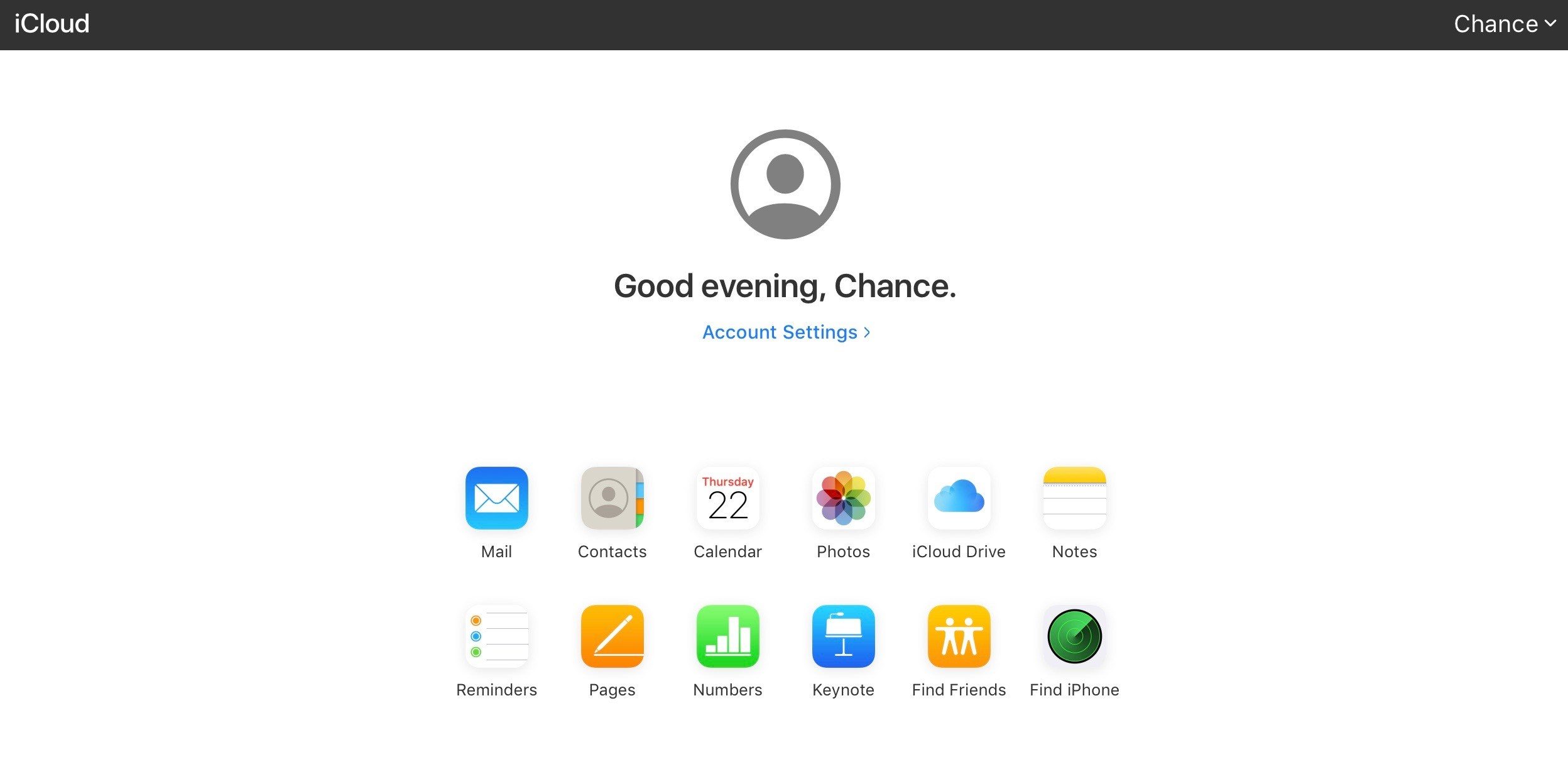
Apple this week has launched a new beta version of iCloud on the web with the overhauled Reminders app, a new launch screen, and more. The change was first pointed out by Federico Viticci on Twitter.


The Reminders app on iOS 13 and macOS Catalina was given a major overhaul, and now the same app can be accessed directly on the web. On the non-beta version of iCloud on the web, Reminders is simply listened as “coming soon.”


The main splash screen for iCloud on the web has also been overhauled with a new interface. Gone is the bubbly-blue background of the old iCloud interface on the web. You can easily access the various apps from this launch screen, including Mail, Contacts, Calendar, Photos, iCloud Drive, Notes, and more.


Also through iCloud on the web, you can access your account settings for managing things like your devices, your iCloud storage, and more. Notably, the beta version of iCloud on the web still includes “Find My iPhone,” as opposed to the new “Find My” application. Ideally, this is something Apple will bring to the web later this year.


To try out the new iCloud interface on the web, simply head to beta.icloud.com and sign in to your Apple account. As for when to expect the new interface to roll out in non-beta form, we should expect that to happen later this fall in conjunction with the release of iOS 13 and macOS Catalina.


Source: 9to5mac

Windows
Mac OS
iOS
Linux
3uTools
Win 64-bit For this device
V9.01 2025-12-27
Download
Win 32-bit For this device
V9.01 2025-12-27
Download
3uTools
Intel Chip How to Identify Chip Type
V9.01 2025-12-31
Download
Apple Silicon
V9.01 2025-12-31
Download
How to Identify Chip Type
1.  Click the Apple icon in the top-left corner of the screen and select About This Mac.
2.  Check the Processor or Chip field to determine if it is "Intel" or "Apple".
Please use the 3uTools PC client to install the iOS client:
1、 Install either the Windows or Mac version of 3uTools on your computer
2、 Open the PC client and connect your device to the computer via USB cable
3、 After the connection is successful, wait for the computer to automatically install the mobile app for the device, or locate “Install Mobile App” on the computer and manually click to install.
3uTools
deb file
V3.01 2025-11-20
Download
rpm file
V3.01 2025-11-20
Download
Windows
Windows
iOS
iOS
Android
Android
TV
TV
3uAirPlayer
Win 64-bit For this device
V6.0.2 2025-11-19
Download
Win 32-bit For this device
V6.0.2 2025-11-19
Download
iOS Device Mirroring (No App Required)
1、 Install 3uAirPlayer on the Windows PC
2、 Open Control Center and select Screen Mirroring
3、 From the list, choose your PC to start mirroring
4、 Or connect your iOS device to the PC via USB to begin mirroring
Scan to get "3uAirPlayer" App
3uAirPlayer TV V1.0.18
2025-11-28
TV System Requirements: Android 7.0 or later
Download the TV installation package, copy it to a USB drive, insert it into your TV or set-top box, then select the file from the home screen to install.