 NEWS
NEWS
GasBuddy App Reportedly Cause the iPhone to Show a Black Screen
 10/23/2018
 3371
3371
Ordinarily, GasBuddy shows you nearby fuel prices. Right now, it might lock up your iPhone.
Avoid using the latest version of the GasBuddy app on your iPhone. The developer admits it is causing problems and has temporarily withdrawn it from the App Store until a fix can be released.
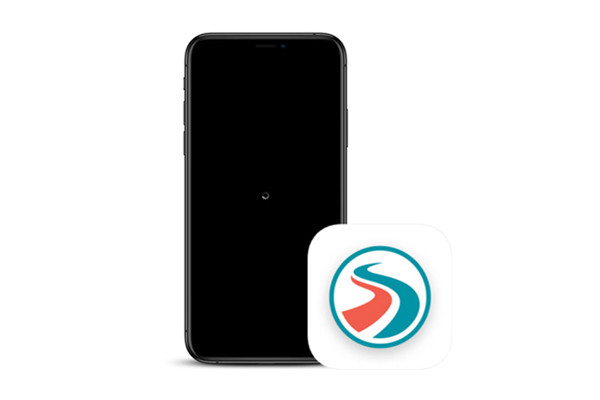
GasBuddy lists crowdsourced gasoline prices. It’s free and useful enough to make our list of 50 essential iOS apps.
GasBuddy, LLC discussed the problem with its app on Twitter:
“We are aware that some people are encountering issues with our iOS app. We’re rapidly preparing an update we believe solves the issue and are making our app temporarily unavailable for download to limit the number of potentially affected users.”
Fixing the GasBuddy problem
If used, the version of GasBuddy released a few days ago will reportedly cause the iPhone to show a black screen with a spinning circle. This never goes away.
One option is to not use the software at all until a new version is released. Alternatively, delete it now and reinstall when the promised update is available.
If GasBuddy is run now, there’s a chance it will go into the loading loop described earlier. The fix is to do a hard reset on the device. If done correctly, this won’t affect any of the data on the iPhone.
On an iPhone 8, X, XS, or XS Max, do a hard reset by pressing and releasing the volume up button, doing the same to volume down button, then pressing and holding the side button. Release only when the Apple logo appears on the screen.
On an older model, press and hold both the Sleep/Wake and Volume Down buttons until the Apple logo appears, then release. This can take 10 seconds or more.
Once the iPhone has been reset, delete the GasBuddy app. It can be reinstalled once a fix is available.
Source: cultofmac










