
NEWS

Surveillance App Stored Teens' Apple IDs on Unprotected Servers

05/21/2018

2497

An app meant to let parents monitor the phone activity of teenagers was until recently saving the latter's Apple ID passwords in unprotected plaintext form, a report revealed on Sunday.
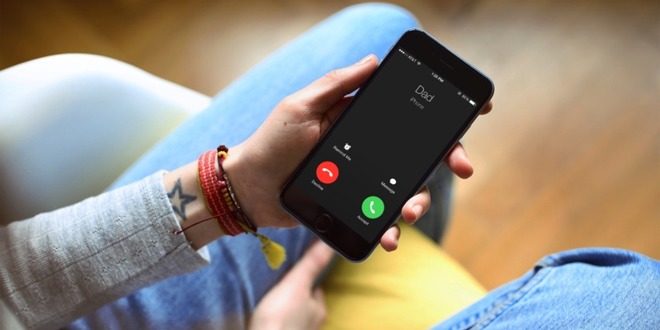

Surveillance App Stored Teens' Apple IDs on Unprotected Servers


The information collected by TeenSafe was hosted on Amazon servers, and also included device identifiers and the email addresses of parents, ZDNet said, crediting the discovery to U.K. researcher Robert Wiggins. Those servers have been temporarily pulled offline, and a TeenSafe representative stated that the company has begun notifying anyone who might be impacted.


At least 10,200 records from the past three months contained customer data, though some were duplicates.


TeenSafe markets itself as a secure, encrypted way for parents to track call, Web, and location histories, as well as read text messages, even deleted ones. 


Using the app to track a teen's iPhone requires that they have two-factor authentication turned off, though, which means that any hacker who discovered the plaintext passwords could hijack a teen's Apple ID and view private content.


It's not known if any malicious attacks have been launched, but some of the affected customers had already changed their account data prior to being alerted.


Source: appleinsider

Windows
Mac OS
iOS
Linux
3uTools
Win 64-bit For this device
V9.01 2025-12-27
Download
Win 32-bit For this device
V9.01 2025-12-27
Download
3uTools
Intel Chip How to Identify Chip Type
V9.01 2025-12-31
Download
Apple Silicon
V9.01 2025-12-31
Download
How to Identify Chip Type
1.  Click the Apple icon in the top-left corner of the screen and select About This Mac.
2.  Check the Processor or Chip field to determine if it is "Intel" or "Apple".
Please use the 3uTools PC client to install the iOS client:
1、 Install either the Windows or Mac version of 3uTools on your computer
2、 Open the PC client and connect your device to the computer via USB cable
3、 After the connection is successful, wait for the computer to automatically install the mobile app for the device, or locate “Install Mobile App” on the computer and manually click to install.
3uTools
deb file
V3.01 2025-11-20
Download
rpm file
V3.01 2025-11-20
Download
Windows
Windows
iOS
iOS
Android
Android
TV
TV
3uAirPlayer
Win 64-bit For this device
V6.0.2 2025-11-19
Download
Win 32-bit For this device
V6.0.2 2025-11-19
Download
iOS Device Mirroring (No App Required)
1、 Install 3uAirPlayer on the Windows PC
2、 Open Control Center and select Screen Mirroring
3、 From the list, choose your PC to start mirroring
4、 Or connect your iOS device to the PC via USB to begin mirroring
Scan to get "3uAirPlayer" App
3uAirPlayer TV V1.0.18
2025-11-28
TV System Requirements: Android 7.0 or later
Download the TV installation package, copy it to a USB drive, insert it into your TV or set-top box, then select the file from the home screen to install.




