 NEWS
NEWS
Not All Banks Are Ready to Trust Face ID on the iPhone X
 11/21/2017
 2927
2927
The iPhone X brings over a brand new type of iPhone feature, one that changes the way you interact with the device, facial recognition. But Apple’s not doing facial recognition the Android way, which can be easily hacked with a photo. Instead, Apple built a miniaturized Kinect that analyzes the unique patterns of each face with the help of components that can measure depth. Thus, the 3D facial recognition of the iPhone X is unparalleled when it comes to biometrics-based mobile security.
Face ID is the first step towards the kind of seamless, perpetual authentication we’re heading to. But it’s not good enough for Korean banks.
A report from The Korea Herald says that several banks in the county are not ready to fully trust Face ID. The list includes online-only banks Kakao Bank and K-Bank and commercial entities like Kookmin Bank, Shinhan, IBK, Busan, and NH.
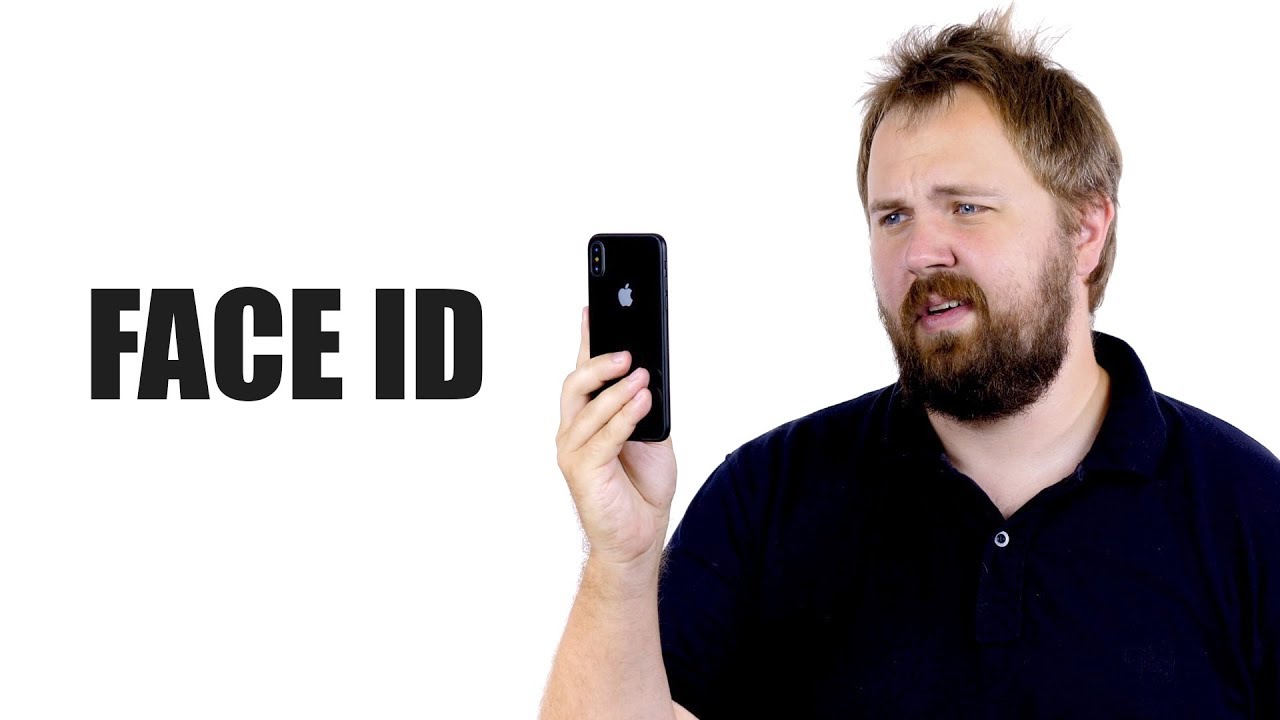
The fact that a hacker in Vietnam was able to hack Face ID after building a complex face mask, although that hacker never fully answered questions about his hack, is a cause of concern for these banks. As is the fact that children can unlock the iPhones of parents.
“It was difficult for us to adopt the biometric technology (of iPhone X) abruptly since it normally takes some time to undergo several security procedures before adopting a new technology. Plus, the phone’s facial authentication technology was not fully proven,” a Kookmin Bank official said.
Face ID replaces Touch ID functionality in apps without developers having to do anything about it. Because the iPhone lacks a fingerprint sensor, iPhone X users in Korea will have to use other apps to authenticate themselves when it comes to mobile banking.
In the future, things will probably change, as local banks verify the security of Face ID. The report notes that banks in Australia, Canada, UK, and New Zealand have already confirmed that they’ll support Face ID.
Source: sg










