 NEWS
NEWS
Apple Served with Warrant to Unlock the Texas Shooter’s iPhone SE
 11/20/2017
 4951
4951
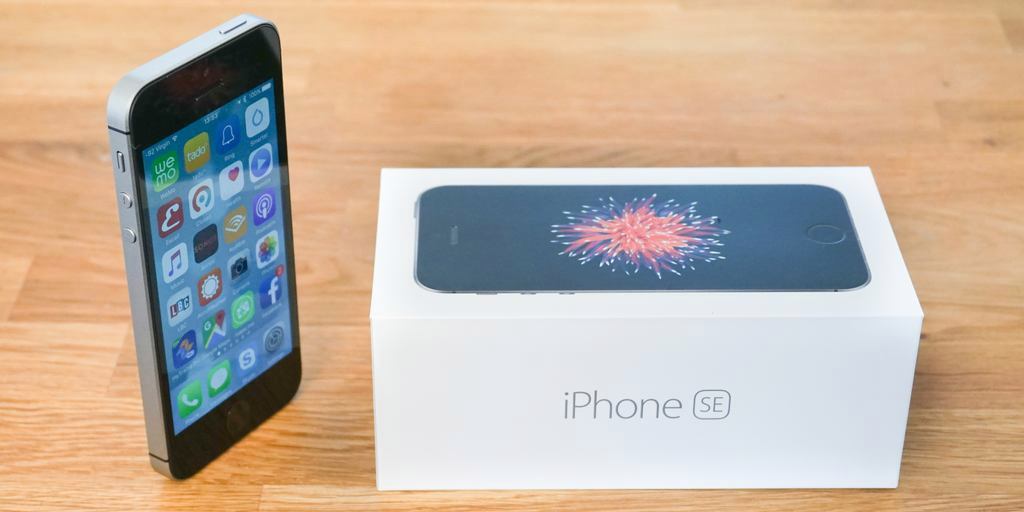
Apple has officially been served with a search warrant for access to the iPhone SE used by the man responsible for the Sutherland Springs, Texas shooting. The move comes after an earlier fumble that saw the Texas Rangers and FBI fail to act within 48 hours to unlock the device in question with Touch ID…
As detailed in a report from Fast Company, the Texas Rangers served Apple with a warrant for access to David Kelley’s iPhone SE and his iCloud account, though it’s unclear if one exists at this point. Furthermore, the Rangers want access to a second phone used by Kelley, a cheap LG-made feature phone.
Apple stated earlier this month that it contacted law enforcement officials roughly 48 hours after the shooting to see if it could be of any help. During that first 48 hours, when Touch ID would have still been enabled, law enforcement made no efforts to ask Apple for help or to use Touch ID to unlock the phone. Instead, it shipped the device off to a crime lab in Quantico, Virginia.
As for the iCloud data, Apple generally helps law enforcement access that data, providing the iCloud data, as well as the tools needed to decrypt it. On the other hand, don’t expect Apple to create the tool necessary to unlock the iPhone SE used by Kelley.
This is a similar situation to the showdown between law enforcement and Apple related to the San Bernardino shooter’s iPhone. Apple was asked for help unlocking the iPhone 5C in question, but it said creating a tool necessary to do so would compromise the security of every iPhone. In the end, the FBI used a tool created by a third-party to unlock the phone, but no information was found.
Apple has yet to officially respond to the search warrant from the Texas Rangers, but we’ll be sure to update when they do.
Source: 9to5mac










