 NEWS
NEWS
FBI Unable to Retrieve Encrypted Data From 6,900 Devices Over the Last 11 Months
 10/24/2017
 3239
3239
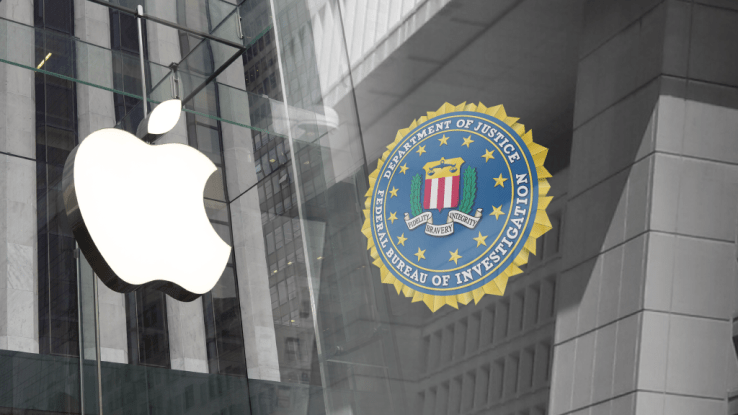
The United States Federal Bureau of Investigation was unable to retrieve data from 6,900 mobile devices that it attempted to access over the course of the last 11 months, reports the Associated Press.
FBI Director Christopher Wray shared the number at an annual conference for the International Association of Chiefs of Police on Sunday.
During the first 11 months of the current fiscal year, Wray says the 6,900 devices that were inaccessible accounted for half of the total devices the FBI attempted to retrieve data from. Wray called the FBI's inability to get into the devices a "huge, huge problem."
"To put it mildly, this is a huge, huge problem," Wray said. "It impacts investigations across the board -- narcotics, human trafficking, counterterrorism, counterintelligence, gangs, organized crime, child exploitation."
Wray did not specify how many of the 6,900 devices the FBI could not access were iPhones or iPads running a version of Apple's iOS operating system, but encryption has been an issue between Apple and the FBI since last year when the two clashed over the unlocking of an iPhone 5c owned by Syed Farook, one of the shooters in the December 2015 attacks in San Bernardino.
The FBI took Apple to court in an attempt to force Apple to create a version of iOS that would disable passcode security features and allow passcodes to be entered electronically, providing the FBI with the tools to hack into the device.
Apple refused and fought the court order, claiming the FBI's request could set a "dangerous precedent" with serious implications for the future of smartphone encryption. Apple ultimately did not capitulate and the FBI enlisted Israeli firm Cellebrite to crack the device.
Following the incident, there was a push for new encryption legislation, but it largely fizzled out after it was described by tech companies as "absurd" and "technically inept." Apple's fight with the FBI is far from over, though, as there was no final resolution following the San Bernardino dispute.
At the conclusion of the FBI lawsuit, Apple said the case "should never have been brought" and vowed to continue to increase the security of its products.
"Apple believes deeply that people in the United States and around the world deserve data protection, security and privacy. Sacrificing one or the other only puts people and countries at greater risk," Apple said in a statement.
Note: Due to the political nature of the discussion regarding this topic, the discussion thread is located in our Politics, Religion, Social Issues forum. All forum members and site visitors are welcome to read and follow the thread, but posting is limited to forum members with at least 100 posts.
Source: macrumors










