 NEWS
NEWS
Apple Pay Now Works With Eftpos Cards From ANZ in Australia
 10/18/2017
 3338
3338
Apple Pay in Australia today has expanded to support Eftpos cards from ANZ Bank. The move was announced in a press release from Eftpos, while Apple has also updated the Australian version of its Apple Pay website to indicate the new support for Eftpos cards.
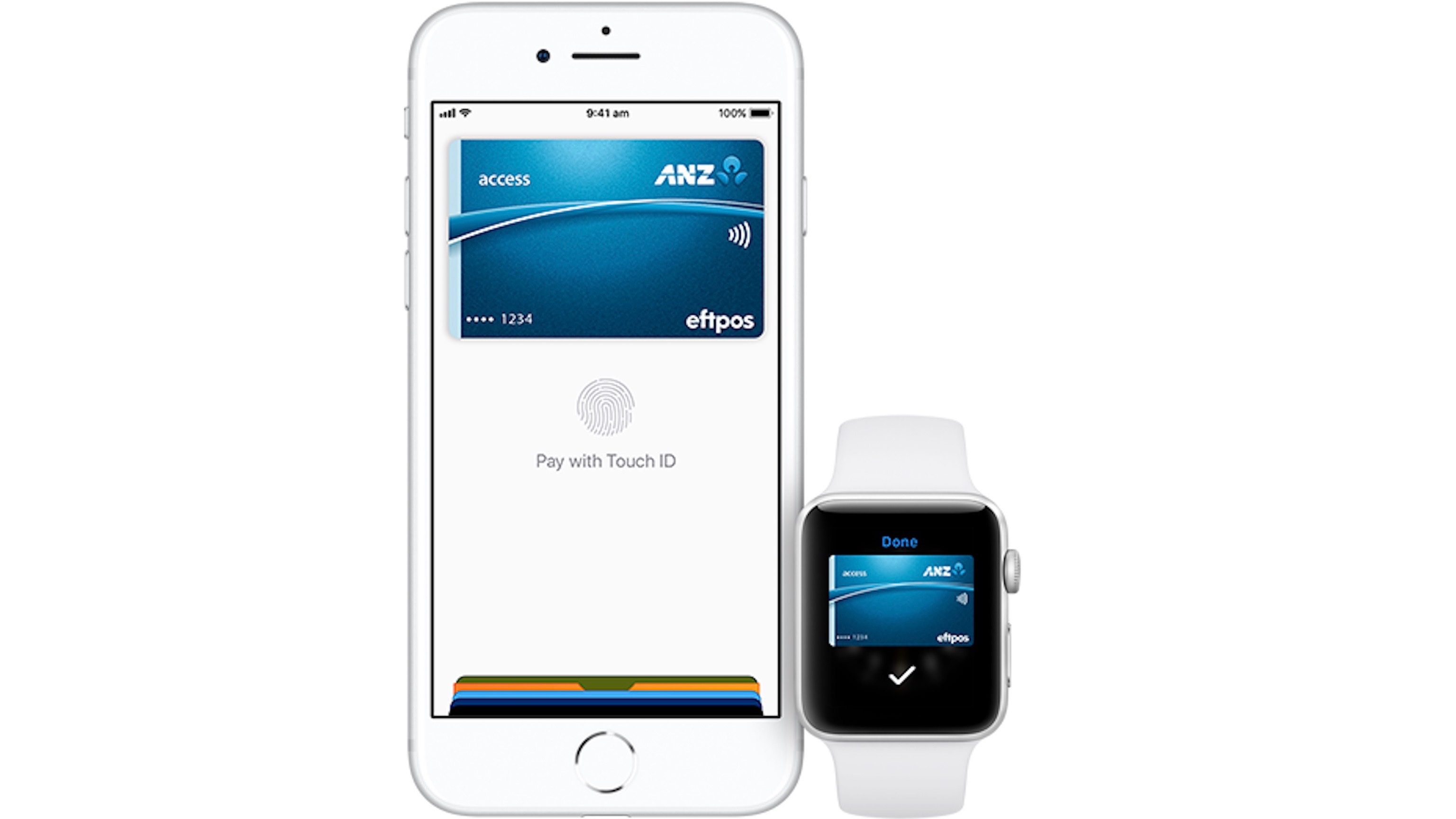
Eftpos touts that this partnership with Apple will bring in-store Apple Pay support to 1.6 million addition ANZ Access cardholders. Eftpos is the most used debit card network in Australia and lack of support for the technology has been cited as one of the biggest hindrances for Apple Pay in the country.
Eftpos acting CEO Paul Jennings touted the partnership with Apple, saying it brings even more choice to ANZ Access cardholders:
“About 1.6 million ANZ eftpos Access cardholders now have the opportunity to make payments on an iPhone or Apple Watch, many of whom may not have had the opportunity to make in store mobile payments before. As Australia’s most used debit card network, we are thrilled to be providing ANZ eftpos Access customers with more payment choice, with added benefits of enhanced security and comfort.”
For reatailers, this move means a much lower fee rate. In Australia, if a debit card is used via Apple Pay, there’s a roughly 0.55 percent fee to the merchant. Eftpos, however, drops this significantly to 0.15 percent. It essentially treats the Apple Pay transaction the same as if the customer paid normally using their Eftpos card (via Business Insider).
Eftpos ANZ users can choose between either a Cheque or Savings account as well:
If you have both a Cheque and Savings account, with Apple Pay you can switch between them on your device with ease.
To change your account on iPhone, open the Wallet app, tap on your ANZ Access card, then choose the new account
High fees have been one of the biggest hindrances for Apple Pay in Australia and this is certainly a step in the right direction. More information can be found on the Eftpos website
Source: 9to5mac










