NEWS

Twitter now Supports Apple’s New Emoji that Almost Nobody Can See yet

10/11/2017

2920


Twitter now Supports Apple’s New Emoji that Almost Nobody Can See yet


Apple might have released its revamped emoji only yesterday, but Twitter has already updated its platform to support the new lineup. However, what’s annoying is that almost nobody can see the updated emoticons just yet.


The reason the new emoji will remain invisible to most users is that the icons are yet to make their way to the official version of iOS and other operating systems – though you should have no issues seeing the updated collection from your browser.


Twitter rolled out the new emoji only hours after Apple unveiled the updated lineup in its latest beta release of iOS 11.


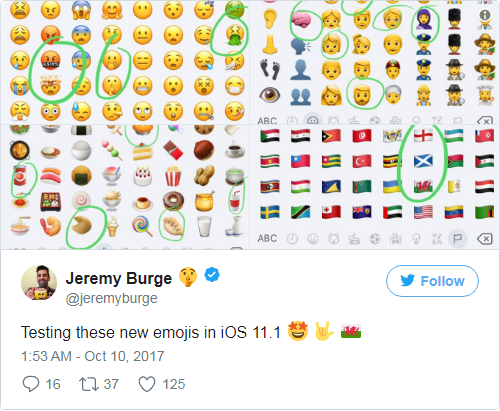
You can take a peek at the new selection here:

Twitter now Supports Apple’s New Emoji that Almost Nobody Can See yet


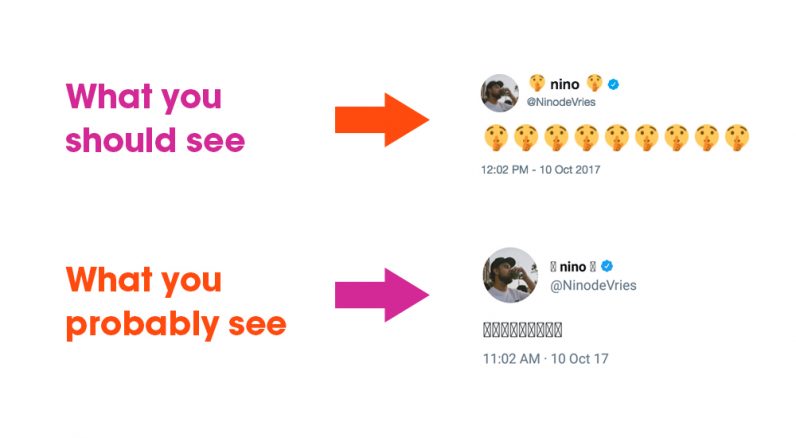
The annoying part is that, unless you have already updated to iOS 11.1 beta 2, chances are you will see a bunch of empty boxes in place of the emoji.


By comparison, this is what users running the latest beta of iOS will see:



Twitter now Supports Apple’s New Emoji that Almost Nobody Can See yet


The compatibility issues should be resolved over the course of the next few weeks, when manufacturers and software makers have updated devices and platforms with support for Emoji 5.0.


Twitter first announced its plans to migrate to Emoji 5.0 earlier in March this year and then showed off what its new emoticon selection would include later on in May.


Google has similarly already confirmed the new emoji standard will be supported in Android Oreo.


You can upgrade to iOS 11.1 beta 2 on 3uTools. 


Source: TNW

Windows
Mac OS
iOS
Linux
3uTools
Win 64-bit For this device
V9.01 2025-12-27
Download
Win 32-bit For this device
V9.01 2025-12-27
Download
3uTools
Intel Chip How to Identify Chip Type
V9.0 2025-12-02
Download
Apple Silicon
V9.0 2025-12-02
Download
How to Identify Chip Type
1.  Click the Apple icon in the top-left corner of the screen and select About This Mac.
2.  Check the Processor or Chip field to determine if it is "Intel" or "Apple".
Please use the 3uTools PC client to install the iOS client:
1、 Install either the Windows or Mac version of 3uTools on your computer
2、 Open the PC client and connect your device to the computer via USB cable
3、 After the connection is successful, wait for the computer to automatically install the mobile app for the device, or locate “Install Mobile App” on the computer and manually click to install.
3uTools
deb file
V3.01 2025-11-20
Download
rpm file
V3.01 2025-11-20
Download
Windows
Windows
iOS
iOS
Android
Android
TV
TV
3uAirPlayer
Win 64-bit For this device
V6.0.2 2025-11-19
Download
Win 32-bit For this device
V6.0.2 2025-11-19
Download
iOS Device Mirroring (No App Required)
1、 Install 3uAirPlayer on the Windows PC
2、 Open Control Center and select Screen Mirroring
3、 From the list, choose your PC to start mirroring
4、 Or connect your iOS device to the PC via USB to begin mirroring
Scan to get "3uAirPlayer" App
3uAirPlayer TV V1.0.18
2025-11-28
TV System Requirements: Android 7.0 or later
Download the TV installation package, copy it to a USB drive, insert it into your TV or set-top box, then select the file from the home screen to install.