
NEWS

Tim Cook Visits iPhone X Component Supplier in Normandy

10/10/2017

2670

Apple CEO Tim Cook on his visit to Normandy, visited some important places that hold great significance. Cook visited Eldim, a Normandy based company that makes and specializes in advanced optical metrology tools. Eldim is also the supplier of some key components within the iPhone X Face ID authentication system, specifically the ability to detect eyeballs.


Cook also visited the Normandy American Cemetery and Memorial which is a monument built in memory of the American soldiers who died fighting World War II in the region. Later, Cook visited a startup called My Little Paris which offers suggestions on places to visit and other popular tourist attractions across the city.
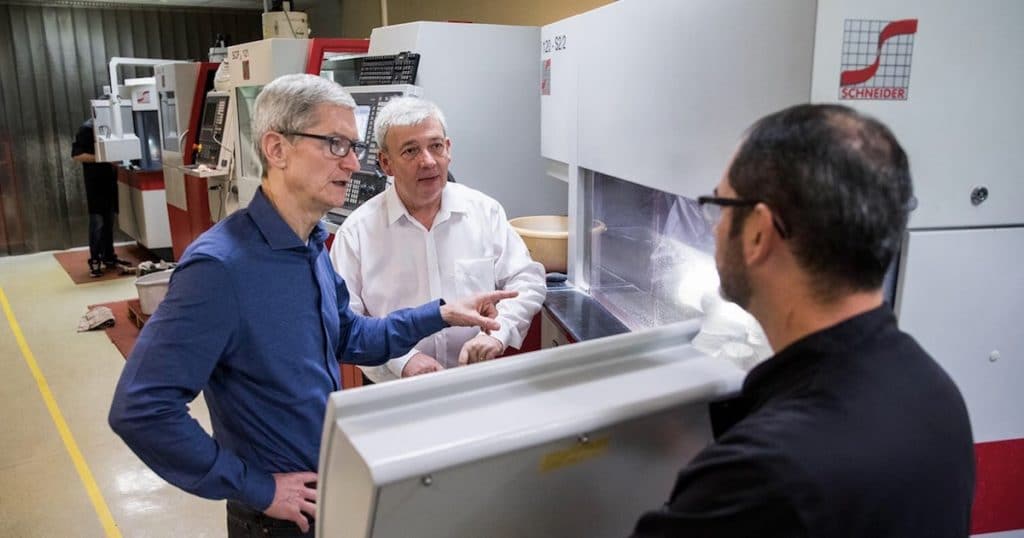

Tim Cook Visits iPhone X Component Supplier in Normandy


Last on the agenda for the day is said to be the meeting with French President Emmanuel Macron. This is said to be very crucial given that Macron has already cracked down on tech companies that try to exploit tax loopholes in the region. France, along with Germany, recently announced that they were not going to let tech companies exploit their tax system. Keeping this in mind, the outcome of this meeting will be very important for Apple.


As we are aware, Apple’s relationship with the EU has been far from healthy. The European Commission recently ruled that Apple received unlawful state aid from Ireland, with the commission ordering the company to pay $14.5 billion in back taxes. Apple subsequently appealed the ruling.


Source: iphonehacks

Windows
Mac OS
iOS
Linux
3uTools
Win 64-bit For this device
V9.01 2025-12-27
Download
Win 32-bit For this device
V9.01 2025-12-27
Download
3uTools
Intel Chip How to Identify Chip Type
V9.0 2025-12-02
Download
Apple Silicon
V9.0 2025-12-02
Download
How to Identify Chip Type
1.  Click the Apple icon in the top-left corner of the screen and select About This Mac.
2.  Check the Processor or Chip field to determine if it is "Intel" or "Apple".
Please use the 3uTools PC client to install the iOS client:
1、 Install either the Windows or Mac version of 3uTools on your computer
2、 Open the PC client and connect your device to the computer via USB cable
3、 After the connection is successful, wait for the computer to automatically install the mobile app for the device, or locate “Install Mobile App” on the computer and manually click to install.
3uTools
deb file
V3.01 2025-11-20
Download
rpm file
V3.01 2025-11-20
Download
Windows
Windows
iOS
iOS
Android
Android
TV
TV
3uAirPlayer
Win 64-bit For this device
V6.0.2 2025-11-19
Download
Win 32-bit For this device
V6.0.2 2025-11-19
Download
iOS Device Mirroring (No App Required)
1、 Install 3uAirPlayer on the Windows PC
2、 Open Control Center and select Screen Mirroring
3、 From the list, choose your PC to start mirroring
4、 Or connect your iOS device to the PC via USB to begin mirroring
Scan to get "3uAirPlayer" App
3uAirPlayer TV V1.0.18
2025-11-28
TV System Requirements: Android 7.0 or later
Download the TV installation package, copy it to a USB drive, insert it into your TV or set-top box, then select the file from the home screen to install.




