 NEWS
NEWS
Apple Explains How Face ID Learns From Its Mistakes
 09/28/2017
 3135
3135
Today, Apple published a newly refreshed privacy page. With it came the most new information the company has released on Face ID since the iPhone X was announced. The details come from a new support page and a technical white paper on Face ID security, mentioned during the keynote and currently live on Apple.com. Over the course of six pages, the paper walks through the various privacy and security measures built into the new facial recognition system, including crucial details on how the new system works and how it will hold up under pressure.
The most detailed information comes from the description of how the iPhone X stores faceprints. In broad strokes, Face ID works the same way Touch ID did: the system reads your face (or fingerprint), then creates a partial version to compare against future prints. It’s a purposefully incomplete picture, so even if you could extract the data, it would be impossible to fully reconstruct a person’s face. According to the white paper, there’s also a random element to which information is retained, making it even harder to predict and spoof the system.
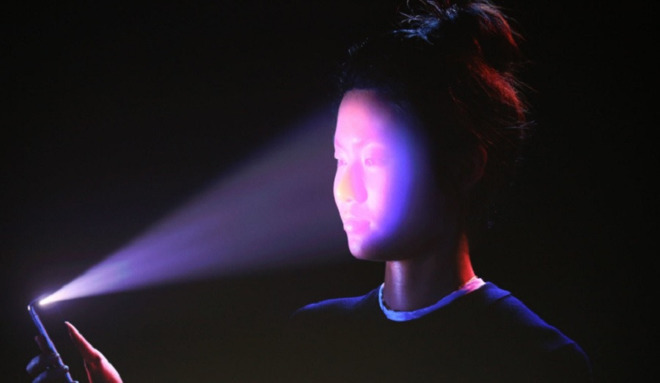
Apple is also preparing to step in when the system doesn’t work. The white paper goes into detail on a process Apple calls “Face ID Diagnostics,” which lets users reset the enrollment process and walk through it with Apple riding shotgun. If you’re setting up Face ID in diagnostics mode, you’ll be able to send enrolled pictures to Apple for examination and veto any enrolled pictures that might be throwing off the system. Apple insists that process would only take place as part of customer support, basically as one more option for an Apple employee trying to fix a misbehaving phone. Still, the measures go well beyond what’s available for Touch ID, suggesting Apple wants to be prepared for any users that end up on the wrong side of the algorithm.
In security terms, this is a pretty obscure line of attack. Even if you have a twin, it seems unlikely that an attacker could successfully enlist them in a scheme to unlock your phone. Still, the attack tells us something about Face ID’s limitations. Apple has built protections against printed photos and masks, but if there’s a real face with the same features as yours, it might slide through. That’s the price of a fast and seamless system.
There are still a lot of unanswered questions — most notably how well Face ID will hold up across different races. Apple says it tested the system on a diverse set of a billion different photos, but like a host of other questions, we won’t have a solid answer until the iPhone X goes on sale next month. Facial recognition is a much trickier process than fingerprint scanning, but so far, Apple seems to be treating Face ID like a smarter, faster version of Touch ID.
Source: theverge










