 NEWS
NEWS
How to Use Siri's New Translation Feature in iOS 11
 09/21/2017
 3466
3466
iOS 11 brings new functionality to Siri, including a translation feature that allows Siri to translate words and phrases spoken in English to a handful of other languages.
Translation is super simple to use, and while the translations aren't always perfect, they get the gist of what you're attempting to say across to someone who speaks another language.
Using Siri Translate
Step1: Activate Siri, either by holding down the Home button or using a "Hey Siri" command.
Step2: Tell Siri the phrase you want to translate and the language you want it in. For example: "Siri, how do I say where's the bathroom in Spanish?"
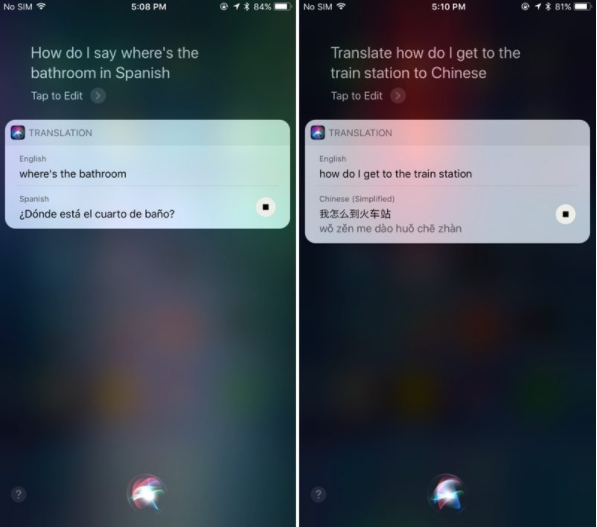
Step3: Siri will respond with the appropriate translation, both in text form and vocally. The vocal component can be replayed by pressing the play button located at the bottom of the translation.
There are multiple ways to phrase your translation requests. Siri will respond to "Translate X to X language" or "How do I say X in X language?"
Available Languages
Siri can translate English to Mandarin, French, German, Italian, and Spanish. There's no two-way translation available yet - it's only English to the above listed languages. Apple has said it plans to add additional languages to the Siri translation feature following the release of iOS 11.
Apple appears to be using an in-house translation engine for Siri, as the translations do not match up with translations provided by popular services like Google Translate or Bing Translate. Also of note, while Siri can translate from English to several other languages, the translation features do not work with British, Canadian, or Australian English settings.
Because Siri speaks translations aloud, the translation feature can come in handy when traveling and trying to get simple communications across. It's a simple addition, but one that may go a long way towards making Siri more useful.
Source: macrumors










