 NEWS
NEWS
Starbucks charging pads getting software upgrade for iPhone 8, iPhone X
 09/15/2017
 3088
3088
As it stands, the Powermat charging plates at Starbucks are incompatible with the Qi standard that the iPhone X and iPhone 8 use —but a software fix by the vendor will remedy that at the coffee vendor's locations, and other retail establishments.
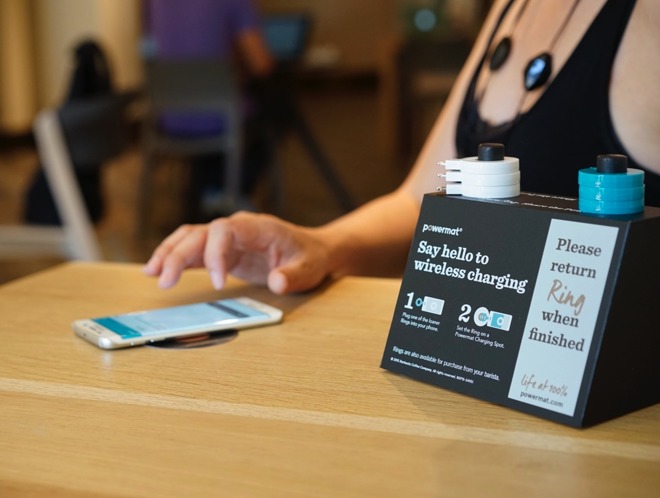
The Powermat technology was designed for modifications in software, rather than hardware to accommodate future standard emergences, according to a report on Thursday by Slashgear.
"The charge spot is two parts: one part is the kinetic part, which drives the power, and the other part is the controller which controls the power transfer," Powermat Chief Technical Officer Itay Sherman told Slashgear. "We've designed the magnetic part to be as generic as possible to cover all standards if possible."
One of those standards is Qi. Up until Apple's focus on Qi as it's preferred protocol, the vast majority of devices at Starbucks and other vendors used the Powermat technology. Apple users seeking to top up their iPhones while at the locations needed to use a Lightning dongle.
"If there's a new standard, a new variant of the standard —you have PMA, you have Qi, you have Samsung's Wireless Fast Charging —we can download new software to our points and support them," said Sherman. "The biggest difference between PMA and Qi is the communication protocols."
The technologies are mechanically the same. Both rely on the device needing power having a coil, in which a current is induced by a magnetic field on the charging pad. What it appears that the Powermat CTO is saying is what varies is how that hand-off is negotiated.
Roll-out of the software patch will depend on individual locations and logistical issues. However, Powermat expects the updates to be complete at Starbucks before the iPhone 8 is in the hands of consumers.
The fix is not universal to all Powermat hardware. Consumer-grade charging pads without the upgrade capability will not see any fixes for iPhone compatibility.
Source: appleinsider










