 NEWS
NEWS
U.S. Senator Raises Questions About Security and Privacy of Face ID
 09/14/2017
 2884
2884
Just a day after Apple unveiled its new flagship iPhone X equipped with a facial recognition system, United States Senator Al Franken (D-MN), who is a member of the Senate Judiciary Committee on Privacy, Technology, and the Law, sent a letter to Apple CEO Tim Cook with some questions on the privacy and the security of the Face ID feature.
Face ID is designed to take a 3D face scan that determines the structure of a person's face and transforms it into a mathematical model for device authentication and unlocking purposes. Apple has said that Face ID is protected by the same Secure Enclave that keeps Touch ID data safe, and that all processing takes place on the device itself with no data uploaded to the cloud. Furthermore, Apple says Face ID can't be fooled by a photo or a mask. 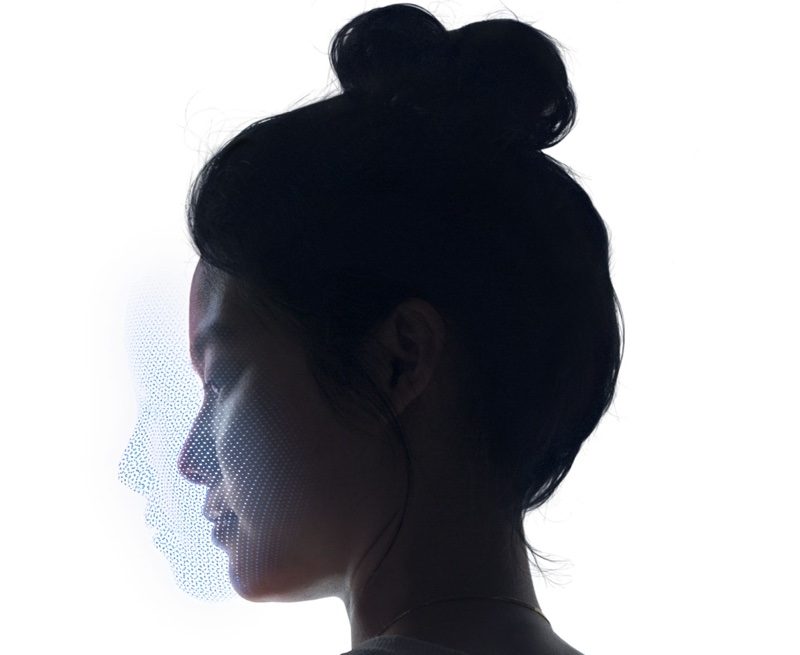
In his letter, Franken raises concerns about how Apple plans to use facial recognition data in the future, the diversity of its training, how Apple will respond to law enforcement requests for Face ID data or the Face ID system, and if it might be fooled by a photo or a mask.
Since the announcement, however, reporters, advocates, and iPhone users have raised concerns about how Face ID could impact Americans' fundamental right to privacy, speculated on the ways in which Apple could use faceprint data in the future, and questioned the quality and security of the technology.
For example, it has previously been reported that many facial recognition systems have a higher rate of error when tested for accuracy in identifying people of color, which may be explained by variety of factors, including a lack of diversity in the faces that were used to train a system. Furthermore, some have expressed concern that the system could be fooled, and thus the device unlocked, by a photo or a mask of the owner of the device.
Franken asks Cook to respond to a series of 10 questions, many of which have already been addressed by Apple. Among the questions:
- Can Apple extract Face ID data from a device, will Apple ever store Face ID data remotely, and can Apple confirm that it has no plans to use faceprint data for purposes other than Face ID?
- Where did the one billion images that were used to train Face ID come from, and what steps did the company take to ensure the system was trained on a diverse set of faces?
- Does Face ID perpetually search for a face, and does Apple locally retain the raw photos of faces used to unlock the device? Will Apple retain the faceprints of individuals other than the owner of the device?
- What safeguard has Apple implemented to prevent the unlocking of the iPhone X when someone other than the owner holds the device up to the owners face? How does it distinguish a user's face from a photo or mask?
- How will Apple respond to law enforcement requests to access Apple's faceprint data or the Face ID system itself?
Back when Touch ID was first announced as a new feature in the iPhone 5s, Franken sent Cook a similar letter asking for clarification on how the Touch ID feature works.
Franken asks Tim Cook to respond to all of his Face ID questions by October 13, 2017. Apple is not obligated to respond as this is not a subpoena, but the company will likely cooperate with the request for information.
Source: macrumors










