
NEWS

Former Apple lead & Tesla Autopilot head Chris Lattner joining Google Brain

08/15/2017

2966

Earlier this year, the creator of the Swift language and head of Xcode developer tools left Apple to join Tesla. However, by June, Chris Lattner departed as lead of the car maker’s self-driving Autopilot software. The longtime Apple employee today revealed that he is now joining the Google Brain research division to work on AI.


Google Brain is the company’s in-house artificial learning team and just one of Alphabet’s various divisions working on machine learning and similar efforts.

Former Apple lead & Tesla Autopilot head Chris Lattner joining Google Brain


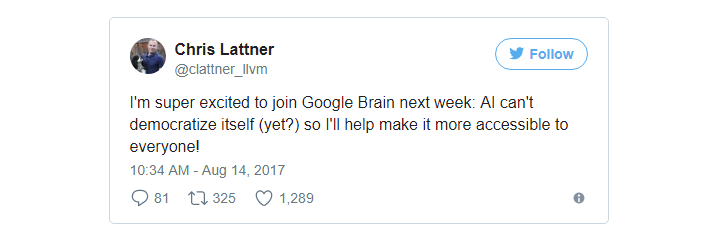
In a tweet, Lattner revealed that the focus of his upcoming work will be on making AI “more accessible to everyone.” Specifically, he will be working on TensorFlow (per Bloomberg), Google’s language for machine learing. This job particularly suits him as he was previously head of Apple’s developer tools, and more recently Swift, for over 10 years.


He previously worked on computer vision and machine learning as part of Tesla’s efforts to make self-driving vehicles. However, Lattner left after only six months, revealing that “Tesla isn’t a good fit” for him. At the time, he noted that he was interested in roles “for a seasoned engineering leader.”


Brain is notably more focussed on research and a part of Google’s broader research division. Coincidently, Google Brain announced an initiative back in June with similar goals of studying how people interact with AI in order to improve the user experience.


Source: 9to5google

Windows
Mac OS
iOS
Linux
3uTools
Win 64-bit For this device
V9.0 2025-11-11
Download
Win 32-bit For this device
V9.0 2025-11-11
Download
3uTools
Intel Chip How to Identify Chip Type
V9.0 2025-12-02
Download
Apple Silicon
V9.0 2025-12-02
Download
How to Identify Chip Type
1.  Click the Apple icon in the top-left corner of the screen and select About This Mac.
2.  Check the Processor or Chip field to determine if it is "Intel" or "Apple".
Please use the 3uTools PC client to install the iOS client:
1、 Install either the Windows or Mac version of 3uTools on your computer
2、 Open the PC client and connect your device to the computer via USB cable
3、 After the connection is successful, wait for the computer to automatically install the mobile app for the device, or locate “Install Mobile App” on the computer and manually click to install.
3uTools
deb file
V3.01 2025-11-20
Download
rpm file
V3.01 2025-11-20
Download
Windows
Windows
iOS
iOS
Android
Android
TV
TV
3uAirPlayer
Win 64-bit For this device
V6.0.2 2025-11-19
Download
Win 32-bit For this device
V6.0.2 2025-11-19
Download
iOS Device Mirroring (No App Required)
1、 Install 3uAirPlayer on the Windows PC
2、 Open Control Center and select Screen Mirroring
3、 From the list, choose your PC to start mirroring
4、 Or connect your iOS device to the PC via USB to begin mirroring
Scan to get "3uAirPlayer" App
3uAirPlayer TV V1.0.18
2025-11-28
TV System Requirements: Android 7.0 or later
Download the TV installation package, copy it to a USB drive, insert it into your TV or set-top box, then select the file from the home screen to install.




