
NEWS

Apple Ceases Signing of iOS 10.3.1 After Release of iOS 10.3.2

06/28/2017

4631

Apple on Tuesday stopped signing code for iOS 10.3.1, halting downloads and installations of the legacy operating system in favor of iOS 10.3.2.


As usual, the move comes over one month after Apple issued iOS 10.3.2 in May. The most recent iOS revision was released publicly after a month-long beta period, and contains only minor bug fixes and performance improvements. 
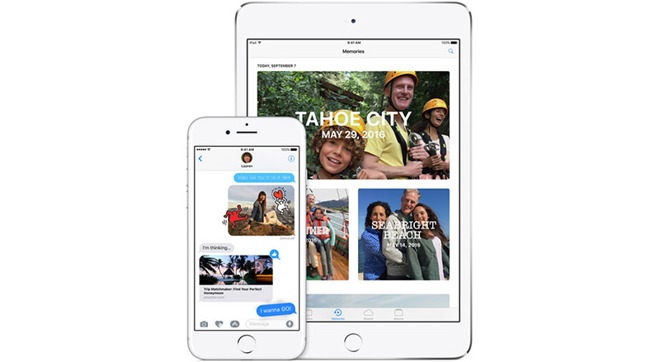


Apple Ceases Signing of iOS 10.3.1 After Release of iOS 10.3.2


Apple regularly stops signing code to prevent users from installing old iOS versions following the release of a new OS release. The strategy is employed as a security measure, ensuring users have the most up-to-date software running on their iPhone, iPad and iPod device. A halt to code signing also helps ease potential compatibility issues with new features and software. 


After today, users can only download and install iOS 10.3.2 from Apple's servers. 


Apple is already well into testing of its next iOS 10 version, iOS 10.3.3, which will deliver the usual bug patches to consumers prior to this fall's launch of iOS 11. 


Unlike recent maintenance updates, iOS 11 incorporates a bevy of user-facing improvements and backend enhancements to Siri, Apple Pay, Photos and other first-party apps and services. The upcoming release packs in a boatload of new features for iPad, including drag-and-drop multitasking, deeper Apple Pencil integration and more. 


Source: appleinsider

Windows
Mac OS
iOS
Linux
3uTools
Win 64-bit For this device
V9.0 2025-11-11
Download
Win 32-bit For this device
V9.0 2025-11-11
Download
3uTools
Intel Chip How to Identify Chip Type
V9.0 2025-12-02
Download
Apple Silicon
V9.0 2025-12-02
Download
How to Identify Chip Type
1.  Click the Apple icon in the top-left corner of the screen and select About This Mac.
2.  Check the Processor or Chip field to determine if it is "Intel" or "Apple".
Please use the 3uTools PC client to install the iOS client:
1、 Install either the Windows or Mac version of 3uTools on your computer
2、 Open the PC client and connect your device to the computer via USB cable
3、 After the connection is successful, wait for the computer to automatically install the mobile app for the device, or locate “Install Mobile App” on the computer and manually click to install.
3uTools
deb file
V3.01 2025-11-20
Download
rpm file
V3.01 2025-11-20
Download
Windows
Windows
iOS
iOS
Android
Android
TV
TV
3uAirPlayer
Win 64-bit For this device
V6.0.2 2025-11-19
Download
Win 32-bit For this device
V6.0.2 2025-11-19
Download
iOS Device Mirroring (No App Required)
1、 Install 3uAirPlayer on the Windows PC
2、 Open Control Center and select Screen Mirroring
3、 From the list, choose your PC to start mirroring
4、 Or connect your iOS device to the PC via USB to begin mirroring
Scan to get "3uAirPlayer" App
3uAirPlayer TV V1.0.18
2025-11-28
TV System Requirements: Android 7.0 or later
Download the TV installation package, copy it to a USB drive, insert it into your TV or set-top box, then select the file from the home screen to install.




