 NEWS
NEWS
The iMac Was Nearly Called The "MacMan"?
 04/19/2017
 4340
4340
Ken Segall, the advertising guru who put the “i” in the “iMac” name has been speaking in London this morning, at a breakfast organised by the talent agency JLA. In a presentation focusing on the concept of ‘simplicity’, he revealed a few interesting tidbits from his time working with Steve Jobs.
Cast your mind back to 1997. It wasn’t just “Things can only get better” for the incoming Labour government, but things could only get better for Apple too… because things couldn’t get much worse. Apparently they were only three months from bankruptcy when Steve Jobs came back from the cold and took over as CEO of the company he founded.
Bereft of any computers to promote, Segall, Jobs and the rest of the company simply put out these brand-defining “Think Different” adverts that soon became iconic.
A few months later and they actually had a computer finished and ready to go: the iMac. The computer that the entire company’s future would depend upon. But what to call it?
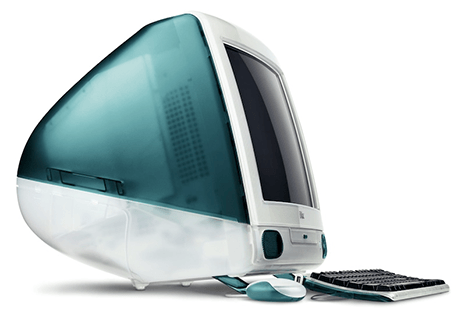
According to Segall, the name that Jobs was set on was the hideous “MacMan” – a name that Segall rightly thought was terrible. Unfortunately, when it came to Steve, “no amount of fact would slight him”.
Still, Steve gave Segall two weeks to think of a better name – with the two criteria being the name shouldn’t imply portability (it certainly wasn’t) and that it should “not sound like a toy”. This made “MacMan” an even more bizarre choice – given it evoked the Sony WalkMan, then the most popularportable music player, and also PacMan, the classic videogame that could be described as, umm, a toy.
Apparently in the two week period he had, Segall then presented “iMac” alongside other names like “Macster” and “Mac Rocket”. And whilst Steve seemed stuck on “MacMan”, and though he never conceded that “iMac” was the better name, apparently “iMac” started appearing on prototype machines and the rest – as they say – was history.
It wasn’t just with the iMac of course – the “i” came to name most of Apple’s products – including iTunes, iWork, iPhone and iPad. Segall pointed out, if it wasn’t for him we’d all be carrying around a PhoneMan in our pocket.
I think I speak for us all when I say that technology users everywhere dodged a rather large bullet thanks to Mr Segall.
Source: techdigest










