 NEWS
NEWS
MacBook Pro Battery Life Exceeds Apple’s Claims
 04/01/2017
 3857
3857
2016 MacBook Pro offering substantially better battery-life than Apple claimed, a UK consumer-testing organization has reported the same thing.
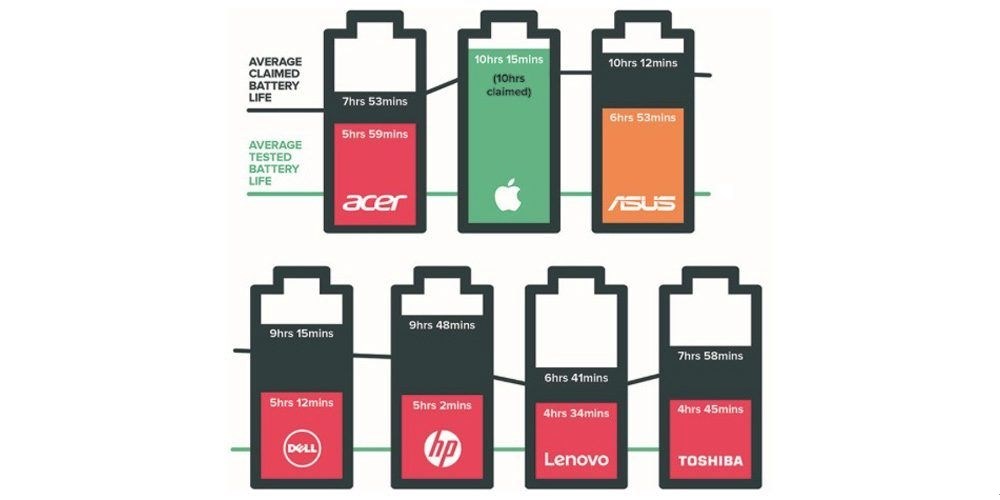
Which found in tests of 67 laptops that Apple was the only manufacturer to deliver greater than promised, while other manufacturers delivered as little as half the claimed life.
Which says that a 13-inch MacBook Pro delivered 12 hours of battery life against the claimed 10 hours. Unhelpfully, the organization doesn’t specify which specific model this relates to, stating only that the results apply to laptops tested since January 2016. This means that it could be the old Retina model, the 2016 model without Touch Bar or the 2016 model with Touch Bar.
The result isn’t as crazy as those from Consumer Reports, and the testing regime does sound reasonable.
If I shut down unwanted apps and run at four notches below maximum brightness, I typically see 6-7 hours. If I keep all my usual apps open, and run at my standard brightness of two notches below maximum, that falls to 4-5 hours.
In a poll we ran back in December, the largest group of readers were seeing five hours or less from their new machines. I honestly cannot understand how either organization is seeing greater than 10 hours unless they are setting the screen brightness crazily low.
Since it’s been a while since that first poll, and readers will now have a lot more experience with their machines, we’re running a fresh poll to get updated figures. We’ve also expanded the options to distinguish between 5 hours and less than 5 hours. Please take part if you own a 2016 MacBook Pro.
Source: 9to5mac










