NEWS

tvOS 27 will Give Apple TV 4K a Useful New Display Setting

05/21/2026

165

tvOS 27 will Give Apple TV 4K a Useful New Display Setting

Next month tvOS 27 will be unveiled, the next major version of Apple TV 4K software, and Apple confirmed this week that it will bring a useful new display setting: Larger Text.

Text can be resized with new systemwide setting in tvOS 27

tvOS 27 will Give Apple TV 4K a Useful New Display Setting

If you’re an Apple TV 4K fan, you never know if WWDC will bring exciting new tvOS updates or completely disappoint. This year it’s anyone’s guess, as rumors about tvOS 27 have been largely nonexistent.

That might be because we’ve been waiting for new Apple TV 4K hardware to arrive. It’s reportedly being held up by the new Siri, so Apple might be unable to showcase many tvOS 27 features if they’re tied to unreleased hardware. Though perhaps some aspects of the new Siri will come to current Apple TV models.

In any case, this week as part of its preview of accessibility updates Apple did confirm one new feature coming to tvOS 27.

tvOS 27 will add a new setting to adjust the systemwide text size and make it larger. 
tvOS 27 will Give Apple TV 4K a Useful New Display Setting
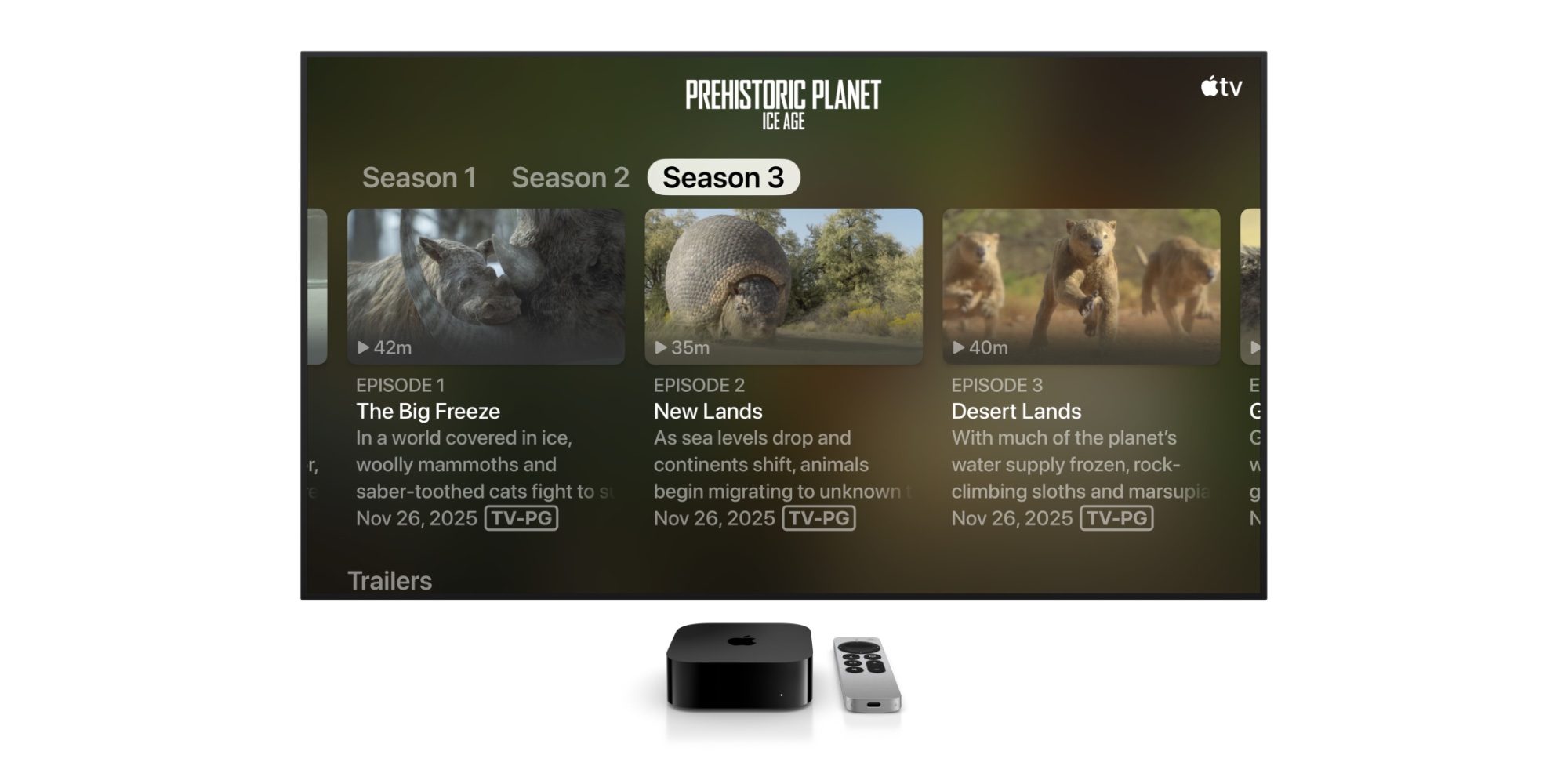
tvOS with text set to larger size

Per Apple’s press release:

Larger Text support is coming to tvOS, so viewers who have low vision can increase onscreen text size to be easier to read.

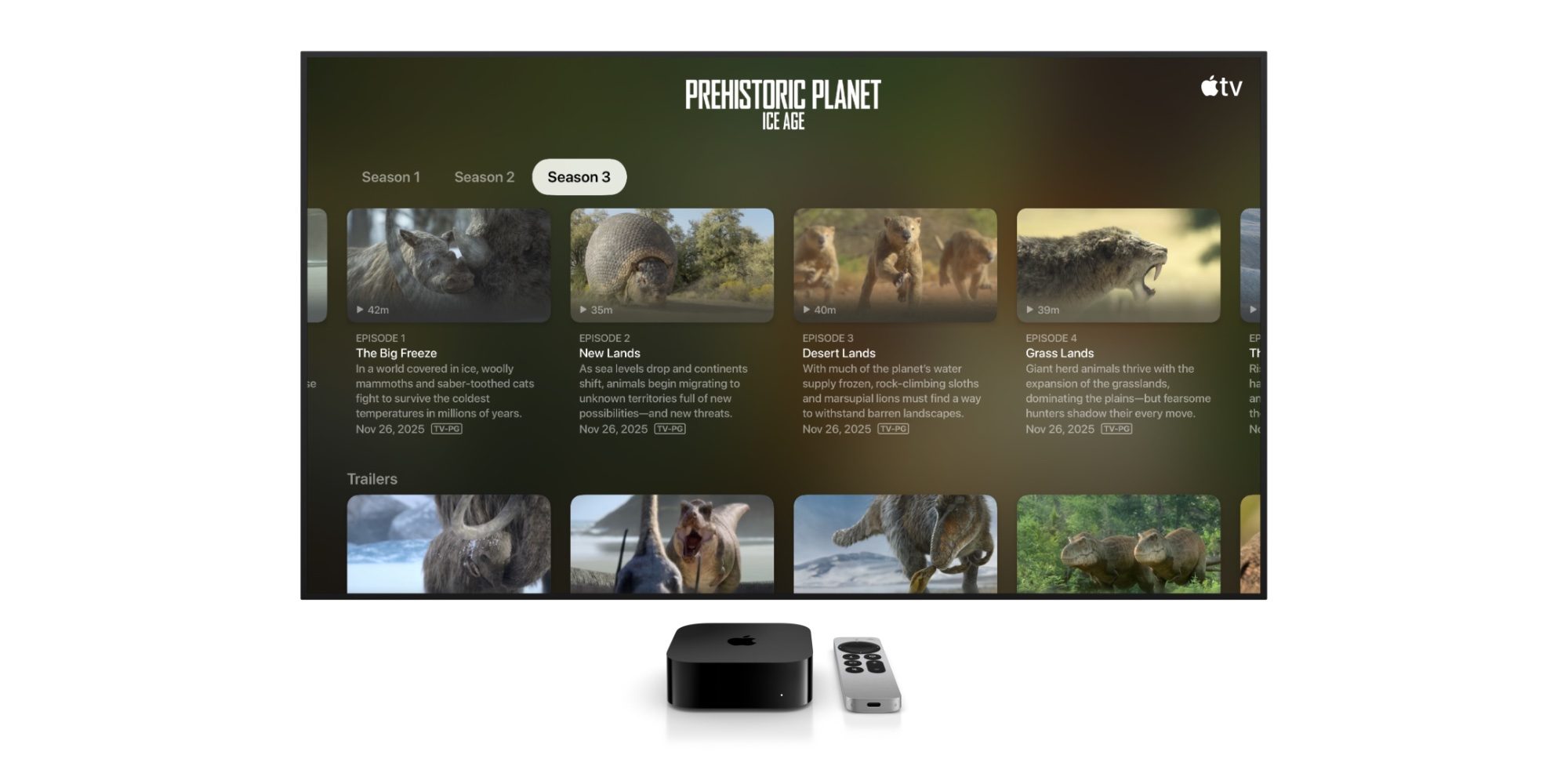
You can see how big a difference this new setting can make via the comparison images Apple shared (above and below).
tvOS 27 will Give Apple TV 4K a Useful New Display Setting
tvOS with text set to smaller size

Currently, tvOS 26 lets users enable Bold Text to make things easier to read. There is also a Hover Text setting so that the item that’s actively selected can be made larger. But a true, systemwide Dynamic Type setting is currently missing.

So if you have low vision, or if you’re like me and just sit a fair distance away from your TV, tvOS 27 will let you make everything a bit easier to read.

Source: 9to5mac

Windows
Mac OS
iOS
Linux
3uTools
Win 64-bit For this device
V9.06 2026-04-09
Download
Win 32-bit For this device
V9.06 2026-04-09
Download
3uTools
Intel Chip How to Identify Chip Type
V9.03 2026-03-27
Download
Apple Silicon
V9.03 2026-03-27
Download
How to Identify Chip Type
1.  Click the Apple icon in the top-left corner of the screen and select About This Mac.
2.  Check the Processor or Chip field to determine if it is "Intel" or "Apple".
Please use the 3uTools PC client to install the iOS client:
1、 Install either the Windows or Mac version of 3uTools on your computer
2、 Open the PC client and connect your device to the computer via USB cable
3、 After the connection is successful, wait for the computer to automatically install the mobile app for the device, or locate “Install Mobile App” on the computer and manually click to install.
3uTools
deb file
V9.0 2026-04-16
Download
rpm file
V9.0 2026-04-16
Download
Windows
Windows
iOS
iOS
Android
Android
TV
TV
3uAirPlayer
Win 64-bit For this device
V6.0.5 2026-04-23
Download
Win 32-bit For this device
V6.0.5 2026-04-23
Download
iOS Device Mirroring (No App Required)
1、 Install 3uAirPlayer on the Windows PC
2、 Open Control Center and select Screen Mirroring
3、 From the list, choose your PC to start mirroring
4、 Or connect your iOS device to the PC via USB to begin mirroring
Scan to get "3uAirPlayer" App
3uAirPlayer TV V1.0.18
2025-11-28
TV System Requirements: Android 7.0 or later
Download the TV installation package, copy it to a USB drive, insert it into your TV or set-top box, then select the file from the home screen to install.