 NEWS
NEWS
Six Popular iPhone Apps Now Available on CarPlay
 05/15/2026
 1419
1419
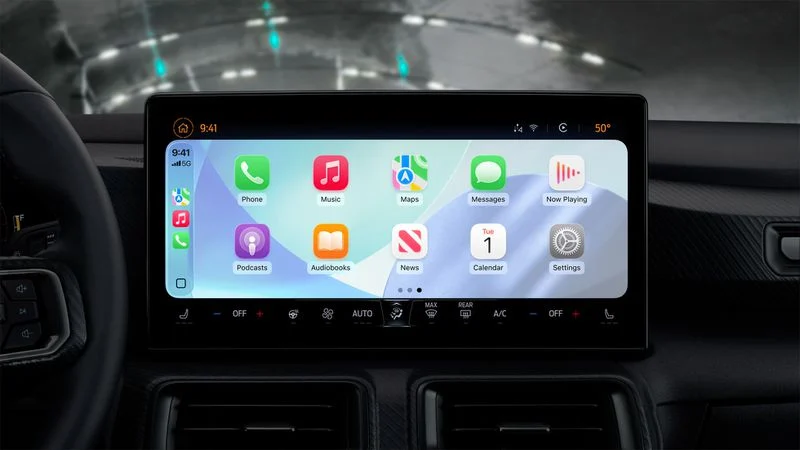
Apple's CarPlay system for accessing iPhone apps on a vehicle's dashboard screen has received six popular apps in recent weeks: ChatGPT, Perplexity, Grok, Google Meet, WhatsApp, and the indie artist streaming platform Audiomack.
Make sure you have the latest version of each app and they will automatically appear on CarPlay.
ChatGPT
Starting with iOS 26.4, CarPlay supports voice-based conversational apps. This means that chatbots can extend their iPhone apps to CarPlay for voice-based conversations, and OpenAI's ChatGPT is one of the first options available.
With the ChatGPT app on CarPlay, you can have voice conversations with ChatGPT while the app is open, and view the titles of your past conversations. For safety reasons, the app does not show the text or images within conversations.
Other chatbots that recently came to CarPlay include Perplexity and Grok.
Google Meet
Google Meet is now available on CarPlay as well, allowing you to join meetings with a single tap, view your upcoming schedule, and participate in audio calls. For safety reasons, you cannot view video calls on the CarPlay interface.
A revamped WhatsApp app for CarPlay is now available.
WhatsApp already supported CarPlay, but the original app provided limited Siri-based functionality. The revamped app displays lists of recent chats and phone calls, and there is also a tab that displays a list of your favorite contacts.
Audiomack
Audiomack recently expanded to CarPlay. The 8th-most downloaded app in the App Store's Music category in the U.S. lets you stream and download songs, with a focus on independent artists and especially the Afrobeats and hip-hop genres.
Audiomack's CarPlay app has Discover, Charts, Playlists, and My Library tabs, allowing you to listen to your existing songs and discover new ones.
Source: Macrumors










