 NEWS
NEWS
Your iPhone Just Got a Brand New Colorful Wallpaper, Here’s How to Customize It
 05/13/2026
 2068
2068

With the iOS 26.5 update, Apple has added a new Pride Luminance wallpaper to your iPhone. The wallpaper features strips of colors that transition as you swipe up from the lock screen to the home screen. By default, the wallpaper uses a rich, vibrant color palette that celebrates the LGBTQ+ community.
But it’s actually super customizable, and it allows you to pick your own personal color palette for your iPhone’s lock screen. Here’s how to add the new colorful wallpaper and make it your own.
To install the Pride Luminance wallpaper, you first need to update to iOS 26.5. The free software update was released for all compatible iPhone models earlier this week. If you haven’t updated yet, go to Settings -> Software Update.
After installing the new operating system version, you’ll need to get the new Pride wallpaper. Long-press on your lock screen to open the Wallpapers gallery.
In the Wallpapers gallery, tap the plus button to add a new wallpaper and scroll down to the Pride section. If not already installed, press the ‘Get’ button to download them.
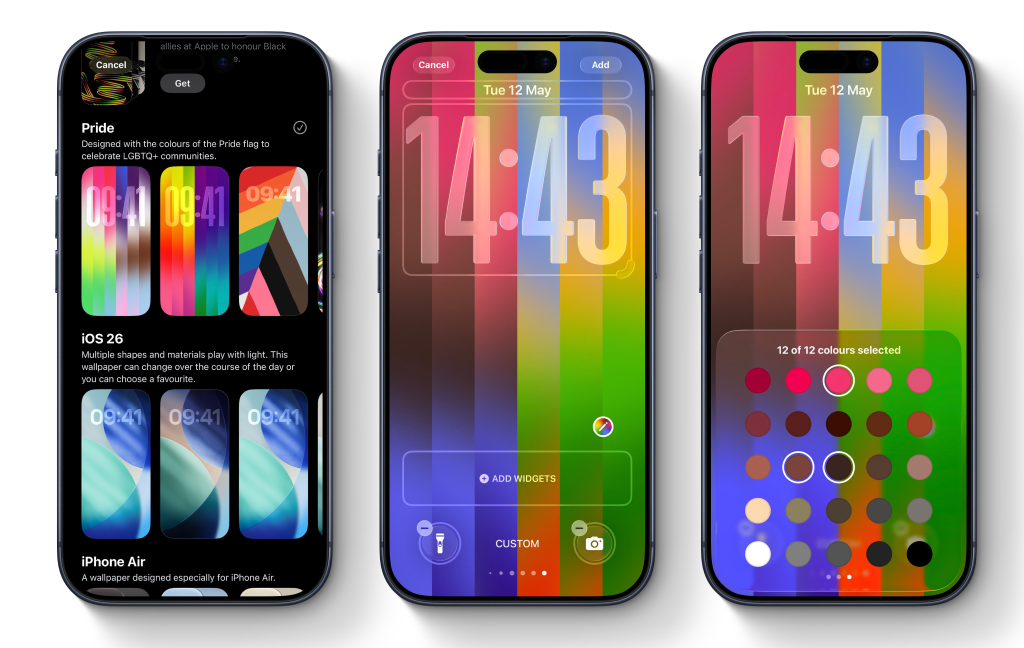
The new stripy Pride Luminance wallpaper is the first in the collection. Tap on it to bring up the editor.
On this screen, swipe left to right to preview the preset built-in styles. There’s about ten of them ready made for you.
If you want to choose your own colors, swipe all the way to the end until you reach the ‘Custom’ option. On this screen, tap the pencil icon to open the color picker. You can select up to 12 colors in any combination, allowing for quite a lot of creativity and personalization.
With up to 12 colors, you can create all sorts of different looks, everything from autumnal earthy themes to bright pinks to subtle grays.
Aside from the color customization, you can also change the widgets and change how the time appears. It uses the iOS 26 large glassy font style by default. If you’d prefer something else, simply tap on the time panel to change the font or color.
When you are all done, press the Add button in the top-right of the screen to confirm and save your new wallpaper. You can always go back and make more lock screens with different appearances and switch between them later.
Source: 9to5mac










