 NEWS
NEWS
iOS 26 Lets You Change Your Default iPhone Apps, Here’s How
 01/12/2026
 5533
5533
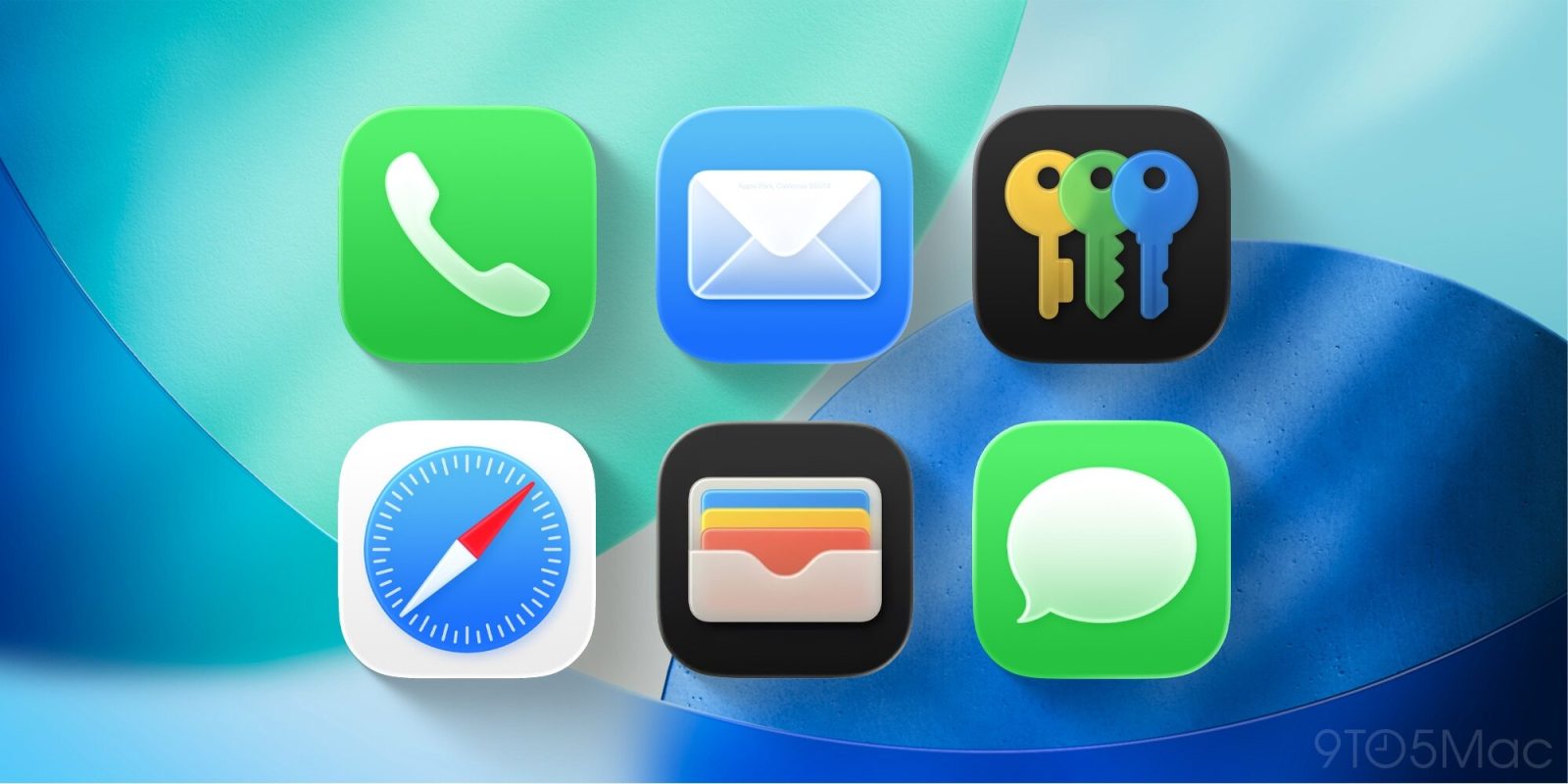
Your iPhone uses preinstalled Apple apps by default for system actions like opening links, making phone calls, and more. But iOS lets you set new default apps in a variety of categories, and the available options expanded in iOS 26. Here are the details.
iPhone users can set new default apps in the Settings app
iOS has let users set new default iPhone apps in a variety of categories for years. But over time, the number of options has steadily expanded.
iOS 26 has continued this expansion, especially for users outside the US.
Due to differing government regulations around the world, iPhone users might have more or less options for default apps depending on their location.
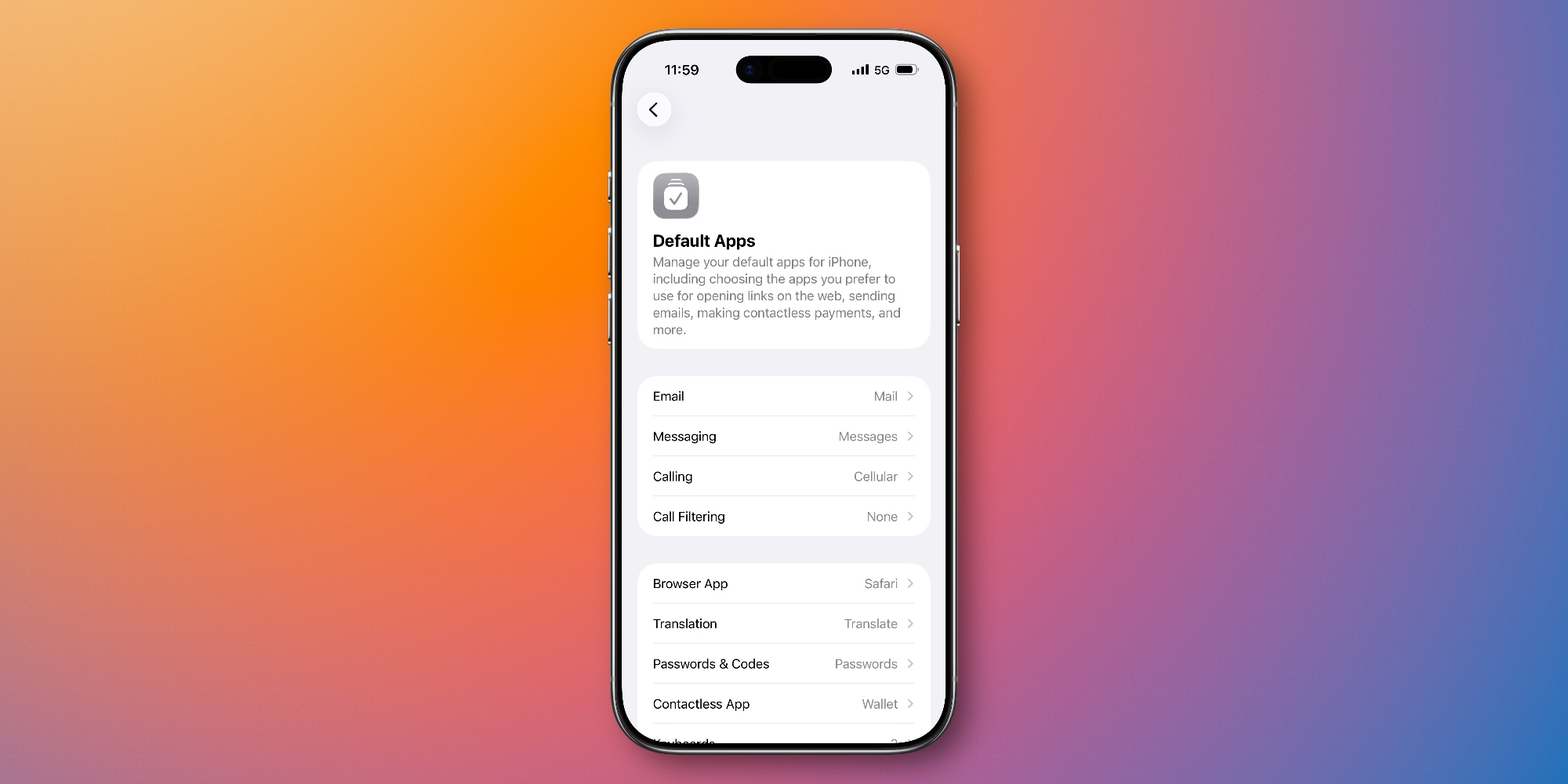
To update the default apps on your iPhone, open the Settings app and go to Apps ⇾ Default Apps.
You’ll see descriptions there of each app category and what exactly will happen when you set a new default.
Here are all of the latest options per Apple’s support document, broken down by where they’re available.
Default app categories you can change in iOS 26

All iPhone users
- Browser App: Choose another app instead of the Safari app to use when opening links to webpages
- Calling: Choose another app instead of the Phone app or FaceTime app to make calls
- Call Filtering: Choose an app to use for presenting caller ID and blocking unwanted callers
- Email: Choose another app instead of the Mail app to use when opening links to send email
- Keyboards: Choose an app to use for text-entry capabilities systemwide
- Messaging: Choose another app instead of the Messages app to use when opening links to send instant messages
- Passwords & Codes: Choose another app instead of the Passwords app to use for Password AutoFill in Safari and other apps
- Translation: Choose another app instead of the Translate app to use when translating selected text
Most iPhone users*
- Contactless Apps: Choose another app to make contactless transactions using your device’s built-in technology
- *Available in the European Economic Area (European Union, Iceland, Liechtenstein, Norway), Argentina, Armenia, Australia, Azerbaijan, Bahamas, Bahrain, Brazil, Canada, Chile, Colombia, Costa Rica, Dominican Republic, Ecuador, Egypt, El Salvador, Georgia, Guatemala, Honduras, Hong Kong, Israel, Japan, Jordan, Kazakhstan, Macao, Malaysia, Mexico, Moldova, Mongolia, Montenegro, Morocco, New Zealand, Oman, Palestine, Panama, Paraguay, Peru, Qatar, Saudi Arabia, Serbia, Singapore, South Africa, Switzerland, Taiwan, the United Arab Emirates, the United Kingdom, the United States (including Puerto Rico), Uruguay, and Vietnam.
EU and Japan only
- App Installation: Choose an alternative app marketplace instead of the App Store to use as your default
- Navigation: Choose another app instead of the Apple Maps app to use when opening links for a location
EU only
- Calling: Choose an app instead of the Phone app for dialing new calls and viewing call history
- Messaging: Choose an app instead of the Messages app to use for sending and receiving SMS and RCS messages
Source: 9to5mac










