 NEWS
NEWS
visionOS 26 Just Added Two iPhone Features That Users Have Long Wanted
 09/26/2025
 2067
2067
Will spatial computing via glasses or a headset one day replace the iPhone? Unlikely. And visionOS 26 offers two new iPhone-related features that seem to prove Apple already knows that.
iPhone now works better than ever with Vision Pro thanks to visionOS 26
visionOS 26 launched earlier this month for all Vision Pro owners.
Alongside flagship new features like spatial widgets and upgraded Personas, the update brings improvements to the experience of using an iPhone and Vision Pro together.
Two new features include:
- Unlocking your iPhone without needing to enter a passcode
- seeing your iPhone even when using an immersive experience
The former addresses one of my longstanding frustrations with Vision Pro.
I use my iPhone all the time, even while using other devices like my iPad Pro and Vision Pro. Needing to enter my iPhone’s passcode to unlock it during Vision Pro use was always a pain.
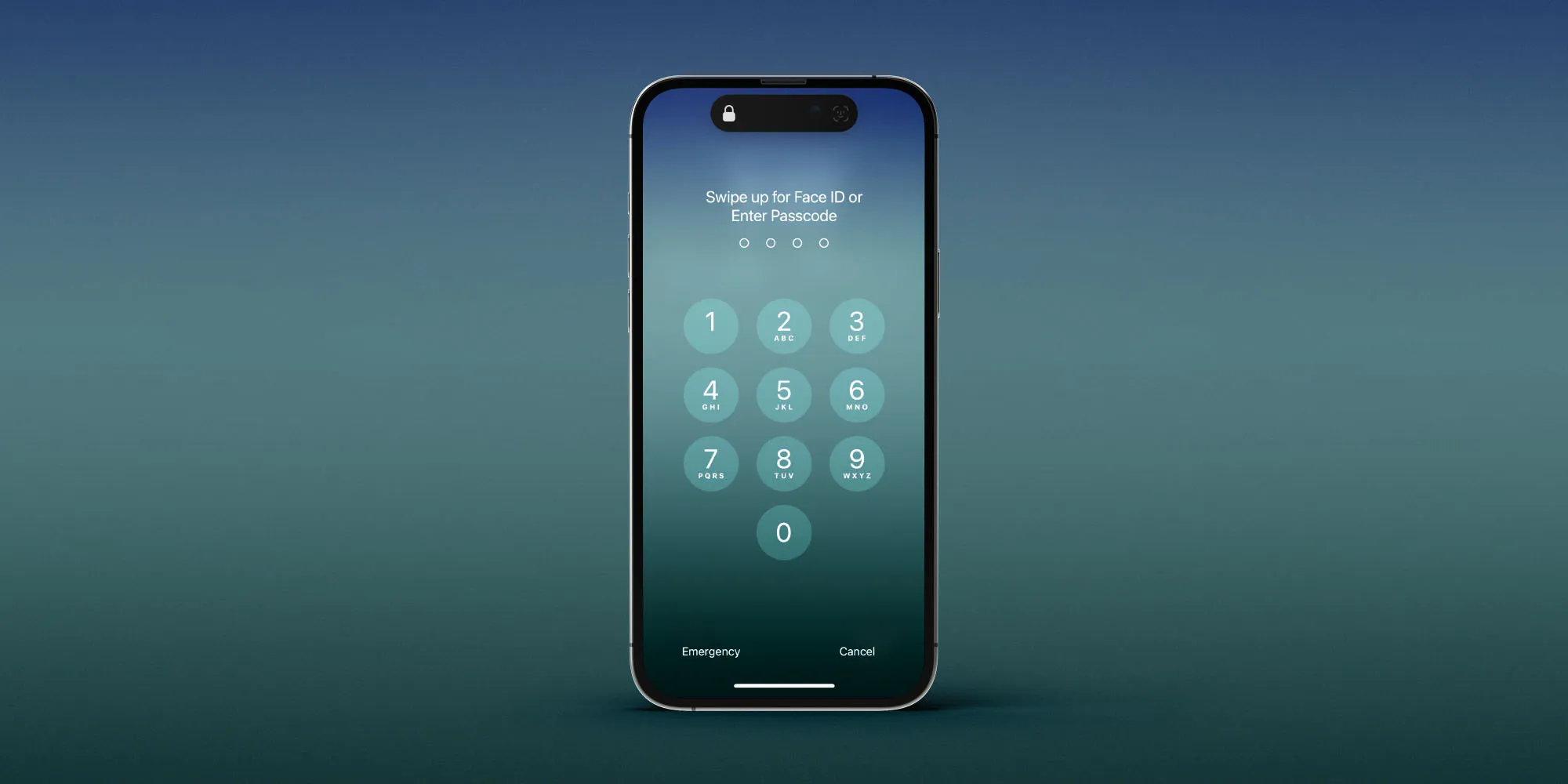
Now, I can unlock my iPhone just by swiping up as usual. visionOS 26 recognizes who I am and lets me in with no further authentication required.
And while I don’t use full immersion on my Vision Pro very often, it’s great to gain the ability to use the iPhone in immersive environments.
Essentially what Apple has done is build special recognition for the iPhone into visionOS 26.
Similar to how visionOS can detect a Magic Keyboard and allow it to break through the immersion, now it will do the same with your iPhone.
No matter how powerful spatial computing might be, the iPhone isn’t going away any time soon. And I’m glad visionOS 26 acknowledges that.
Source: 9to5mac










