NEWS

Apple Vision Pro Rumored to Receive R2 Chip Next Year

09/19/2025

1602

 Apple Vision Pro Rumored to Receive R2 Chip Next Year


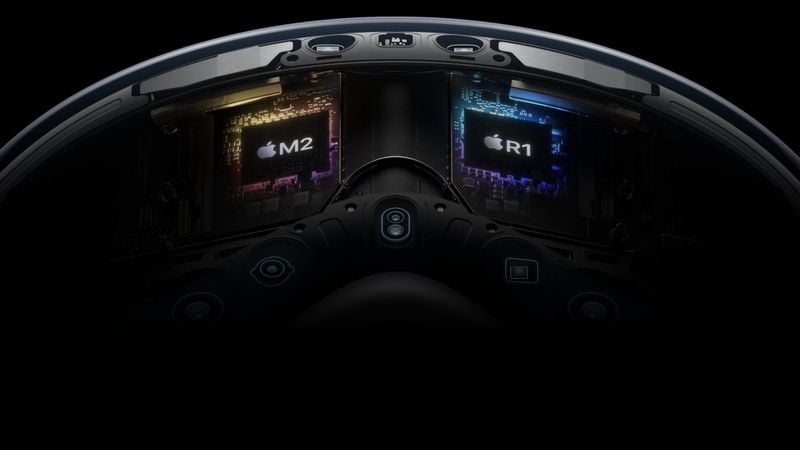
Taiwan's Commercial Times this week reported that Apple's Vision Pro headset will be updated next year with Apple's R2 chip. The report said the chip — along with A20 chips for iPhones, and M6 chips for Macs — will be fabricated with TSMC's latest 2nm process.


The current Apple Vision Pro is equipped with Apple's M2 chip, which serves as the device's main processor, along with an R1 chip for input processing.


Apple's description of the R1 chip:


  • M2 delivers unparalleled standalone performance, while the brand-new R1 chip processes input from 12 cameras, five sensors, and six microphones to ensure that content feels like it is appearing right in front of the user's eyes, in real time. R1 streams new images to the displays within 12 milliseconds — 8x faster than the blink of an eye.


By moving to a 2nm process — the R1 chip is likely 3nm — the R2 chip would have even better performance for input processing.


According to previous rumors, the Apple Vision Pro will be updated as soon as this year, with an M4 chip or M5 chip, a new head strap that improves comfort, and potentially a Space Black color option. This report is the first to mention an R2 chip for a future model, but it is unclear if the 2026 timeframe for that upgrade is accurate.


Source: Macrumors

Windows
Mac OS
iOS
Linux
3uTools
Win 64-bit For this device
V9.0 2025-11-11
Download
Win 32-bit For this device
V9.0 2025-11-11
Download
3uTools
Intel Chip How to Identify Chip Type
V9.0 2025-12-02
Download
Apple Silicon
V9.0 2025-12-02
Download
How to Identify Chip Type
1.  Click the Apple icon in the top-left corner of the screen and select About This Mac.
2.  Check the Processor or Chip field to determine if it is "Intel" or "Apple".
Please use the 3uTools PC client to install the iOS client:
1、 Install either the Windows or Mac version of 3uTools on your computer
2、 Open the PC client and connect your device to the computer via USB cable
3、 After the connection is successful, wait for the computer to automatically install the mobile app for the device, or locate “Install Mobile App” on the computer and manually click to install.
3uTools
deb file
V3.01 2025-11-20
Download
rpm file
V3.01 2025-11-20
Download
Windows
Windows
iOS
iOS
Android
Android
TV
TV
3uAirPlayer
Win 64-bit For this device
V6.0.2 2025-11-19
Download
Win 32-bit For this device
V6.0.2 2025-11-19
Download
iOS Device Mirroring (No App Required)
1、 Install 3uAirPlayer on the Windows PC
2、 Open Control Center and select Screen Mirroring
3、 From the list, choose your PC to start mirroring
4、 Or connect your iOS device to the PC via USB to begin mirroring
Scan to get "3uAirPlayer" App
3uAirPlayer TV V1.0.18
2025-11-28
TV System Requirements: Android 7.0 or later
Download the TV installation package, copy it to a USB drive, insert it into your TV or set-top box, then select the file from the home screen to install.